 PixScript
How to Get a Wistia Transcript (3 Methods)
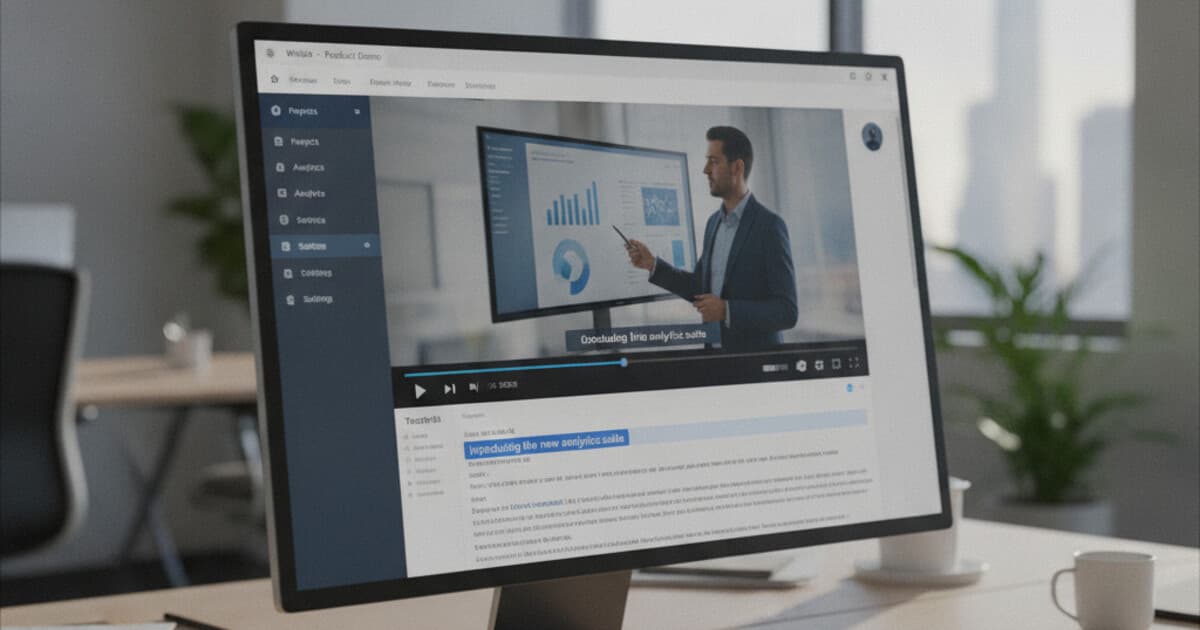
Wistia is where businesses host the videos that matter most. Product demos, onboarding walkthroughs, customer success stories, sales enablement recordings. Most of those videos have a script behind them, which means the spoken content is already organized and worth extracting.
A Wistia transcript turns that locked audio into searchable text. Repurpose it as a blog post, pull quotes for a sales deck, add captions for silent viewing, or build a training doc from a recorded walkthrough. Getting the text out takes a few extra steps since Wistia doesn't generate downloadable transcripts by default.
Here are 3 methods to get a Wistia transcript in 2026, from the most direct to the most flexible.
Wistia doesn't generate text transcripts automatically. Paid Wistia plans (Plus and above) include auto-generated captions you can export as SRT. For a full transcript with timestamps and multiple export formats, upload your source video file to PixScript, or paste the video's YouTube URL into PixScript if you also host it there.
Why Wistia Transcripts Require Extra Steps
Wistia's product is built around hosting, analytics, and lead capture. It tracks who watched, how long they stayed, and where they dropped off. Captions are an add-on feature on paid plans, and the transcript view some plans display is just the captions data presented as a scrollable panel below the player.
Free Wistia accounts can upload SRT files manually but don't get auto-generated captions at all. Plus plan and higher unlock Wistia's AI-powered captions, which you can edit and export. What they don't give you is a single downloadable text file in PDF, TXT, or any format beyond SRT.
Getting a full Wistia transcript with timestamps and flexible export options requires either exporting the captions data from Wistia's editor or running the source video through a dedicated transcription tool. Wistia's auto-caption feature, available on the Plus plan and higher, generates a caption file you can edit in-app and export as SRT. The SRT contains the full spoken text broken into timestamped segments, which works as a raw transcript. For PDF, plain TXT, AI-generated summary, or translation into other languages, Wistia's native export doesn't cover those. PixScript handles Wistia content via file upload: download the original MP4 from Wistia if downloads are enabled on the video, or use your local source file, then upload to PixScript for a timestamped transcript in under 3 minutes. The output includes timestamps, SRT and VTT export, PDF, TXT, and an AI summary in one pass. Business-tier users also get 50+ translation languages and bulk processing of up to 100 files.
Method 1: Export Wistia's Built-In Captions
Wistia includes auto-captions on Plus, Pro, and Advanced plans. If auto-captions have been generated for your video, you can review them in the editor and download the file as SRT without any third-party tool.
Steps:
- Log in to your Wistia account and open the video
- Click the gear icon (Video Settings) below the player
- Go to the Captions tab
- Review and edit the auto-generated captions as needed
- Click Download to save the SRT file
The SRT file contains the full spoken text in timestamped segments. Open it in any text editor to read it as plain prose, or keep it in SRT format to upload as captions elsewhere.
Two limits apply. Auto-generation requires a Plus plan or higher. Free accounts can only upload SRT files manually.
Wistia's export format is SRT only. PDF, plain text, AI summary, and translation all require a separate tool.
For basic use such as checking what was said at a specific timestamp or generating a caption file for another platform, this method covers it. For anything that needs more format flexibility, Method 2 handles the rest.
Method 2: Upload Your Wistia Video to PixScript
PixScript doesn't transcribe Wistia URLs directly, but it accepts MP4 and MP3 file uploads. If you have the original source file for the video, upload it straight to PixScript. If you need to pull from Wistia itself, the platform lets video owners enable downloads in the video settings.
To enable downloads on a Wistia video:
- Open the video in your Wistia account
- Go to Video Settings and open the Download section
- Toggle Allow Download on and choose a resolution
- Download the MP4 to your device
Then transcribe with PixScript:
- Go to pixscript.com and click Upload File
- Select your MP4
- Click Transcribe
- Download when processing finishes (typically 2-3 minutes for a 60-minute file)
PixScript returns a full transcript with timestamps at every speaker turn. On Pro ($9/month) and above you can export as SRT, VTT, PDF, or TXT. The AI summary condenses the full recording into a clean paragraph and key takeaways in about 10 seconds. The AI rewrite tool reorganizes the raw transcript into a structured draft: blog post, show notes, social posts, or a slide script.
Pro supports file uploads up to 30 minutes. Business ($19/month) removes that cap, which covers longer webinars, full-day workshops, and multi-hour conference recordings.
For the same file-upload workflow on another business video platform, the Vimeo transcript guide walks through how PixScript handles Vimeo recordings step by step.
Method 3: Use PixScript via a YouTube URL
Many businesses publish the same video on both Wistia (for their website) and YouTube (for organic reach). If that's your setup, the YouTube URL is the fastest path. Paste it into PixScript and a transcript comes back in under 60 seconds, no file download needed.
Steps:
- Find the video's YouTube URL (public or unlisted, both work)
- Go to pixscript.com and paste the URL into the input field
- Click Transcribe
- Export in your preferred format: TXT on free, SRT/VTT/PDF on Pro
If the video isn't on YouTube yet, you can upload it as an unlisted video first. Processing takes a few minutes, then the URL works in PixScript the same as any other YouTube video. Unlisted means it won't appear in search or on your channel page.
PixScript supports full-length YouTube videos, not just Shorts. For long-form product demos or webinars, the standard YouTube URL route handles any length without file size constraints.
The Loom transcript guide covers a similar setup for Loom screen recordings, where file upload is the primary method when a YouTube URL isn't in the workflow.
What to Do With Your Wistia Transcript
Once you have the text, repurposing opens up fast.
Show notes for demos: A 30-minute product demo transcript runs 3,000-4,500 words. PixScript's AI summary trims that into a structured paragraph and a list of key points in about 10 seconds. Add timestamps for the most useful moments and you have a usable follow-up document for your sales team, or a video description that actually tells viewers what they'll learn.
Blog posts from webinars: The AI rewrite feature takes the raw transcript and reorganizes it into a draft with intro, body, and conclusion. A 45-minute webinar typically generates a 1,200-1,500 word draft. You still edit it, but you're starting from something rather than a blank page.
Captions for silent viewing: Captioned videos retain more viewers on mobile and in office environments where sound isn't an option. Export the transcript as SRT from PixScript, then upload it back to your Wistia player or anywhere else the video lives.
Translation for international audiences: PixScript's translation covers 10 languages on Pro and 50+ on Business. A translated SRT uploaded back to Wistia gives international visitors captioned content in their language without re-recording anything.
Frequently Asked Questions
Does Wistia have a transcript feature?
Wistia generates captions on Plus plans and higher and displays them as a scrollable transcript panel below the video player. You can export these captions as an SRT file. Wistia doesn't offer full transcript export in PDF or TXT format, and there's no AI summary or rewrite tool built in.
How do I download a video from Wistia?
Wistia lets video owners enable downloads per video. In the video settings, open the Download tab and toggle Allow Download on. Viewers can then save the MP4 directly from the player. As the owner, you can also download the original file from the Media Bin in your Wistia dashboard.
Can PixScript transcribe Wistia videos from the URL?
PixScript transcribes YouTube, TikTok, and Instagram Reels via URL. For Wistia videos, download the MP4 and upload it to PixScript as a file instead. You get the same timestamped transcript with SRT, VTT, and PDF export, just through file upload rather than URL paste.
How do I get a transcript from a Wistia video I don't own?
If the owner has enabled downloads, you can save the MP4 from the player and upload it to PixScript. If downloads aren't enabled and you only have the embed URL, contact the video owner for the source file or ask them to export a transcript directly.
What's the best free option for a Wistia transcript?
PixScript's free tier covers 10 transcripts per month with TXT export. Upload the MP4 and you'll get plain text output without any cost. For SRT export, timestamps, and AI tools, Pro is $9/month.
Wistia videos hold more reusable content than most teams ever pull out. PixScript gets you a full transcript in 3 minutes or less: upload the MP4, get timestamped text, export as SRT, VTT, or PDF. The AI summary and rewrite tools convert that transcript into show notes or a blog draft in one more step. The free plan covers 10 transcripts per month at pixscript.com.