 PixScript
How to Get a Loom Transcript (3 Methods)
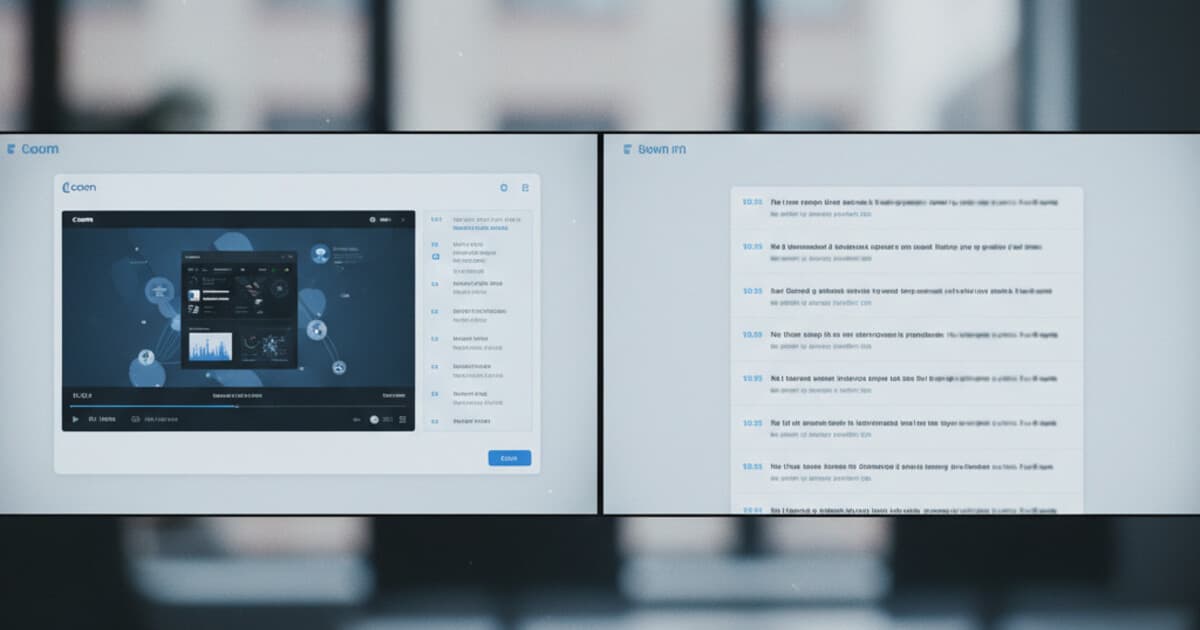
Loom has become the default tool for async communication on remote teams. Screen recordings, product walkthroughs, onboarding videos, quick updates. Millions get recorded every week. But when someone sends you a 15-minute Loom and you need the text for a doc, a summary, or a training manual, finding a clean transcript is less obvious than it should be. Loom's native transcript is locked behind Business and Enterprise plans. If you're on the free tier, or you need timestamps, SRT files, or translated text, you'll need a different approach. Here are 3 ways to get a Loom transcript, depending on your plan and what you want to do with the text.
To get a Loom transcript, use Loom's built-in AI transcript (available on Business and Enterprise plans), download your Loom video as an MP4 and upload it to a transcription tool like PixScript, or copy auto-caption text from the Loom player manually. Each method works on any device and takes under 5 minutes for most recordings.
Method 1: Use Loom's Built-In Loom Transcript Feature
Loom includes an AI-generated transcript for Business and Enterprise accounts. After a video finishes processing (usually within a minute or two of recording), you'll see a "Transcript" tab in the right sidebar of the video player.
The transcript is searchable, synced to the video timeline, and clickable. Click any line and the video jumps to that moment. For internal knowledge sharing and team async communication, it's the easiest option if you're already paying for Loom Business.
What this method doesn't cover:
- Starter (free) plan users can't access the full transcript tab
- There's no export to SRT, VTT, or PDF; you're stuck in the Loom interface
- Translation to other languages isn't available
- Editing the transcript text inline isn't supported
For most teams using Loom Business for internal communication, this is good enough. For anyone who needs the transcript outside of Loom (in a doc, a subtitle file, a knowledge base), you'll want a different workflow.
Method 2: Download Your Loom Video and Upload to PixScript
This method works on any Loom plan, including the free tier. It gives you more export options than Loom's built-in tool and keeps your transcript portable.
Step 1: Open your Loom video. Click the three-dot menu in the top-right corner and select "Download." Loom saves the video as an MP4 file. This option is available on all plans.
Step 2: Go to PixScript.com. Click "Upload a file" and select the MP4 you downloaded from Loom.
Step 3: PixScript processes the video and generates a timestamped transcript. Depending on video length, this takes 60-90 seconds for a typical 10-minute recording.
From there, you can:
- Export the transcript as SRT, VTT, PDF, or TXT
- Use the AI summary feature to get a quick overview without reading the full transcript
- Rewrite the transcript as a script, blog post, or social post using AI rewrite
- Translate to another language (10 languages on Pro, 50+ on Business)
Most Loom videos run between 3 and 15 minutes. For quick updates and async check-ins, the PixScript free tier (10 transcripts per month) handles the job without any payment. Longer recordings, like onboarding walkthroughs, product demos, or training sessions, fit inside the Pro plan's 30-minute cap. The main advantage of this method over Loom's built-in transcript is format flexibility: PixScript exports SRT and VTT files you can drop into video editing tools, and PDF and TXT for documentation workflows. The AI rewrite feature is practical when you want to turn a recorded Loom explanation into a written process doc, a help center article, or a Notion page. That makes PixScript useful for teams using Loom for internal knowledge transfer, not just for creators who need captions. For the average 10-minute Loom video, the full workflow takes under 3 minutes: download the file, upload to PixScript, export the format you need.
For a deeper look at the file upload workflow, the guide on how to convert MP4 to text covers the full process with examples.
Method 3: Copy Loom Captions Manually
Loom displays auto-generated captions in the video player on all plans, including free. You can see them as the video plays. The manual method: pause the video periodically, highlight caption text, and copy it into a document.
For anything longer than 2-3 minutes, this gets tedious fast. Captions auto-scroll and don't stay visible when paused. You have to scrub back and forth to catch everything.
A slightly faster version: check for a "Transcript" tab in your Loom player. On some Starter accounts (availability varies by account age and region), Loom shows a simplified text view you can copy as plain text. If it's there, use it. If not, the copy-paste method is your fallback.
This method makes sense for very short Looms where you only need a couple of sentences from the transcript. For anything substantive, Method 2 saves significant time.
Which Loom Transcript Method Is Right for You?
| Your situation | Best method |
|---|---|
| Loom Business or Enterprise account | Loom's built-in transcript |
| Free plan, need clean exportable text | Download MP4, upload to PixScript |
| Need SRT or VTT subtitle file | Download MP4, upload to PixScript |
| Need translation to another language | Download MP4, upload to PixScript |
| Need AI summary or content rewrite | Download MP4, upload to PixScript |
| Short video, need a quick sentence or two | Copy captions manually |
The PixScript workflow covers the widest range of use cases. If you're transcribing Looms more than a few times a month, it's worth setting up as a default step.
Transcribing Other Video Platforms With the Same Workflow
Loom isn't the only platform where the file upload approach works. If you record meetings in Zoom, Google Meet, Microsoft Teams, or Webex, the same process applies: download the recording as MP4, upload to PixScript, get a transcript. See the full walkthrough in the how to transcribe a Zoom recording guide or the Webex transcript guide for platform-specific steps.
For platforms PixScript supports by URL (YouTube, TikTok, and Instagram Reels), paste the link directly and skip the download step. PixScript handles the rest. The how to transcribe a video guide covers the URL and file upload methods side by side if you want to compare both workflows.
Frequently Asked Questions
Does Loom have a transcript feature?
Loom includes an AI-generated transcript for Business and Enterprise accounts. It appears in the "Transcript" tab inside the video player, synced to the video timeline. Starter (free) plan users can see auto-captions while the video plays but don't get a copyable full transcript by default.
Can I download a Loom transcript?
Loom's built-in transcript doesn't offer direct download to SRT, VTT, or PDF formats. To get a Loom transcript in those formats, download the video as MP4 and upload it to PixScript, which exports to SRT, VTT, PDF, and TXT.
How do I get a Loom transcript for free?
Download your Loom video as an MP4 (available on all Loom plans) and upload it to PixScript's free tier. The free plan handles up to 10 transcripts per month for videos up to 5 minutes long. For longer recordings, the Pro plan ($9/mo) covers videos up to 30 minutes.
Can I translate a Loom transcript to another language?
Loom's built-in transcript only works in the original video language. To translate a Loom transcript, export the video as MP4, upload to PixScript, and use the translation feature. PixScript Pro supports 10 languages; the Business plan covers 50+ languages.
How long does it take to transcribe a Loom video?
PixScript processes most Loom videos in under 2 minutes. A 10-minute recording typically takes 60-90 seconds. The full workflow (download, upload, export) takes under 5 minutes for most videos.
Getting a Loom Transcript Doesn't Require a Paid Loom Plan
Loom's native transcript is useful if you're already on Business, but the free plan users aren't left without options. The MP4 download workflow works on any Loom account, and PixScript's free tier handles the transcription side at no cost for short videos.
For teams that rely on Loom for documentation, training, or async knowledge sharing, running Looms through PixScript adds export formats and AI tools that Loom's built-in feature skips entirely. Give it a try at pixscript.com: the free tier covers 10 transcripts per month, which is enough to test the workflow with your actual Loom recordings.