 PixScript
How to Get a Webex Transcript (3 Methods)
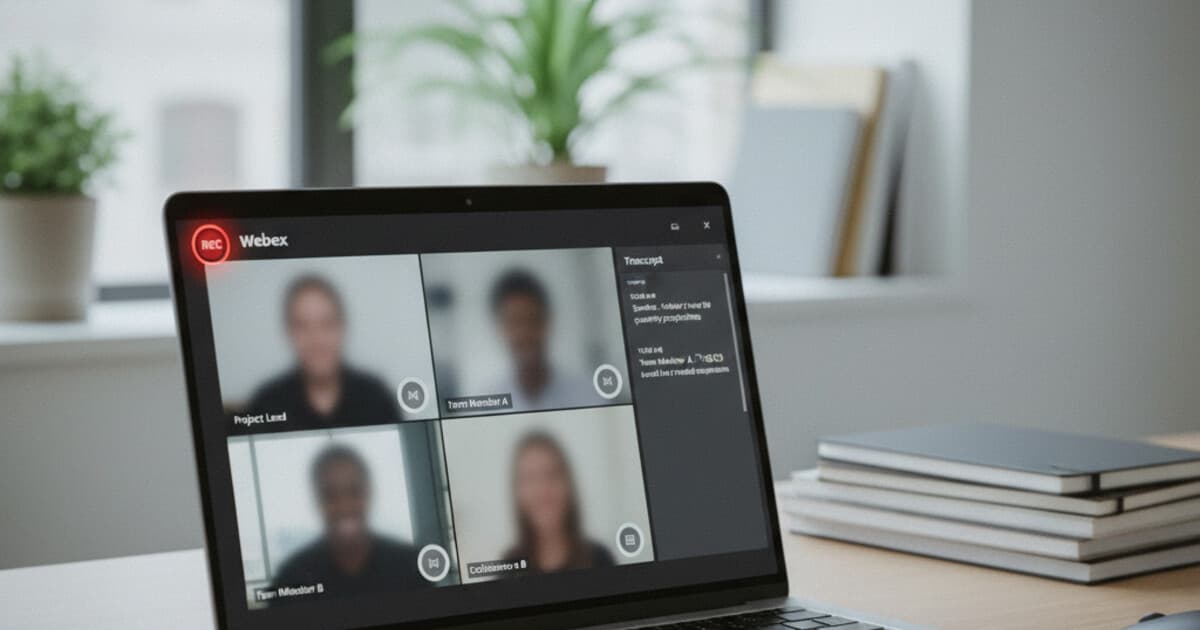
You finish a Webex meeting and five minutes later you can't remember who owned which action item. Someone needs a recap. Another person missed the call entirely. A Webex transcript turns 60 minutes of meeting audio into searchable text you can share, archive, or summarize.
The tricky part: Webex's built-in transcription only works on paid plans with AI features turned on. Free Webex users get recording access but no automatic transcript. And even on paid plans, the export options are limited to TXT and VTT.
This guide covers 3 methods to get a Webex transcript, regardless of your plan.
Webex transcripts come from 3 sources: the platform's built-in AI Assistant (paid plans with AI features enabled), a third-party tool after uploading your recording, or Webex Control Hub for organization admins. The upload method works for any Webex user on any plan, as long as you can download your meeting recording.
Method 1: Use Webex's Built-In Transcription (Paid Plans with AI Features)
Webex includes an AI Assistant that generates transcripts automatically during meetings. You'll need a paid Webex plan (Webex Starter, Business, or Enterprise) and your organization's admin must have AI features enabled in Webex Control Hub.
How it works during a meeting:
- Start or join the Webex meeting as the host or co-host.
- Click the three-dot menu at the bottom of the screen and start the recording.
- Webex AI Assistant activates automatically when recording starts on eligible plans.
- When the meeting ends, Webex processes the recording and generates the transcript.
After the call, go to "Meetings" in the Webex app, open the session, and find both the recording and transcript on the same details page.
Downloading your Webex transcript:
Webex lets you download transcripts from the meeting details page as TXT or VTT. There's no native SRT or PDF export. If you need those formats, or timestamped line-by-line output, the upload method in Method 2 covers them.
Webex AI Assistant uses Cisco's built-in speech recognition, which delivers around 85-90% accuracy for clear English audio with standard accents. The transcript is speaker-attributed based on who's signed into Webex, so external guests or phone-dial-in participants often appear as "Unknown." Transcripts store in the Webex cloud alongside the recording and are accessible from the meeting details view within a few minutes of the call ending. Retention follows your organization's settings, which IT admins configure through Webex Control Hub for Enterprise accounts. The downloadable formats are limited to TXT and VTT. For SRT, PDF, line-level timestamps, or AI-generated summaries, the native export falls short. Free Webex accounts get recording access but no AI Assistant transcript; that feature is gated behind paid plans. Organizations with compliance requirements can export transcripts in bulk through Webex's administrative API, or route them automatically to third-party compliance platforms.
When to use this method: You're on a paid Webex plan, your admin has enabled AI features, and TXT or VTT output is enough.
Method 2: Transcribe Your Webex Recording with PixScript (Any Plan)
This is the most flexible method. It works for free Webex accounts, paid plans where AI Assistant wasn't running, or any time you need SRT, PDF, timestamps, AI summary, or translation that Webex doesn't provide natively.
Webex saves meeting recordings to the cloud when recording is enabled. You download the MP4 file and upload it to PixScript.
How to download your Webex recording:
- Log in to the Webex web app.
- Go to "Recordings" in the left sidebar.
- Find the meeting recording and click the download button to save the MP4.
How to transcribe it with PixScript:
- Go to pixscript.com and open the dashboard.
- Click "Upload file."
- Upload your Webex MP4 (up to 30 minutes on Pro, unlimited on Business).
- Processing takes roughly 1-2 minutes depending on file length.
- Download the finished transcript as SRT, VTT, PDF, or plain TXT.
The free tier handles files up to 5 minutes with 10 transcripts per month. For most Webex meetings, Pro at $9/month covers everything: 30-minute recordings, all export formats, timestamps, AI summary, AI rewrite, and translation into 10 languages.
Why timestamps matter for meeting transcripts:
Raw transcripts without timestamps are hard to navigate. When someone asks what was decided about the budget, you want to jump to that part of the recording without reading through 80 pages of text. PixScript timestamps each line to the corresponding second in the video, so you can scan the transcript and jump straight to relevant moments.
AI summary for long meetings:
The AI summary feature condenses a 45-minute Webex call into a 200-300 word overview of key points. It won't tag action items by owner the way enterprise tools do, but it gives you a fast read of what happened on the call. Pair it with the full transcript when someone needs a specific detail.
Multi-language meetings:
If your Webex calls include participants in different countries, PixScript's translation feature converts the transcript after processing. Pro covers 10 languages; Business covers 50+.
For the same workflow on other platforms, see How to Transcribe a Zoom Recording and How to Get a Microsoft Teams Transcript.
Method 3: Webex Control Hub (For Admins and Compliance Teams)
If you manage a Webex Enterprise deployment, Webex Control Hub gives you access to recordings and transcripts across your organization without relying on individual users to export files themselves.
What Control Hub provides:
- Access to all meeting recordings and transcripts across the organization
- Retention policy controls for how long recordings and transcripts are kept
- Compliance export tools for legal and audit purposes
- User-level reporting on meeting participation
This method only works for IT admins or compliance officers. Regular users can't access Control Hub unless they've been granted admin privileges.
For end users on Enterprise plans:
Your IT admin may have already configured automatic transcript routing to Slack, Confluence, or a shared document system through the Webex App Hub. If transcripts aren't showing up after your meetings, check with IT about whether AI features are enabled for your account before assuming the option doesn't exist.
How PixScript Handles Webex Recordings
PixScript accepts MP3 and MP4 uploads, which covers Webex's standard recording format. The workflow is the same regardless of where the recording came from: upload the file, get a timestamped transcript, download in your preferred format.
Organizing multiple meeting transcripts:
The folder system in PixScript lets you sort transcripts by team, project, or meeting series. If you run weekly Webex standups or monthly planning calls, keeping those transcripts organized and searchable matters more over time than it does for a one-off meeting. The transcript history is searchable, so you can pull up what was said about a specific topic across dozens of past recordings.
AI rewrite for meeting notes:
The AI rewrite feature takes the raw transcript further. It converts the output into formatted notes, a follow-up email draft, or a written recap in a different tone. For recurring meetings where you need to send a summary to people who weren't on the call, this saves the manual copy-paste-format process entirely.
For a similar workflow applied to recorded presentations, see How to Transcribe a Webinar.
Frequently Asked Questions
Does Webex automatically transcribe meetings?
Webex automatically transcribes meetings on paid plans (Starter, Business, Enterprise) where AI features have been enabled in Webex Control Hub. Free Webex accounts can record meetings but don't get automatic transcripts. If you're on a free plan, download the recording as an MP4 and upload it to PixScript to get a transcript without upgrading.
Where do Webex transcripts get saved?
For paid Webex accounts with AI features enabled, transcripts save alongside the recording in the meeting details page inside the Webex app. For free accounts, only the recording saves to the cloud. Transcripts generated through PixScript save to your PixScript history, organized by date and searchable.
Can I get a Webex transcript without downloading the recording?
Yes, if you're on a paid Webex plan with AI features enabled. Webex generates the transcript from the cloud recording without any file download on your end. If you're on a free plan or AI features aren't active on your account, you'll need to download the recording and use Method 2.
How accurate is Webex's built-in transcription?
Webex AI transcription hits around 85-90% accuracy for clear English audio with one or two speakers. Accuracy drops with background noise, crosstalk, heavy accents, or industry-specific terminology. A quick scan after the meeting to fix product names and proper nouns takes about 5 minutes for a 30-minute call.
What export formats does Webex support for transcripts?
Webex exports transcripts as TXT and VTT natively. If you need SRT, PDF, or other formats, download the recording and run it through PixScript, which supports SRT, VTT, PDF, TXT, and on Business tier: Excel, JSON, and Markdown.
Wrapping Up
Whether you're on a free Webex account or an Enterprise license, there's a path to a usable transcript. Paid users with AI features enabled can grab it straight from the meeting details page. Everyone else can download the recording and run it through PixScript in a couple of minutes.
If you're transcribing Webex meetings regularly and want timestamps, SRT export, and AI summaries, try PixScript free at pixscript.com. The free tier covers 10 transcripts per month, and Pro handles everything beyond that for $9/month.