 PixScript
How to Get a Vimeo Transcript (3 Methods)
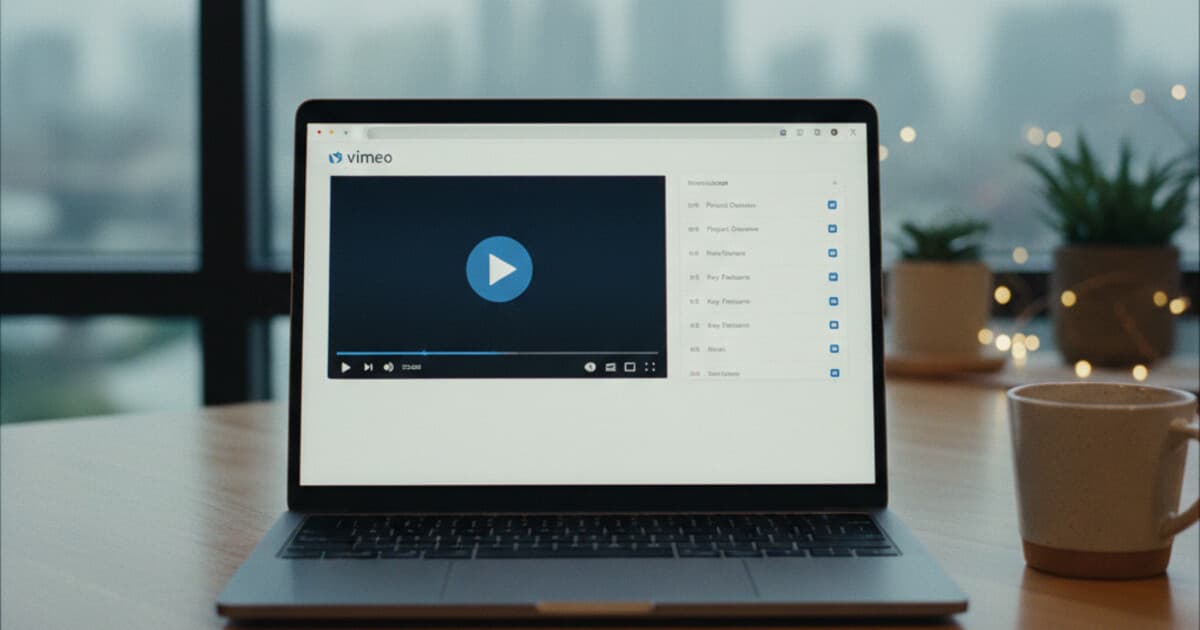
Vimeo doesn't surface transcript access upfront. You can scroll through video settings for a few minutes without finding it, or click through a video player and see nothing useful below it. Meanwhile, someone else watching the same video clicks "Transcript" right under the player without thinking twice.
The 3 paths to a Vimeo transcript depend on whether you own the video and which plan you're on. This guide covers all of them, including a method that works regardless of ownership or Vimeo plan.
To get a Vimeo transcript, owners on paid Vimeo plans can download one from the video's Languages settings. Viewers can use the Transcript button below the player if the owner enabled it. For any video, download the MP4 and upload it to PixScript to get a full transcript with SRT or VTT export and timestamps.
Method 1: Vimeo's Built-In Transcript Feature (Video Owners)
If you own the video and you're on a paid Vimeo plan, transcripts are built in. Vimeo generates them automatically using AI speech recognition after upload, and you can view, edit, and download them from the video's settings.
How to find and download your Vimeo transcript:
- Log in to your Vimeo account and open your video library.
- Select the video you want a transcript for.
- Go to "Languages" in the left-hand navigation of the video settings.
- Click the three-dot overflow menu (⋮) next to the transcript entry.
- Select "Download" to save the file.
Vimeo exports transcripts as TXT files from this panel. If you need SRT, VTT, or PDF formats, you'll want a third-party tool (Method 2 below handles that).
Vimeo's built-in transcription uses AI speech recognition to process videos on paid Creator and Professional plans, which replaced the legacy Plus, Pro, and Business tiers after Vimeo's early-2026 pricing overhaul. The current Creator plan runs $10/month; Professional is $70/month. Accuracy typically lands between 85-90% for clear audio with standard accents. The transcript appears in the Languages section of each video's settings page after processing finishes, usually within a few minutes of upload. Owners can view, edit, and download it as a TXT file, or enable it as a caption track visible to viewers. The viewer-facing transcript panel syncs with playback, so viewers can click any phrase to jump to that exact moment in the video. Export is limited to TXT from the native settings panel; converting to SRT, VTT, or PDF requires a third-party tool. Free Vimeo accounts don't include auto-transcription at all.
Which Vimeo plans include transcripts:
Both the Creator ($10/month) and Professional ($70/month) tiers include transcript generation. If you're on a legacy plan, Vimeo migrates you to the new tiers at renewal, and transcripts carry over. Free accounts can upload videos but don't get auto-transcripts.
When to use this method: You own the video, you're on a paid Vimeo plan, and downloading as TXT is enough.
Method 2: Transcribe a Vimeo Video with PixScript (Any Plan, Any Video)
This method works for everyone: free Vimeo accounts, paid accounts that need more export formats, and anyone trying to transcribe a video they didn't upload. You download the Vimeo video as an MP4 and upload it to PixScript.
Step 1: Download the Vimeo video
For videos you own: Log in to Vimeo, open the video, click the three-dot menu, and select "Download." Vimeo lets owners download their own files in HD.
For videos you don't own: The owner controls download permissions. If downloads are enabled, you'll see a download option directly on the video page. If that option isn't there, the owner has disabled it.
Step 2: Upload to PixScript
- Go to pixscript.com and open the dashboard.
- Click "Upload file."
- Select the Vimeo MP4 from your device.
- PixScript processes the file. Most videos finish in 1-2 minutes.
- Download the transcript as SRT, VTT, PDF, or plain TXT.
The free PixScript tier handles files up to 5 minutes with 10 transcripts per month. For longer Vimeo videos, Pro at $9/month covers files up to 30 minutes with all export formats and timestamps. Business at $19/month handles unlimited length.
Why timestamps matter:
A raw transcript without timestamps is hard to navigate in a long video. If you're looking for the section where someone explained a specific workflow, you want to jump there, not scroll through 60 pages of text. PixScript timestamps each line to the corresponding second in the file, so you can scan the transcript and click straight to the relevant moment.
AI summary and rewrite:
After transcription, PixScript generates an AI summary of the video content. For longer Vimeo presentations or training recordings, the summary condenses key points into 200-300 words. The AI rewrite feature goes further, converting the transcript into a blog post draft, a script, or an email summary.
For a similar workflow on other recorded video platforms, see How to Get a Loom Transcript and How to Get a Webex Transcript.
Method 3: View the Transcript While Watching (Viewers)
If you're watching a Vimeo video you don't own, look below the player. Vimeo shows a "Transcript" button on any video where the owner has enabled captions or transcripts.
How it works:
- Start playing the video on vimeo.com.
- Look for the "Transcript" button below the video player.
- Click it to open a side panel with the full text.
- Words highlight as the video plays. Click any phrase to jump to that timestamp.
This is a read-along feature, not a download option. There's no export button in the panel. If you need a copy of the transcript to work with offline, you can copy the text manually from the panel, or use Method 2 to generate a downloadable version from the video file.
When the Transcript button doesn't appear:
The owner may not have enabled captions for that video. It's also possible the video was recently uploaded and processing hasn't finished. Videos on Vimeo's free plan won't have transcripts unless the owner added one manually, since auto-transcription is gated behind paid plans.
If the button isn't there, Method 2 still works as long as the video is downloadable. If the owner has disabled both transcripts and downloads, there's no clean path to a transcript from that specific source.
How PixScript Handles Vimeo Videos
PixScript accepts any MP3 or MP4 file, so it works with any Vimeo video you can download. The transcription quality and output options are the same regardless of where the source file came from.
Export formats:
- Free tier: TXT only
- Pro tier: SRT, VTT, PDF, TXT (all with timestamps)
- Business tier: adds Excel, JSON, and Markdown export
If you're using the Vimeo transcript for captioning purposes, PixScript's SRT and VTT output can be uploaded directly as a caption track back to Vimeo, YouTube, or any platform that accepts subtitle files.
Translation:
PixScript translates finished transcripts into 10 languages on Pro and 50+ languages on Business. If you have Vimeo content for audiences in different countries, you can get the English transcript, then generate translated versions from the same upload without re-processing.
Organizing transcripts:
The folders feature in PixScript lets you sort transcripts by project, client, or video series. If you're working through a library of Vimeo training videos or recorded webinars, keeping transcripts sorted and searchable saves time as the collection grows. The transcript history is searchable by keyword, so you can pull specific quotes across dozens of past videos.
Frequently Asked Questions
Can I get a transcript from a Vimeo video I don't own?
Yes, with some limitations. If the video owner has enabled the Transcript button, you can view and copy the text while watching. For a downloadable version, you'll need the MP4 file. If the owner has enabled downloads, grab the file and upload it to PixScript. If downloads are disabled, there's no way to get the transcript from that video.
Does Vimeo automatically generate transcripts?
Vimeo auto-generates transcripts on paid plans (Creator at $10/month and Professional at $70/month). After you upload a video, Vimeo processes the audio using AI speech recognition and makes the transcript available in the Languages section of your video settings within a few minutes. Free Vimeo accounts don't include auto-transcription.
What format does Vimeo export transcripts in?
Vimeo's native export is TXT only. If you need SRT, VTT, PDF, or other formats, download your Vimeo video as an MP4 and upload it to PixScript. Pro tier exports include SRT, VTT, PDF, and TXT with timestamps. Business tier adds Excel, JSON, and Markdown.
Can I translate a Vimeo transcript?
Yes, through PixScript. After uploading your Vimeo video and generating a transcript, the translation feature converts it to another language. Pro covers 10 languages; Business covers 50+. Vimeo doesn't have a built-in transcript translation feature.
How do I add captions back to Vimeo after transcribing?
Upload an SRT or VTT file to your video's Languages settings in Vimeo. Go to the video, open Languages, and upload the subtitle file. Vimeo accepts standard SRT and VTT formats. PixScript's Pro tier exports in both, so the workflow is: upload MP4 to PixScript, download SRT, upload SRT to Vimeo.
Getting Your Vimeo Transcript
For Vimeo video owners on paid plans, the Languages settings panel is the fastest path. For everyone else, the download-and-upload workflow through PixScript covers any video with more export options than Vimeo provides natively.
If you need SRT, VTT, PDF, timestamps, AI summary, or translation from your Vimeo videos, try PixScript free at pixscript.com. The free tier handles up to 10 transcripts per month, and Pro unlocks everything beyond that for $9/month.