 PixScript
How to Get a Podserve Transcript (3 Methods)
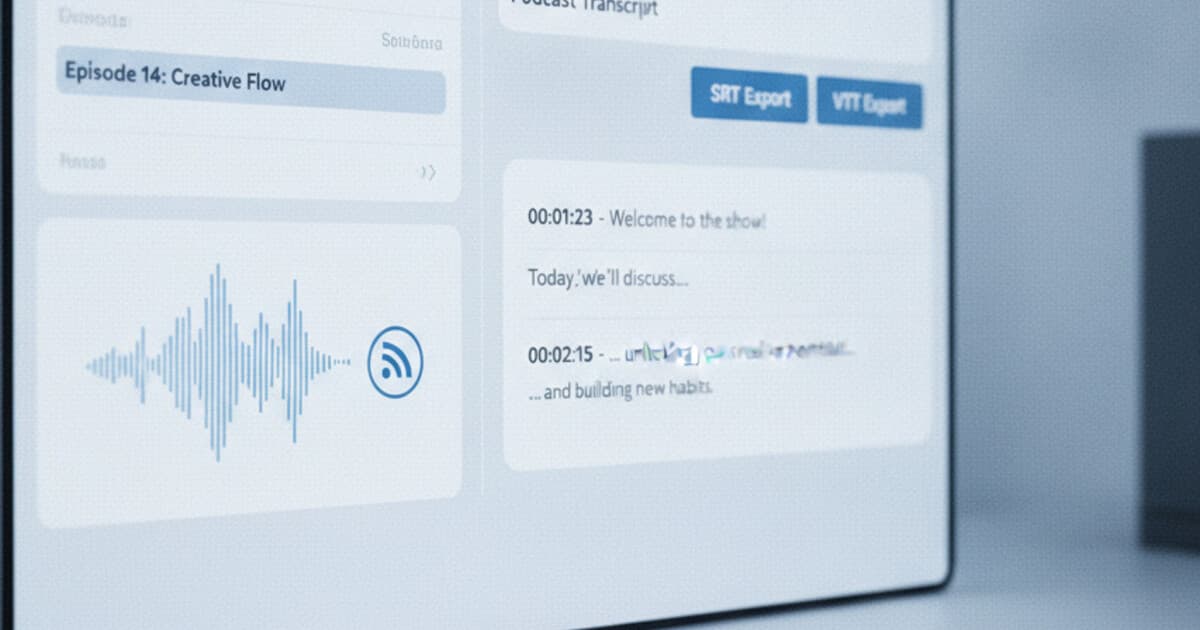
Podserve handles the hosting, RSS distribution, and episode management side of podcasting. What it doesn't do is generate transcripts. If you've recorded and published an episode through Podserve and need the text, the process starts with downloading your audio file from the Podserve dashboard. From there, you have a few options depending on whether you're the show host or a listener, and what format you need. Show notes and blog posts need plain text. YouTube uploads need SRT. Web embeds need VTT. Accessibility compliance might need all three. This guide covers 3 methods to get a Podserve transcript in 2026, along with which format works best for each use case.
Podserve doesn't include automatic transcription. To get a Podserve transcript, download your episode audio as an MP3 from the Podserve dashboard, then upload it to PixScript at pixscript.com. PixScript returns a timestamped transcript in about 2 minutes. You can export the result as SRT, VTT, PDF, or plain text depending on what you need.
Does Podserve Have Built-In Transcription?
No. Podserve is a podcast hosting and distribution platform focused on RSS management, episode storage, and directory distribution. Transcription isn't part of its feature set.
Podcast transcripts have become a standard part of episode publishing for a few reasons. Accessibility regulations in several countries now require captioned audio for publicly distributed content. Transcript text gets indexed by search engines, adding keyword-rich content that audio alone can't provide. Show notes with full episode text consistently outperform episode descriptions alone for listener retention and organic discovery. The Podcast Index introduced the podcast:transcript namespace in 2021, letting hosts link external transcript files directly to their RSS feed so apps like Apple Podcasts and Pocket Casts can surface them automatically in the player. Podserve, like most podcast hosting platforms at this tier, doesn't generate transcripts natively. Hosts who want transcripts need to use a dedicated transcription tool, then manually link the resulting file to their RSS feed. PixScript handles this workflow for Podserve users: upload your MP3, get back timestamped text, SRT, VTT, and PDF exports from a single pass.
For most Podserve hosts, the fastest path is downloading the episode audio and running it through PixScript. The steps take about 5 minutes, and the output covers every format you'll need.
Method 1: Download Audio From Podserve and Use PixScript
This method works for any Podserve user regardless of plan, and it gives you the most format options.
Step 1: Download the episode from Podserve.
Log into your Podserve dashboard and open the episode you want to transcribe. Find the audio file associated with the episode. Podserve stores the original file you uploaded, so you can download it as an MP3 directly from the episode management view. Save it to your computer.
If you uploaded a WAV file originally, download that instead and convert it to MP3 before uploading to PixScript. Most audio editors (Audacity, GarageBand) can export to MP3 in one step. Alternatively, Podserve may serve an MP3 version even if you uploaded in a different format, since most hosts transcode on ingest.
Step 2: Upload to PixScript.
Go to pixscript.com and select the file upload option. Choose the MP3 file you downloaded from Podserve. PixScript accepts MP3 and MP4 files up to the length limit for your plan.
Plan limits:
- Free: Files up to 5 minutes, TXT export only
- Pro ($9/month): Files up to 30 minutes, SRT/VTT/PDF/TXT, timestamps, AI summary, AI rewrite, translation into 10 languages
- Business ($19/month): Unlimited file length, 50+ translation languages, priority processing, bulk uploads up to 100 files
For a full podcast episode (30 to 60 minutes), the Pro plan handles most shows. If your episodes run longer than 30 minutes, Business handles unlimited length.
Step 3: Get your transcript and export.
PixScript processes the file and returns a timestamped transcript in about 2 minutes for a 30-minute recording. From the results page, you can:
- Download as SRT to upload captions to YouTube when you cross-post the episode as video
- Download as VTT for embedding in a web video player on your website
- Download as PDF for a formatted document to share with guests or a production team
- Download as TXT for pasting directly into your show notes CMS
- Use AI summary to generate an episode overview for your newsletter or episode description
- Use AI rewrite to turn the transcript into a full blog post draft
For a broader look at tools that handle MP3 and MP4 uploads, see the guide to the best audio to text converters in 2026.
Best for: Podserve hosts who need transcript text, subtitle files, or repurposed content from their episodes.
Method 2: Check Your Podcast App for Published Transcripts
If you're a listener rather than the host, a transcript might already be available in your podcast app without any downloading required.
Podserve distributes episodes to Apple Podcasts, Spotify, Google Podcasts, Overcast, Pocket Casts, and other directories through standard RSS. If the show's host has generated a transcript and linked it to the RSS feed using the podcast:transcript namespace tag from the Podcast Index standard, supported apps will surface it in the player automatically.
In Apple Podcasts: Open the episode in the player and look for a transcript icon (the speech bubble symbol) in the player controls. If it appears, the creator has uploaded a transcript file and Apple Podcasts is displaying it. Tap to open and scroll through.
In Overcast: The transcript option appears for episodes where the RSS feed includes a podcast:transcript tag pointing to an external file. Open the episode and check for a text view in the player interface.
In Pocket Casts: Similar to Overcast. Look for a text option in the episode detail view. It only appears when the feed includes transcript metadata.
This method only works when the show's host has deliberately created and linked a transcript to their feed. Many shows distributed through Podserve haven't done this yet. If the transcript icon doesn't appear in your app, fall back to Method 1 (if you're the host) or ask the creator directly.
Best for: Listeners following a published show who want quick text access without downloading files.
Method 3: Transcribe the YouTube Version If the Episode Is Cross-Posted
Many podcasters publish a video version of their episodes to YouTube alongside their Podserve RSS feed. If the show you want to transcribe has a YouTube channel, PixScript can pull the transcript directly from the YouTube URL without any file downloading.
Step 1: Find the YouTube episode.
Search for the podcast name on YouTube or check the show's social profiles for a YouTube channel link. Most video podcasts upload the full episode recording, often with a static image or a video of the recording session.
Step 2: Copy the YouTube URL and paste it into PixScript.
Go to pixscript.com, paste the YouTube video URL, and start the transcription. PixScript supports full-length YouTube videos and returns a timestamped transcript in 1 to 2 minutes.
Step 3: Export in the format you need.
The output options are the same as Method 1: SRT, VTT, PDF, TXT, AI summary, and AI rewrite. If you're the host and you want to upload captions to YouTube, this path gets you the SRT file directly from your own video URL without manually downloading anything first.
For a similar example of how this workflow applies to another remote recording platform, see the Zencastr transcript guide.
Best for: Hosts who already cross-post to YouTube and want to skip the manual download step. Also useful for listeners who want a transcript of an episode that hasn't been uploaded to Podserve's RSS feed yet but is already live on YouTube.
Which Method Should You Use?
Here's a quick decision guide:
- You're the host and need plain text for show notes: Method 1 (download MP3, upload to PixScript, export TXT)
- You need SRT or VTT subtitles for YouTube: Method 1 or Method 3 (both give SRT/VTT export)
- You need to translate the episode into another language: Method 1 (PixScript handles 10 to 50+ languages on Pro and Business)
- You're a listener and the show is in your podcast app: Method 2 (check for podcast:transcript support)
- The episode is on YouTube: Method 3 (paste URL into PixScript, no file download needed)
- You need an AI summary or want to turn the episode into a blog post: Method 1 or Method 3 (PixScript AI rewrite works on both)
The biggest difference between Method 1 and Method 3 is the download step. Method 3 is faster if a YouTube version exists: paste the URL, get the transcript, done. Method 1 is more reliable if the YouTube version isn't available or if the video quality on YouTube is lower than your original recording. For export formats and AI features, both paths produce the same result.
Podserve's strength is distribution. You publish once and reach every major directory. The transcript side of the workflow lives outside that ecosystem, but it takes about 5 minutes with PixScript and produces files you can use across every platform your show is on.
Frequently Asked Questions
Does Podserve have a transcript feature?
Podserve doesn't include built-in AI transcription. To get a transcript from a Podserve episode, download the audio file from your episode dashboard and upload it to PixScript. PixScript processes MP3 and MP4 files and returns a timestamped transcript with SRT, VTT, PDF, and TXT export options. The free tier handles files up to 5 minutes at no cost.
How do I download audio from Podserve?
Log into your Podserve dashboard and navigate to the episode you want. Find the episode in your show's episode list and look for the file or download option on the episode management page. Download the MP3 file to your computer, then upload it to PixScript for transcription.
Can PixScript transcribe Podserve podcasts?
Yes. Download your Podserve episode as an MP3, then upload it to PixScript at pixscript.com. PixScript accepts MP3 and MP4 files and returns a transcript with timestamps in about 2 minutes for a 30-minute episode. Export options include SRT for YouTube captions, VTT for web players, PDF, and plain text for show notes.
How do I get SRT subtitles from a Podserve episode?
Podserve doesn't generate SRT files. To create SRT subtitles from a Podserve episode, download the audio as MP3, upload it to PixScript, and select the SRT export once the transcript is ready. You'll get a properly formatted SRT file you can upload to YouTube, embed in a web player, or send to a video editor.
Does Podserve support podcast transcripts in Apple Podcasts?
If the show host has generated a transcript and linked it to the RSS feed using the podcast:transcript namespace tag, Apple Podcasts will display it automatically. Open the episode and look for the transcript icon in the player. If the creator hasn't configured this, the option won't appear. Most Podserve shows haven't set this up yet.
If you host on Podserve and need transcripts with subtitle export, translation, and AI-generated show notes, PixScript handles the full workflow from the same MP3 you'd download from your episode dashboard.