 PixScript
How to Get a Zencastr Transcript (3 Methods)
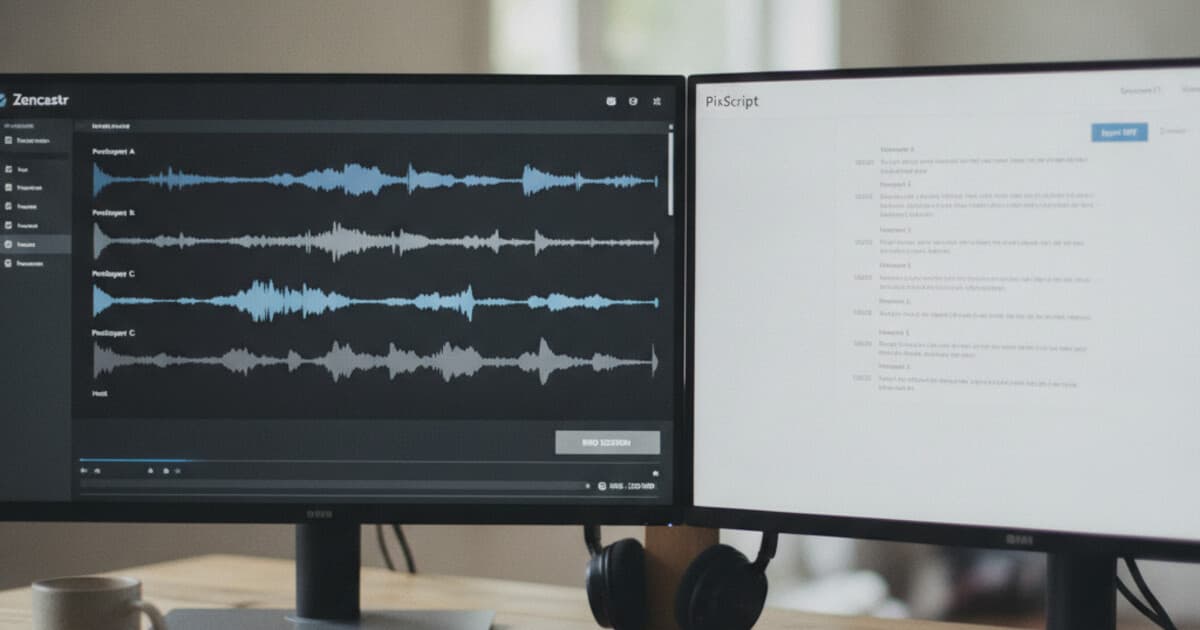
Zencastr is one of the most popular remote podcast recording tools. It records each participant's audio locally at high quality, then uploads the tracks to a shared dashboard after the session. If you've recorded an episode on Zencastr and need a transcript, the options depend on which plan you're on and what format you need. Show notes, YouTube captions, accessibility compliance, and multilingual publishing all need different things: plain text, SRT, VTT, or a translated version. This guide covers 3 methods to get a Zencastr transcript in 2026.
Zencastr includes automatic AI transcription on paid plans, available from your session dashboard once recording files finish uploading. For SRT or VTT export, translation into other languages, or timestamped text you can edit before publishing, download your Zencastr audio as an MP3 and upload it to PixScript, which processes a 30-minute recording in about 2 minutes.
Does Zencastr Have Built-In Transcription?
Yes, for paid plan users.
Zencastr is a remote podcast recording platform that captures each participant's audio locally, eliminating the compression and lag issues that come from recording both sides over a single stream. When a session ends, participants' audio files upload to the Zencastr dashboard, where the host can access, mix, and download the raw tracks. Zencastr added automatic AI transcription for paid plan subscribers: once a recording is processed, a text transcript appears in the session view alongside the audio files. The transcript is searchable and can be downloaded as a text file for use in show notes or episode descriptions. However, Zencastr's built-in transcription doesn't generate SRT or VTT subtitle files, and the platform doesn't offer translation or timestamps you can adjust before export. For creators who need to cross-post episode video to YouTube with captions, translate episodes for multilingual audiences, or publish accessibility-compliant subtitle files, Zencastr's native transcription is a starting point but not a complete solution.
If you're on Zencastr's free plan, automatic transcription isn't included. You'll need to download your recording and run it through a separate tool.
Method 1: Use Zencastr's Built-In Transcription
The fastest path if you're already on a paid plan.
Step 1: Finish your recording session.
After all participants end the session, Zencastr uploads each person's local audio track to the dashboard. This can take a few minutes for longer recordings or slower upload connections. You'll see a progress indicator in the session view while processing runs.
Step 2: Open the session and find the transcript.
Once processing completes, navigate to the session in your Zencastr dashboard. The AI transcription appears alongside the audio tracks. You can scroll through it, use the search function to find specific segments, or click timestamps to jump to a point in the recording.
Step 3: Download or copy the transcript.
Zencastr lets you download the transcript as a text file. For show notes or episode summaries this works well. Copy it directly into your CMS or notes app, or download the file and share it with an editor.
Limitations to know:
- Paid plans only
- No SRT or VTT export
- No translation to other languages
- Speaker labels may need manual cleanup depending on recording quality
- Timestamps visible in the dashboard but not adjustable before export
If you need the transcript in a subtitle format or want to translate it, Method 2 gives you more control.
Method 2: Download Your Audio and Transcribe With PixScript
This method works whether you're on the free plan or a paid plan, and it's the better path if you need SRT files, translation, or an AI-generated summary.
Step 1: Download the audio from Zencastr.
Open your Zencastr session dashboard and find the recording. You can download:
- Individual speaker tracks: Each participant's audio as a separate WAV or MP3 file
- Mixed track: A combined version if you've used Zencastr's built-in editor
For transcription, download the mixed track or the host's track for a full-session transcript. If you only need to transcribe one speaker, use their individual track.
Step 2: Upload to PixScript.
Go to pixscript.com and choose the file upload option. Select the Zencastr audio file you downloaded. PixScript accepts MP3 and MP4 files.
Plan limits:
- Free: Up to 5 minutes, TXT export only
- Pro ($9/month): Up to 30 minutes, SRT/VTT/PDF/TXT, timestamps, AI summary, AI rewrite, translation into 10 languages
- Business ($19/month): Unlimited length, 50+ translation languages, priority processing, bulk uploads
Step 3: Get your transcript.
PixScript processes the file and returns a timestamped transcript in 2 to 3 minutes for a 30-minute recording. From there you can:
- Download as SRT to upload captions to YouTube when you cross-post your episode
- Download as VTT for web-embedded video players
- Download as PDF for a formatted document to share with guests
- Use AI summary to generate a quick episode overview for your newsletter
- Use AI rewrite to turn the transcript into a blog post or polished show notes draft
For a broader look at tools that handle audio file uploads, see the guide to the best audio to text converters in 2026.
Best for: Any Zencastr user who needs subtitle files, translation, or structured show notes rather than raw text output.
Method 3: Check Your Podcast App for Episode Transcripts
If you're a listener rather than the host, and the show has already been published to podcast directories, a transcript might already be waiting in your podcast app.
Zencastr offers podcast hosting as part of its platform, and shows hosted there can distribute to Apple Podcasts, Spotify, Overcast, Pocket Casts, and other directories. If the show's creator has generated a transcript and linked it to their episode feed using the podcast:transcript tag from the Podcast Index standard, supported apps will surface it automatically.
In Apple Podcasts: Open the episode and look for a transcript icon (the speech bubble symbol) in the player controls. If it appears, the creator has uploaded a transcript file and Apple Podcasts is showing it. Tap to open and read.
In Overcast: The transcript option appears for episodes where the RSS feed includes a podcast:transcript tag pointing to an external file. Open the episode and check for a text view in the player.
In Pocket Casts: Similar behavior to Overcast. Look for a text option in the episode detail view.
This only works when the show's host has deliberately created and linked a transcript to their feed. Many shows haven't done this yet. If the transcript icon doesn't appear, fall back to Method 2.
For a comparison with a similar remote recording platform, see the Riverside transcript guide.
Best for: Listeners who follow a published podcast through a supporting app and want quick read access without downloading files.
Which Zencastr Transcript Method Should You Use?
Here's a quick decision guide:
- On a paid Zencastr plan, need plain text for show notes: Method 1 (built-in transcription)
- Need SRT or VTT subtitles for YouTube or your website: Method 2 (PixScript upload)
- Need to translate your episode into another language: Method 2 (PixScript handles 10 to 50+ languages)
- On Zencastr's free plan: Method 2 (PixScript free tier for clips up to 5 minutes; Pro for full episodes)
- You're a listener and the show is published in directories: Method 3 (check your podcast app first)
- Need an AI summary or want to repurpose the episode as a blog post: Method 2 (PixScript AI rewrite)
The biggest gap in Zencastr's native transcription is format: it gives you text, but not subtitle files. If you're cross-posting your episode to YouTube as a video, or embedding it on your website with closed captions for accessibility compliance, you need SRT or VTT. That means stepping outside Zencastr for that part of the workflow. The PixScript path adds about 5 minutes to post-production: download the audio, upload to PixScript, wait for processing, download the SRT. For most shows publishing weekly, that's a manageable trade-off for a properly captioned episode.
Zencastr's local recording model does give you one advantage the SoundCloud or streaming-platform workflows don't: you already have the audio file downloaded as part of your normal process. There's no digging through RSS feeds or relying on creator-enabled downloads. The file is already yours.
Frequently Asked Questions
Does Zencastr have a transcript feature?
Zencastr includes automatic AI transcription on paid plans. After a recording session ends and files finish uploading, a text transcript appears in the session dashboard alongside your audio tracks. You can read and download the transcript from there. The free plan doesn't include transcription, so free users need to export their audio and use a third-party tool like PixScript.
Can I get a free Zencastr transcript?
Zencastr's transcription is limited to paid plan subscribers. If you're on the free plan, export your recording as an MP3 and upload it to PixScript. PixScript's free tier transcribes files up to 5 minutes at no cost, with a TXT export included. For full-length episodes, the Pro plan at $9/month handles recordings up to 30 minutes with SRT, VTT, PDF, and TXT export.
How do I download audio from Zencastr?
Open your Zencastr recording dashboard and find the session you want. Each participant's audio track appears as a separate file. You can download individual speaker tracks as WAV or MP3, or download a mixed version if you've used Zencastr's built-in editor. The download option appears in the session view next to each track.
Can PixScript transcribe Zencastr recordings?
Yes. Download your Zencastr recording as an MP3 file, then upload it to PixScript at pixscript.com. PixScript supports MP3 and MP4 file uploads and returns a transcript with timestamps in 2 to 3 minutes for a 30-minute file. You can export as SRT or VTT for captions, or translate the transcript into 10 or 50+ languages depending on your plan.
How do I get SRT subtitles from a Zencastr recording?
Zencastr doesn't generate SRT files natively. To get SRT subtitles from a Zencastr recording, download the audio as MP3, upload it to PixScript, and select the SRT download option when the transcript is ready. This gives you a properly formatted SRT file you can upload to YouTube, embed in a web video player, or send to an editor.
If you record on Zencastr and need transcripts with subtitle export, translation, and timestamps, PixScript handles all of it from the same MP3 you'd download from your session dashboard.