 PixScript
How to Take Notes from a Video (4 Methods)
How to Take Notes from a Video (4 Methods)
Taking notes from a video sounds straightforward until you're pausing every 20 seconds, losing your place, and staring at fragmented sentences that make no sense two days later. Most instructors speak at 130-150 words per minute. The average person types at 40-60 wpm. That 3x gap means you'll miss a lot if you try to keep up in real time, especially through a 45-minute lecture or a dense technical tutorial. The good news is there are a few different systems, and most people do better once they settle on the one that fits how they learn.
This guide covers 4 methods to take notes from a video, from low-tech to fully automated, with notes on when each one is worth using.
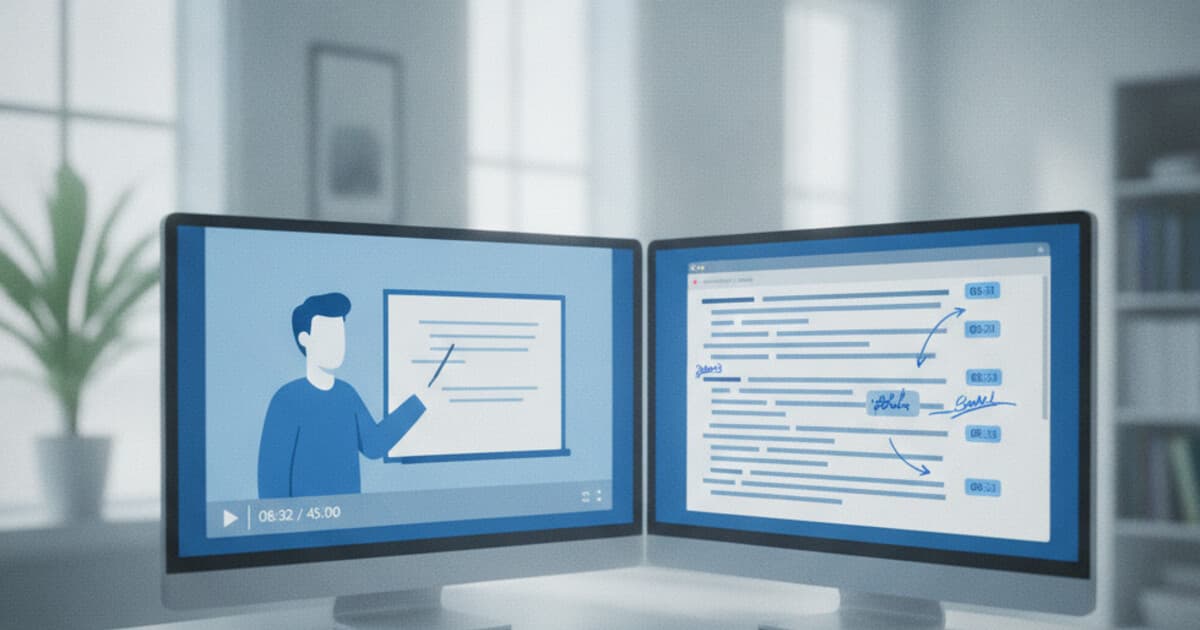
To take notes from a video, transcribe it first and annotate the resulting text. A tool like PixScript converts any YouTube video, uploaded recording, or podcast file to searchable text in under two minutes. From there, highlight key points, cut filler, and reorganize without rewatching. For a faster pass, run the transcript through an AI summary.
Method 1: Pause and Type During Playback
The standard method: watch a chunk, pause, write what you remember, continue.
It works, but it's slow. You're constantly fighting the gap between how fast the speaker talks and how fast your fingers move. A few habits close that gap:
- Use shorthand aggressively. Drop vowels, use symbols ("=" for "equals," "w/" for "with"), and abbreviate any term you'll recognize later.
- Jot timestamps instead of full sentences. Write "14:30: key formula for X" rather than copying the formula word for word. You can rewind to confirm.
- Split your screen. Video on one side, notes doc on the other. Cuts the lag between watching and writing.
Pause-and-type works well for videos under 15 minutes where you need high-detail recall. For anything longer, the constant stopping gets disruptive and you start losing context between pauses.
Method 2: Transcribe the Video First, Then Annotate
Transcribing before you take notes flips the workflow. Instead of pausing constantly, you get the full spoken content as text, then work from that.
The process: paste the video URL into a transcription tool (or upload the file), download the transcript, and annotate it directly. You can highlight key sentences, delete filler sections, and add your own comments without the video running.
Video lectures typically run at 130-150 words per minute, so a 30-minute session produces roughly 4,000-4,500 words of spoken content. Transcribing that manually takes most people 60-90 minutes, roughly four times the audio length at 1x playback speed. Automated transcription tools generate the same output in 30-90 seconds. Accuracy runs 85-95% on clear single-speaker recordings, close enough that most people rarely need to cross-check against the video. Background noise or multiple overlapping speakers drops accuracy to around 70-80%, so recordings from busy rooms may need a spot-check pass. For standard lecture videos and professional tutorials recorded with decent audio, the transcript is reliable enough to use as a primary source without re-listening. Once you have clean text, annotation is faster than scrubbing video: scanning a page takes 2-3 minutes versus sitting through the full runtime.
For YouTube videos, TikTok, or Instagram Reels, paste the URL into PixScript and the transcript is ready in under two minutes. For local recordings (MP4, MP3, MOV, WAV, and most common audio/video formats), upload through the dashboard. Free accounts get TXT export. Pro accounts ($9/month) get PDF, SRT, and VTT formats plus timestamps embedded in the text so you know exactly where each segment falls.
For a step-by-step walkthrough of the transcription-first workflow for students, see how to transcribe lecture videos for studying.
Method 3: Use AI Summary, Then Fill Gaps
If you don't need comprehensive notes and just want the core ideas, AI summary is the fastest route.
The workflow: transcribe the video, then run the transcript through an AI summarizer. You get the main ideas condensed into 200-400 words. Read the summary first, then skim the full transcript only where something's unclear or missing.
This method suits a few specific situations:
- Review sessions before an exam, where you already have detailed notes from a first watch
- Research passes on unfamiliar videos, where you're deciding whether the content is worth going deeper on
- Podcasts and interviews where useful information is scattered across a long conversation
The limitation is that AI summaries reflect what the model thinks is important, not necessarily what you need for your specific purpose. An instructor might spend 35% of a lecture on one concept that barely appears in the summary. Treat the summary as a map, not the territory. Use it to navigate, then read the relevant full sections from the transcript.
PixScript's AI summary runs on the transcript inside the app. After transcribing a video, click "AI Summary" to get a condensed version in a few seconds. For an overview of the free transcription options before you commit to a paid workflow, free video transcription covers the landscape.
Method 4: Mark Timestamps During Playback, Then Expand Later
Timestamp notes are a hybrid approach: watch the video normally, write a timestamp plus a brief label every time something important comes up, and fill in the details afterward.
An example from a 45-minute biology lecture:
0:00  intro and course overview
4:15  definition of photosynthesis (review later)
8:30  light-dependent reactions diagram
15:00 key difference: cyclic vs non-cyclic reactions
23:45 practice problem walkthrough (rewatch this section)
38:00 summary slide (copy the diagram)
That's the whole first-pass note. After watching, go back to the flagged timestamps to write deeper notes or capture diagrams.
This method is the least disruptive to your first watch because you're not stopping constantly. The tradeoff is a second pass, which adds time if you're not selective about which timestamps to expand.
Timestamped transcripts solve the rewatching problem. If you have a transcript with timestamps, you can jump straight to the relevant section in the text without scrubbing through video. PixScript includes timestamps by default in Pro transcripts. For more on how timestamped transcripts work and when they're most useful, see transcription with timecode.
How to Organize Video Notes Once You Have Them
Getting the notes down is half the work. Making them retrievable later is the other half.
A few practices that help:
Label every set of notes with source and date. "Organic Chem lecture 2026-08-03" is searchable. "notes" in a folder you can't remember opening is not. Include the video URL or filename so you can find the source.
Write a short summary at the top. After finishing a note session, write 3-4 sentences in your own words covering the main points. That summary is what you'll actually read during review, not the full notes.
Reorganize by concept, not by video order. Videos follow the speaker's logic. Your notes should follow yours. After the first pass, move related ideas together regardless of where they appeared in the video.
Mark one thing per session as most important. One starred item, one highlight. When you're scanning notes later, that marker tells you whether to read further or move on.
For students working through multiple lecture recordings, a transcription-first workflow means all your notes exist as plain text you can search with Ctrl+F or Cmd+F. Locating a specific definition across 20 lecture transcripts takes seconds rather than rewatching hours of video.
Tips for Specific Video Types
Different video formats need slightly different approaches.
Lecture recordings: Transcription-first works best here. Most lecture recordings have a single clear speaker and solid audio, which puts accuracy at the high end of the 85-95% range. Pair the transcript with the slides if you have them.
Tutorials and how-to videos: Timestamp notes work well. Most tutorials are step-based, and a timestamp for each step gives you a precise map to return to. For software tutorials, a timestamped transcript lets you copy exact instructions without pausing constantly.
Podcasts and interviews: AI summary first, then drill into the transcript for quotes or data you want to capture. Most podcast conversations are discursive, so the summary filters out the filler.
Short social videos (under 5 minutes): Pause-and-type is fine at this length. The constant stopping is manageable and you'll likely watch the video only once.
Frequently Asked Questions
How do I take notes from a long video without losing focus?
Break the video into sections by chapter or topic and take notes one chunk at a time. Transcribing first and working from text is faster than rewatching; you can scan a document in 2-3 minutes versus scrubbing through an hour of video. For videos over 30 minutes, use timestamp labels during the first watch, then expand only the sections that matter.
Can I take notes from a YouTube video directly?
Yes. YouTube has a built-in transcript accessible via the three-dot menu under the video. Click "Show transcript" to view it. The auto-generated version lacks punctuation, so for a cleaner result, pull the transcript through PixScript, which adds proper punctuation and timestamps you can navigate.
What's the best format for video notes?
For studying: organize by concept (not by video order) and add a 3-sentence summary at the top. For research: bullet-point key claims with timestamps. For professional development: action items first, context below. Pick a format before you start so you're not deciding mid-video.
Does transcribing a video replace taking notes?
The transcript captures everything said, but raw transcripts aren't sorted by importance. You still need to annotate: highlight key sentences, cut filler, and reorganize the rest into something you can learn from. Transcription handles the typing. The thinking stays with you.
Taking notes from a video gets faster once you settle on a system. Transcribing first cuts out constant pausing and gives you text you can search, highlight, and share. If you need a clean transcript to start from, try PixScript at pixscript.com: paste a YouTube link or upload your recording and you'll have searchable text in under two minutes.