 PixScript
Free Subtitle Generator With No Watermark (2026)
Most subtitle tools that call themselves "free" have a catch. You paste a video URL, the transcript generates fine, and then you try to download the SRT file. It's gated behind a $15/month paywall, or the file downloads with "Generated by [Tool Name]" baked into every caption block.
If you've spent time hunting for a free subtitle generator with no watermark, this guide cuts through the noise. Here's what's actually clean in 2026, what each option costs, and how to pick the right one for your workflow.
The quick answer: YouTube Studio lets you download clean SRT files for any video on your own channel at no charge. For TikTok, Instagram, or external YouTube URLs, PixScript's free plan gives you 10 transcripts/month with TXT export. The Pro plan at $9/month adds SRT, VTT, and PDF exports with no watermarks.
Why Free Subtitle Generators Add Watermarks
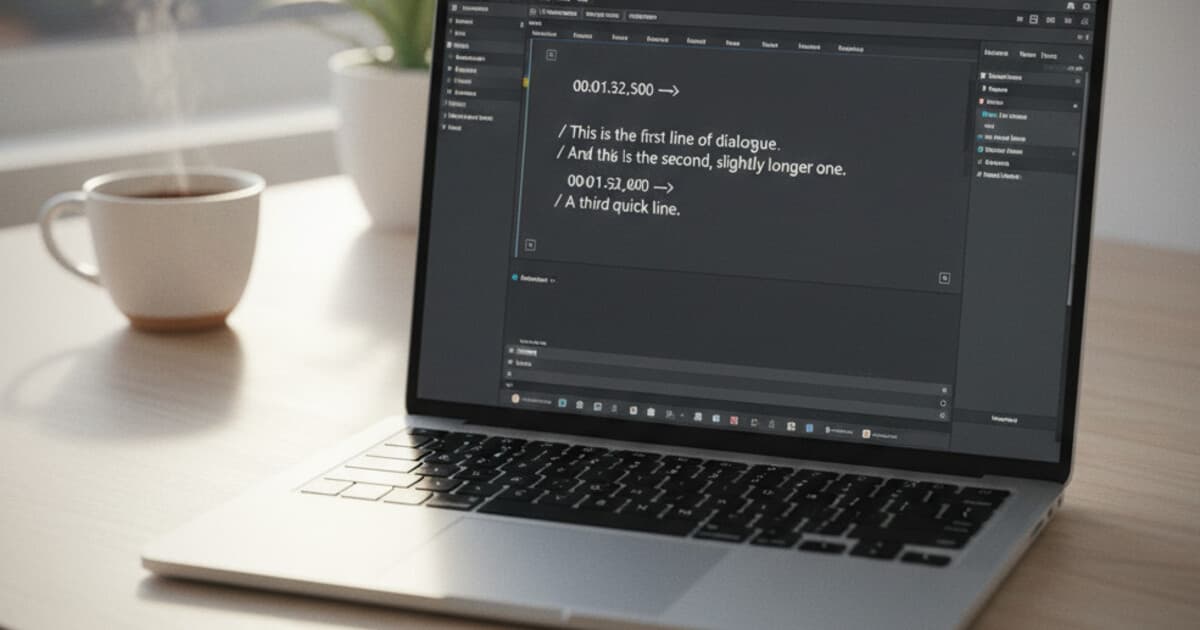
Watermarks in subtitle files show up two ways. Some tools insert extra caption entries directly into the SRT file, like 00:00:01,000 --> 00:00:03,000 followed by Created with [Tool Name] appearing as a visible on-screen caption. Others watermark the exported video but leave the subtitle file itself clean. A third approach: blocking SRT export entirely on the free plan and calling it a "premium feature."
Free subtitle generators split into two types based on how they handle AI transcription. Desktop apps like Subtitle Edit and Aegisub are fully free with no watermarks because they're offline tools: you bring your own transcript, and they format and export it as SRT or VTT with no limits. Web-based tools that auto-generate transcripts from audio are where the watermark problem appears. These tools use AI transcription models that cost money to run, so most of them restrict free exports. YouTube Studio is the cleaner exception: it generates and exports SRT files for any video on your own YouTube channel at no cost, with a clean file every time. For creators who need transcripts from TikTok, Instagram, or uploaded video files, the options narrow. PixScript's free plan handles 10 transcripts/month with TXT output. Getting SRT or VTT requires the Pro plan at $9/month, which also adds AI summary, translation into 10 languages, and bulk URL processing for up to 20 videos at once.
Understanding which type of watermark a tool adds changes how you evaluate it. If you only need the subtitle file and won't use the video export, some tools that "watermark" only do so on the video side. The SRT downloads clean.
5 Subtitle Generators With No Watermark on Output
Here are the tools that give you clean subtitle files, what's genuinely free, and where the limits sit.
1. YouTube Studio (free, own videos only)
YouTube Studio auto-generates captions for every video you upload to your channel. To download the SRT: go to YouTube Studio, open the Subtitles tab, select your video, and click the three-dot menu next to the language. The file is plain text with only captions and timestamps. No attribution text, no branding.
The restriction: it only works for videos on your own YouTube channel. You can't pull transcripts from other creators' videos or from TikTok and Instagram using this method.
For a step-by-step walkthrough, see our guide on how to download YouTube subtitles as SRT.
2. PixScript (free tier + Pro at $9/month)
PixScript transcribes from URLs across YouTube, TikTok, and Instagram Reels. Paste a link, get a transcript with timestamps. The free plan gives you 10 transcripts/month with TXT export. The Pro plan unlocks SRT, VTT, and PDF at $9/month.
No watermarks at any tier. The free tier limitation is export format (TXT only), not added branding.
PixScript also accepts MP3 and MP4 file uploads, which YouTube Studio doesn't support. A locally recorded podcast, screen recording, or offline video can be uploaded directly for transcription.
3. Subtitle Edit (free, Windows desktop)
Subtitle Edit is an open-source desktop app for creating and editing subtitle files. It doesn't auto-generate transcripts from audio, but if you already have text (from PixScript's TXT export, for example), you can format it as a properly timed SRT file.
No watermarks, no paywalls, works offline. The tradeoff is that timing is manual work. For getting precise timestamps without a separate tool, it's slower than a URL-based transcription service.
4. Aegisub (free, Windows and Mac)
Aegisub is another open-source subtitle editor, aimed at users who need frame-accurate timing or advanced styling. Output is clean SRT or ASS format with no watermarks. It's more complex than Subtitle Edit and better suited for professional subtitle work rather than quick transcription tasks.
5. Clideo (free tier, limited)
Clideo's free plan lets you add subtitles to short videos under 500MB. The catch: it watermarks the exported video file on the free plan. The SRT file itself downloads without watermarks. If you only need the subtitle file and won't download the branded video export, Clideo works for short clips at no cost.
What VEED, Kapwing, and Others Actually Do With Watermarks
The tools you've probably seen advertised have more complicated watermark policies than their pricing pages suggest.
VEED.io: Watermarks the exported video on the free plan. The SRT file itself downloads without watermarks. Clean video export starts on their paid plan at $24/month.
Kapwing: Same pattern. Free plan brands the video export. SRT and VTT downloads don't carry watermarks. Paid plans start at $22/month.
Clipchamp: Built into Windows, free, subtitle export options are limited but SRT files come out clean.
Rev: Pay-per-minute transcription at around $0.25/minute. Clean output, accurate, but a 30-minute video runs $7.50. Not a free option.
Happy Scribe: Subscription starting at $17/month. Accurate transcription, no watermarks, not free.
The pattern: most tools watermark video exports but leave the actual subtitle files clean. If you're after the SRT and not the video, your "free" options are wider than the pricing pages let on.
For a broader comparison of subtitle tools, see best free subtitle generator online in 2026.
How PixScript Handles Subtitle Export
PixScript's free vs. paid split is about format, not access. On the free plan (10 transcripts/month), you get TXT. On Pro ($9/month), SRT, VTT, and PDF are all available. Neither tier adds watermarks, attribution text, or branding to any output file.
The SRT files contain only transcript text and timestamps. If you're building subtitles for a video you want to upload elsewhere, the file works directly without cleanup.
Translation is part of Pro too. After generating a transcript, you can translate it into one of 10 languages and download the translated SRT in the same session. The Business plan at $19/month expands that to 50+ languages, which is useful if you're distributing content across markets. For a walkthrough of the translation workflow, see how to translate subtitles to another language.
One thing PixScript doesn't do: inline transcript editing. If you need to correct caption timing after generating, export the SRT and adjust it in Subtitle Edit. For most content, the timestamps are accurate enough that editing isn't necessary.
How to Pick the Right Tool for Your Workflow
The right choice comes down to where your video lives and what format you need.
Video is on your own YouTube channel: YouTube Studio is the cleanest free option. Download the auto-captions as SRT with no cost or account upgrade.
Video is on TikTok, Instagram, or a YouTube URL you don't own: PixScript's free tier handles 10/month with TXT output. For SRT directly, Pro at $9/month is the most direct path.
You have a local video file: Upload MP3 or MP4 to PixScript, or transcribe it with another tool and format the output in Subtitle Edit.
You need translated subtitles: PixScript generates and exports translated SRT in one step, no second tool required.
You only need to format an existing transcript as SRT: Subtitle Edit is free and handles it without any account setup.
Before choosing a format, it's worth knowing the difference between SRT and VTT. The SRT vs VTT guide covers which format different platforms accept and when each one is the right pick.
Frequently Asked Questions
Does PixScript add watermarks to SRT or VTT files?
No. SRT, VTT, and PDF exports from PixScript contain only transcript text and timestamps. The free tier outputs TXT with no branding. Pro and Business tiers export all formats with no watermarks or attribution added to the file.
Can I get free SRT files from YouTube?
Yes, but only for videos on your own channel. Go to YouTube Studio, open the Subtitles tab, select a video, and download the auto-generated captions as SRT. For other people's videos or content from TikTok and Instagram, you'll need a separate tool.
What's a watermarked SRT file?
A watermarked SRT file has extra caption entries that show the tool's branding as visible on-screen text. For example: a caption line that reads "Created with [Tool Name]" appearing during playback. A clean SRT contains only your actual captions and their timestamps.
Are free subtitle generators accurate?
Accuracy depends on audio quality and the tool. YouTube Studio and PixScript both use AI transcription that handles clear speech at roughly 90-95% accuracy. Results drop with overlapping speakers, heavy accents, or background noise. Review the output before publishing anything professional.
Can I convert a TXT transcript to SRT format?
Yes. Export a TXT transcript from PixScript's free tier, then import it into Subtitle Edit to format it as SRT with manual timing. If you want timestamps included automatically, upgrading to PixScript Pro gives you SRT directly without the extra formatting step.
If you need clean SRT and VTT subtitle files from YouTube, TikTok, or Instagram without watermarks, PixScript handles transcription and export in one step. The free plan gives you 10 transcripts/month to test the workflow before upgrading to Pro.