 PixScript
How to Translate Subtitles to Another Language
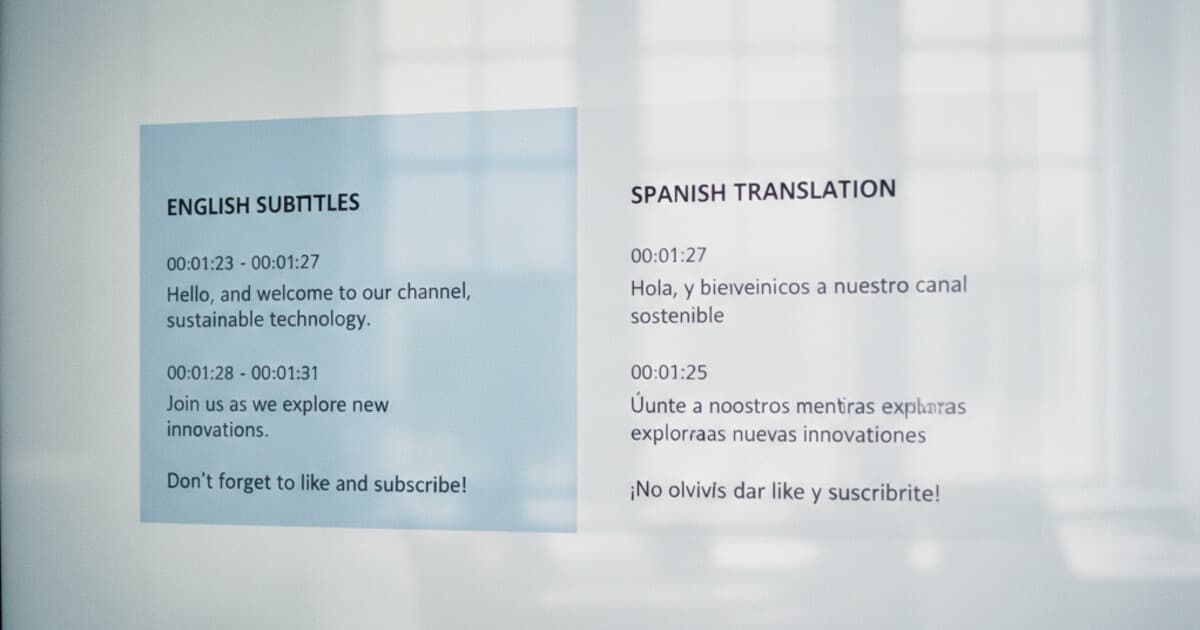
If you've made a video and want it to reach people outside your home country, translated subtitles are one of the most effective tools you have. Captioned videos get roughly 40% more views on average, and multilingual subtitles push that further across different markets. The problem is that most creators don't know where to start.
Translating subtitles to another language depends on what you're working with: a video URL, an existing SRT file, or raw captions. This guide covers all three and gives you the fastest path for each.
To translate subtitles to another language, paste your video URL into a tool like PixScript, generate a timed transcript, then select a target language and export as SRT or VTT. The whole process takes under 2 minutes. For existing SRT files, upload them directly, translate, and re-download. Free options exist but require more manual cleanup.
What Format Are Your Subtitles In?
Before you pick a tool, figure out what you're starting with.
If you have a video URL (YouTube, TikTok, Instagram Reels), you can extract and translate in one step.
If you already have an SRT or VTT subtitle file, you can translate it directly. Need a refresher on which format to use? Check out our SRT vs VTT format guide.
If your subtitles are burned directly into the video as text, you'll need to re-generate them through transcription first. There's no way to extract hardcoded captions from a video file.
How to Translate Subtitles From a Video URL
This is the fastest workflow if you're working with YouTube, TikTok, or Instagram Reels.
- Open PixScript and paste your video URL.
- Click "Transcribe" and wait for the transcript to generate (usually under 30 seconds for most videos).
- Once the transcript is ready, click "Translate" and choose your target language.
- Export the translated transcript as an SRT or VTT file.
Subtitle translation works in layers. First, you need a transcript with timestamps intact. When a tool transcribes a video, it maps each spoken word to a specific time code, creating what's called a timed transcript. Translation engines then work line by line, substituting words in the target language while keeping each line anchored to its original timestamp. The quality of the translation depends heavily on the source transcript's accuracy. If the transcription misses a word or mistakes one for another, the translated subtitle carries that error forward. Tools like PixScript generate the transcript and run translation in the same pipeline, which means the timestamps survive the process without needing manual re-sync. For a 10-minute video, the complete workflow from URL input to exported translated SRT file typically takes under 2 minutes. This speed advantage matters when you're localizing content for multiple markets at once.
PixScript supports YouTube (full videos and Shorts), TikTok, and Instagram Reels. Translation is available on the Pro plan ($9/month) for 10 languages, and on the Business plan ($19/month) for 50+ languages.
How to Translate an Existing SRT File
If you already have an SRT file and just need it translated, you've got a few options.
Option 1: PixScript file upload Upload your MP4 or MP3 directly to PixScript, generate the transcript from the audio, then translate and export as SRT. The timestamps carry through automatically.
Option 2: Google Translate (free, more work) Open your SRT file in a text editor. Copy only the dialogue lines (leave the timestamp lines alone), paste into Google Translate, set your target language, and copy the translated text back in. This is free but requires cleanup. Google Translate sometimes reformats lines or inserts extra line breaks that break the SRT structure.
Option 3: Subtitle Edit (free desktop software) Subtitle Edit is a free app for Windows with a built-in auto-translate feature. Load your SRT file, go to Auto-Translate, pick your translation service (Google Translate or DeepL), and it'll translate while keeping all the formatting intact. Good option if you're doing this offline or processing batches of files.
For most creators, PixScript handles this cleanest because it keeps timestamps synced and exports directly to SRT or VTT without any reformatting work on your end.
How to Translate YouTube Subtitles
YouTube has a built-in auto-translate button for captions, but it's unreliable and you can't download the translated version easily.
The cleaner approach:
- Copy the YouTube video URL.
- Paste it into PixScript and generate the transcript.
- Translate to your target language.
- Download the translated SRT file.
- Upload it to YouTube Studio under "Subtitles" for that video.
YouTube lets you add custom SRT files as separate language tracks. Once uploaded, viewers in that region see the proper translated captions instead of YouTube's auto-translate, which often produces broken output on technical or fast-paced speech.
For just downloading the original captions without translating, the process is different. See our guide on how to download YouTube subtitles as SRT for that workflow.
How to Translate TikTok Subtitles
TikTok doesn't let you download subtitle files from existing videos, so you need to generate them from the video itself.
- Copy the TikTok video URL.
- Paste it into PixScript.
- Generate the transcript.
- Translate to your target language.
- Export as SRT or VTT.
You can use those translated subtitles for accessibility captions, repurposing the content on another platform, or creating a localized version of the video.
TikTok currently doesn't support uploading external SRT files to videos you've already posted. But if you're creating a new version of the video for a different audience, the translated subtitle file slots right in.
Which Languages Can You Translate To?
This depends on the tool.
PixScript covers 10 languages on the Pro plan and 50+ on Business. The Business tier includes Spanish, French, German, Portuguese, Japanese, Korean, Arabic, Hindi, and dozens more.
Google Translate covers 100+ languages and is free, but produces rougher output that needs more manual review before you'd publish it.
DeepL (available as an integration in Subtitle Edit) covers 30+ languages and tends to produce more natural-sounding translations than Google, especially for European languages. Worth trying on German, Dutch, or French content in particular.
For casual or internal use, any of these work fine. For professional published content, PixScript or DeepL gives you cleaner output with less cleanup time.
Tips for Getting Accurate Subtitle Translations
A few things that directly affect how well your translation turns out:
Get the source transcript right first. If the original transcript has errors (missed words, wrong technical terms, garbled names), the translation inherits all of them. Spend 2 minutes reviewing the source transcript before translating.
Keep sentences short and literal. Subtitles work best when sentences are direct. Idioms, jokes, and cultural references often translate poorly word-for-word. If you can simplify a line before translating, do it.
Check the display length after translating. Translated text can be longer or shorter than the original. A sentence in English might run 30% longer in German. If lines overflow visually on screen, split them or trim the text.
Spot-check with a native speaker when it matters. Machine translation handles context-dependent phrases inconsistently. A 10-minute review from someone fluent in the target language catches the errors that would embarrass you.
How PixScript Handles Subtitle Translation
Most subtitle workflows thread through multiple tools: one to download, one to transcribe, one to translate, one to export. PixScript stitches these steps into a single interface.
Paste a URL (or upload a file), get a timestamped transcript, translate it in the same tab, and export as SRT, VTT, PDF, or plain text. For a 10-minute video, the full workflow runs in about 2 minutes.
It supports YouTube, YouTube Shorts, TikTok, and Instagram Reels. The free tier gives you 30 minutes per month with plain text export. Pro ($9/month) opens up all export formats, translation into 10 languages, and timestamps included in every export. Business ($19/month) expands that to 50+ languages with priority processing.
If you're translating subtitles regularly, you'll notice how much time the consolidated workflow saves compared to moving files between tools.
Frequently Asked Questions
Can I translate subtitles for free? Yes. Google Translate handles basic SRT files if you paste the dialogue lines carefully. PixScript's free tier gives you 30 minutes per month with TXT export. For full translation with SRT or VTT export and timestamps, PixScript Pro ($9/month) is the most streamlined option.
How do I translate an SRT file without losing the timestamps? Paste only the dialogue lines into your translation tool, leaving the timestamp lines untouched. Or use a dedicated subtitle tool like PixScript or Subtitle Edit, which keeps the timestamp structure intact during translation automatically.
Can I translate YouTube's auto-generated subtitles? Yes. YouTube has a basic auto-translate option built in, but for cleaner results, paste the YouTube URL into PixScript, generate a fresh transcript, translate it, and download as SRT. Then upload that file to YouTube Studio as a custom caption track for that video.
What languages get the best machine translation quality? Spanish, French, and German typically get the most accurate machine translation. Asian languages (Japanese, Korean, Chinese) and Arabic often need more review because the grammar structures differ significantly from English.
Does translating subtitles break the original timing? The timestamp positions stay the same, but the translated text might be longer or shorter than the original. This can cause visual overflow on screen for some lines. Most subtitle editors let you manually adjust line length after translating.
Ready to translate your subtitles? Try PixScript — paste a video URL, translate to any of 10+ languages, and download your SRT or VTT file in minutes. Free for up to 10 videos per month.