 PixScript
YouTube Captions Not Working? 7 Fixes That Actually Help
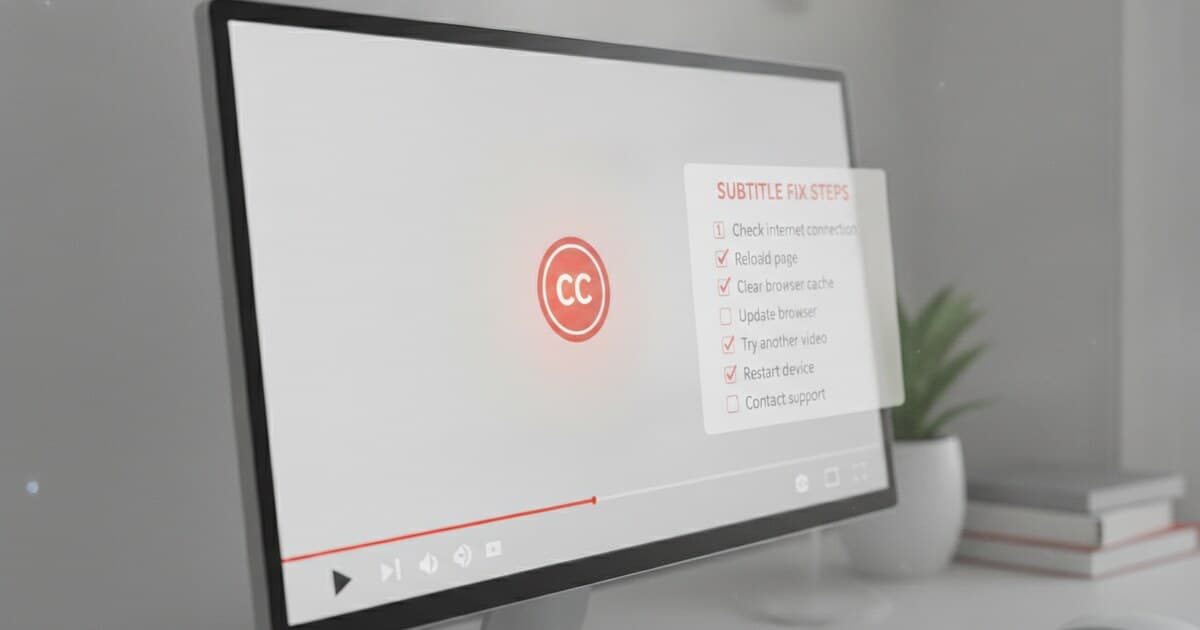
YouTube captions not working is one of those problems that hides behind a dozen different causes. You click CC and nothing happens. Or captions load on one video but disappear on the next. Sometimes they worked yesterday and stopped today without any obvious change.
Before digging into settings, it helps to know that YouTube captions can fail at four distinct places: the network layer, the browser, your account settings, or the video content itself. Each layer has its own fix. This guide walks through all seven causes in order from quickest to diagnose to most involved.
YouTube captions stop working because of a toggled-off CC button, corrupted browser cache, browser extension interference, or because the video has no caption data stored on YouTube's servers. Clearing cache or re-enabling CC resolves most cases in under a minute. For videos with no captions at all, a third-party transcript tool is the only option.
Why YouTube Captions Stop Working
YouTube captions aren't embedded inside the video file. They travel as a separate data stream fetched from YouTube's timedtext API, an endpoint distinct from the video itself. When you press CC, the player fires a parallel network request for caption data. That request can fail independently, even while the video plays without any issue.
YouTube auto-generates captions in over 17 languages using speech recognition. For newly uploaded videos, auto-captions can take 24 to 72 hours to appear. The platform encodes captions in SRV3, its internal subtitle format, which the player renders as an overlay on top of the video. In 2026, Google briefly disabled advanced SRV3 features on some devices after reports they caused playback errors. Caption failures split across four layers: the network (CDN or DNS issues), the browser (extension conflicts or corrupted cache), the account (settings not syncing across devices), and the content itself (creator disabled captions, age-restricted video, or live streams without a caption delay). Identifying the layer tells you exactly which fix to run and which ones to skip.
Note: if it's the transcript sidebar panel that won't load rather than the CC captions overlay, YouTube Transcript Not Working covers that specific problem.
Fix 1: Check the CC Button Is Actually On
This is the cause in roughly half of all cases. The CC toggle switches off if you clicked it by accident, if another device changed your YouTube preferences, or if a video resets the setting automatically.
On desktop: Click the CC icon in the bottom-right of the player. White means captions are on; grey means they're off. Click once to enable.
On mobile: Tap the video, tap the three-dot menu in the top-right corner, and select Captions. If no language option appears in the list, the video has no captions at all.
If captions keep turning off: Open YouTube Settings, go to Playback and Performance, and turn on "Always show captions." This setting overrides per-video preferences and persists across all devices signed into your account.
Fix 2: Clear Your Browser Cache (or App Cache)
Corrupted caption cache is the second most common cause. YouTube stores caption data locally to speed up future loads. When that cached data is stale or broken, captions won't display even with CC turned on.
Chrome on desktop:
- Press Ctrl+Shift+Delete (Windows) or Cmd+Shift+Delete (Mac).
- Set the time range to All time.
- Check "Cached images and files" and "Cookies and other site data."
- Click Clear data, then reload YouTube and test the same video.
YouTube app on Android: Go to phone Settings, then Apps, find YouTube, tap Storage, and tap Clear Cache.
YouTube app on iOS: There's no built-in cache-clear option. Delete and reinstall the YouTube app to get a clean slate.
After clearing cache, reload the video and check whether captions appear before trying anything else.
Fix 3: Disable Browser Extensions
Ad blockers, privacy tools, and script managers are common caption killers. Extensions that rewrite page scripts or block third-party network requests can stop caption data from loading entirely, while the video itself keeps playing.
Common culprits: uBlock Origin, Privacy Badger, Ghostery, and Firefox's built-in enhanced tracking protection.
To confirm in Chrome: press F12 to open developer tools, go to the Network tab, reload the video, and filter requests by "timedtext." If those requests show as blocked or return errors, an extension is interfering.
Quick test without developer tools: open an incognito window. Extensions are off by default in incognito. If captions work there, one of your extensions is blocking them in your regular browser. Disable them one at a time and test after each until captions load again.
Fix 4: Try Incognito Mode or a Different Browser
If the incognito test from Fix 3 confirms captions work there, the issue is an extension (Fix 3) or your browser's stored cache (Fix 2). Both are solvable.
If captions fail in incognito too, the problem is at the network or content level. Try a completely different browser. If Chrome is failing, open Firefox or Edge and load the same video. Captions appearing in a different browser means Chrome's profile or data is corrupted. Creating a fresh Chrome profile or fully clearing Chrome's data will resolve it.
Some corporate or school networks block YouTube's caption CDN endpoints. Switching to a mobile hotspot rules this out in about 30 seconds.
Fix 5: Update YouTube or Your Browser
Outdated YouTube apps lose caption support because YouTube's player code changes faster than some devices update. The app falls out of sync with the caption API and stops rendering captions correctly.
On mobile: Open the App Store (iOS) or Google Play (Android), search YouTube, and tap Update if one is available.
On desktop: Chrome updates in the background but may be waiting for a browser restart. Go to chrome://settings/help to check and apply any pending updates. For Firefox: menu, Help, About Firefox.
After updating, close and reopen the browser completely before testing captions again.
Fix 6: Check Whether the Video Has YouTube Captions at All
Not every YouTube video has captions. If a creator hasn't added them and YouTube's auto-generation hasn't processed the video, there's no caption data on the server. No setting or browser fix can create captions that don't exist.
How to tell: Look at the CC button in the player's bottom toolbar. If it's grayed out or absent, YouTube has no caption data stored for that video.
Common reasons captions are unavailable:
- The video was uploaded recently (auto-captions take up to 72 hours to process)
- The creator opted out of YouTube's auto-captioning system
- The video is a live stream (live captions require the creator to enable them separately)
- The video is age-restricted or marked as made for kids
- The audio is too noisy or music-heavy for YouTube's speech recognition to process
For these videos, browser troubleshooting won't help. The data simply isn't there.
Fix 7: Generate Your Own Transcript When Captions Are Unavailable
When a video has no captions on YouTube's side, a transcript tool is the practical path forward. PixScript lets you paste any YouTube URL and get a full transcript with timestamps in under a minute. It works by transcribing the audio directly, without depending on YouTube's caption data, so it works even on videos where YouTube's own system never generated captions.
This covers older uploads that pre-date auto-captioning, channels that have disabled the feature, and videos in languages YouTube's recognition handles poorly.
You can download the output as SRT or VTT and upload it to YouTube's Caption Studio if you manage the channel. Or use TXT for reading, research, or repurposing the content.
PixScript's free tier handles 10 transcripts per month with TXT export, with a 5-minute maximum per video. The Pro plan at $9/month removes those limits and adds SRT, VTT, and PDF export, timestamps, AI summary, and translation into 10 languages.
For more on adding captions to a YouTube video once you have the transcript, see how to add captions to a YouTube video.
Frequently Asked Questions
Why do YouTube captions keep turning off? YouTube doesn't always save your caption preference across sessions. Go to Settings, then Playback and Performance, and enable "Always show captions." If they keep resetting, a browser extension may be clearing your YouTube cookies on exit, which wipes all saved preferences.
Why do YouTube captions show the wrong language? YouTube's caption language defaults to your browser's language setting, not your account language. Click the CC button in the player and manually select your preferred language. Under YouTube Settings you can set a default caption language so the choice sticks across videos.
Why are YouTube auto-captions inaccurate or missing words? Auto-generated captions use speech recognition with roughly 80-95% accuracy for clear English audio. Accuracy drops with accents, background noise, fast speech, or technical jargon. If audio quality is poor, YouTube may skip auto-generation entirely. A third-party tool like PixScript often produces cleaner results for challenging audio.
Why do captions work on some YouTube videos but not others? Caption availability is per-video. Each creator controls whether captions are enabled, and YouTube's auto-generation only runs on public videos in supported languages. A video without captions won't show them regardless of your account settings. Check the CC button: if it's grayed out, no captions exist for that video.
Why are YouTube captions delayed or out of sync? Sync issues usually come from playback speed changes. Watching at 1.25x or 1.5x speed can cause captions to lag behind the audio. Return to 1x speed and check again. On mobile, clearing the app cache fixes most persistent sync issues. If the creator uploaded captions with incorrect timestamps, there's no fix on your end.
Conclusion
YouTube captions fail in predictable ways. Work through the fixes in order: check the CC toggle, clear your cache, disable extensions, try incognito mode, update the app or browser, then verify whether the video has captions at all.
For videos with no caption data on YouTube's side, PixScript generates a transcript directly from the audio. Paste the URL, get the text with timestamps, and download it as SRT, VTT, or plain text in under a minute.