 PixScript
VTT Transcription: How to Get a VTT File From Any Video
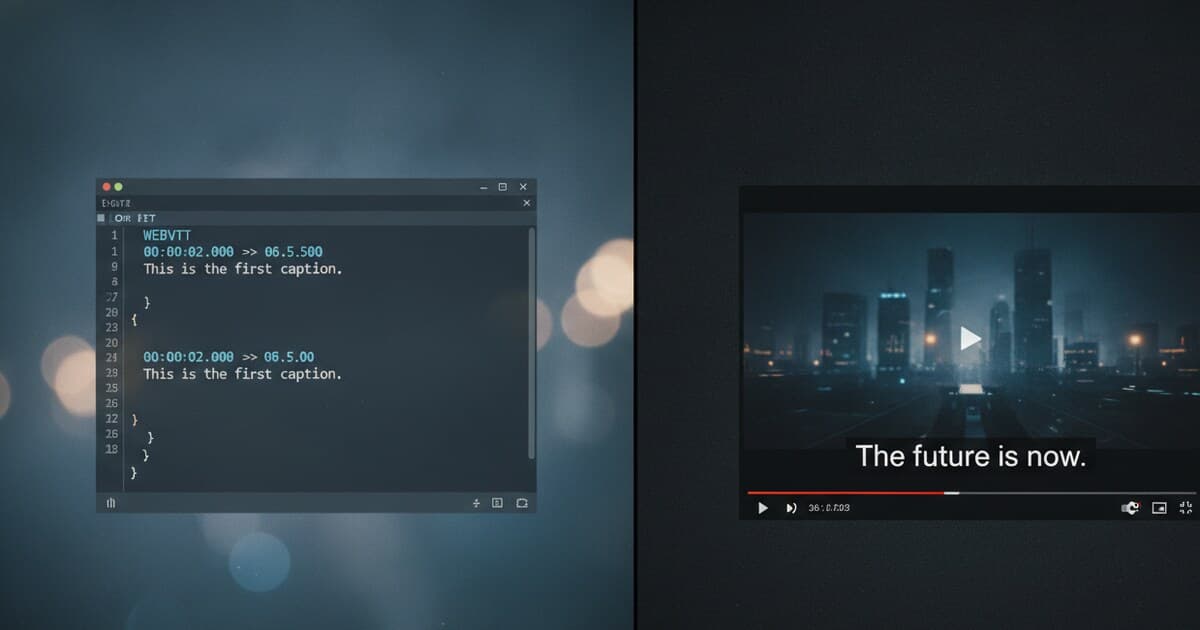
Uploading a video to your website and getting playback captions to work is surprisingly annoying. Most players don't read SRT natively. Most transcription tools spit out plain TXT. VTT is what you actually need, and it's easier to generate than most people expect.
This guide covers what VTT transcription means, why the format matters for web video, and three ways to get a VTT file from any recorded video or audio.
VTT transcription means generating a transcript of audio or video content and exporting it in WebVTT format (.vtt). WebVTT (Web Video Text Tracks) is the W3C standard for web captions, with native support in every major browser. Unlike plain TXT files, a VTT transcript includes timestamps, cue positioning, and optional styling that video players can read directly.
What Is a WebVTT File?
WebVTT is a W3C standard for web-based video captions, subtitles, chapter navigation, and metadata tracks. It works with the HTML5 <track> element, meaning any HTML5 video player can load captions natively without plugins or conversion. The format was first published as a W3C Working Draft in 2010 and reached full Recommendation status in November 2019. It's natively supported in Chrome, Firefox, Safari, and Edge. A single 60-minute video typically produces a VTT file with 600-900 cues (15,000-25,000 characters), depending on speech pace and cue segmentation. AI transcription accuracy on clear audio runs 85-95%, dropping to 70-80% on noisy or multi-speaker recordings. Manual transcription of the same file takes 4-5 hours; AI processes an hour of audio in 30-90 seconds. VTT is also the standard for WCAG 2.1 AA caption compliance on pre-recorded web video.
A VTT file starts with the header WEBVTT, followed by cue blocks. Each cue has a timestamp range and the caption text:
WEBVTT

00:00:02.500 --> 00:00:06.000
And so, my fellow Americans

00:00:06.000 --> 00:00:09.000
ask not what your country can do for you
Each cue has a start time, end time (HH:MM:SS.mmm precision), and one or more lines of text.
VTT goes further than SRT in what it supports. You can add cue positioning (line:85%), text alignment, CSS classes for styling, chapter titles for navigation, and speaker names via the <v> voice tag. For basic web captions, you don't need any of those extras. For accessible streaming video, they matter a lot.
Video.js, JW Player, Plyr, and every common HTML5 player read VTT without conversion. This is why web developers and course creators ask for VTT files specifically, not SRT or TXT.
How to Generate a VTT Transcript
There are 3 ways to get a VTT file from video or audio. The right one depends on where your source lives.
Method 1: Paste a Video URL (Fastest)
If your video is on YouTube, TikTok, or Instagram, paste the URL directly into PixScript. It transcribes the audio and lets you download the result as a .vtt file.
- Go to pixscript.com
- Paste your video URL into the input box
- Click Transcribe
- Once complete, click Export and select VTT
The VTT file downloads with timestamps already formatted for web players. You can paste it directly into your site's <track> element or upload it to any video platform that accepts subtitle files.
VTT export is available on paid plans (Pro and Business). The free tier exports TXT only.
Method 2: Upload a Video or Audio File
For recorded video (MP4, MOV, WEBM) or audio (MP3, WAV, M4A), upload the file directly. PixScript handles any common audio or video format up to 500 MB through the dashboard.
- Sign into your PixScript account
- Go to the dashboard and click Upload
- Select your file
- Wait for transcription (30-90 seconds per hour of content)
- Export as VTT
This works for conference recordings, podcast episodes, course videos, recorded meetings, and interview audio. Files are transcribed and then deleted from storage.
Method 3: Convert an Existing SRT File to VTT
If you already have an SRT transcript, you don't need to re-transcribe. SRT and VTT use nearly identical timestamp formats (SRT uses commas, VTT uses periods), so conversion is fast.
In a text editor:
- Change the file extension from
.srtto.vtt - Add
WEBVTTon the first line - Replace the comma separator in each timestamp with a period (e.g.,
00:00:02,500becomes00:00:02.500)
That produces a functional VTT file without any styling or positioning, but it'll play in any HTML5 player.
For a fuller guide including online tools and batch conversion, see How to Convert SRT to VTT.
VTT vs SRT vs TXT: Which Format to Export
Picking the right export format depends on what you're doing with the transcript.
| Format | Best for | Browser/player support |
|---|---|---|
| VTT | Web video, HTML5 players, streaming sites | Native in all major browsers |
| SRT | Desktop editing, YouTube, most video platforms | Needs conversion for HTML5 |
| TXT | Search indexing, reading, copy-paste | No timing, text only |
VTT is the right choice when you're embedding video on a website and need captions to show up automatically. SRT is fine for YouTube and most desktop video editors. TXT works when you want the words without any timing structure.
For a detailed breakdown of how the two formats compare technically, see SRT vs VTT: Which Subtitle Format Should You Use?.
When You'd Use VTT Transcription
The format comes up in a few specific situations.
Web video accessibility. WCAG 2.1 AA compliance requires captions for pre-recorded video content. HTML5 video players load VTT files via the <track> element, making it the simplest path to compliant captions. Other formats typically need conversion first.
Course and e-learning platforms. Teachable, Thinkific, and Kajabi all accept VTT for their video lesson players. Uploading a .vtt file alongside each lesson adds searchable, accessible captions without extra encoding work.
Corporate video publishing. Internal video portals built on Vimeo, Wistia, or custom HTML5 players all support VTT. A 30-minute training video generates a VTT file in about 2 minutes.
Chapter navigation. VTT supports a metadata track type that powers the chapter navigation UI on YouTube and HTML5 players. Transcription tools that export chapter markers use this feature of the format specifically.
How PixScript Handles VTT Export
PixScript generates VTT files with cue timestamps every few seconds, formatted to the W3C spec. The output works without modification in HTML5 players, Video.js, JW Player, and Plyr.
When you transcribe a YouTube video, the VTT file includes the same timestamps as the platform's own caption track, in a downloadable format you can modify or upload elsewhere. For uploaded files, timestamps reflect actual speech timing from the audio.
The translation feature on Business plans (50+ languages) also exports in VTT. Paste a Spanish-language interview URL, translate to English, and download the English VTT. It takes about 3 minutes total.
If you need both SRT and VTT copies, export them separately from the same transcript. For a primer on the VTT format structure, see What Is a VTT File?.
Frequently Asked Questions
What is a WebVTT file?
WebVTT (Web Video Text Tracks) is a W3C standard for web captions and subtitles. It's the format HTML5 video players use for captions via the <track> element. A .vtt file contains timestamped text cues that sync to the video timeline. It supports optional styling, cue positioning, speaker labels, and chapter metadata. All major browsers (Chrome, Firefox, Safari, Edge) support it natively without plugins.
How can I transcribe audio and video into text?
Upload your file (MP3, MP4, WAV, M4A, MOV, WEBM) to an AI transcription tool like PixScript, or paste a video URL if it's on YouTube, TikTok, or Instagram. The tool converts speech to text automatically. Modern AI transcription processes an hour of audio in 30-90 seconds at 85-95% accuracy on clear recordings. You can then export the result as VTT, SRT, PDF, or TXT.
Can ChatGPT read VTT files?
ChatGPT can read the text content of a VTT file if you paste the contents directly into the chat or upload it as a text document. It treats the timestamp lines as plain text, so you'll want to strip those first if you're asking for a summary or rewrite. ChatGPT can't play or render the VTT as a caption track.
How to convert VTT to Word?
Open the .vtt file in a text editor, copy the caption lines (skipping the timestamp lines), and paste into Word. For a cleaner result, use a transcription tool that strips timestamps automatically. PixScript's AI rewrite feature can turn a raw VTT transcript into a polished document, blog post, or meeting summary directly.
If you need a VTT transcript from a video or audio file, PixScript can generate one in seconds. Paste a YouTube, TikTok, or Instagram URL, or upload a file directly, and download a properly formatted .vtt file ready for any HTML5 player.