 PixScript
How to Get a Transistor Transcript (3 Methods)
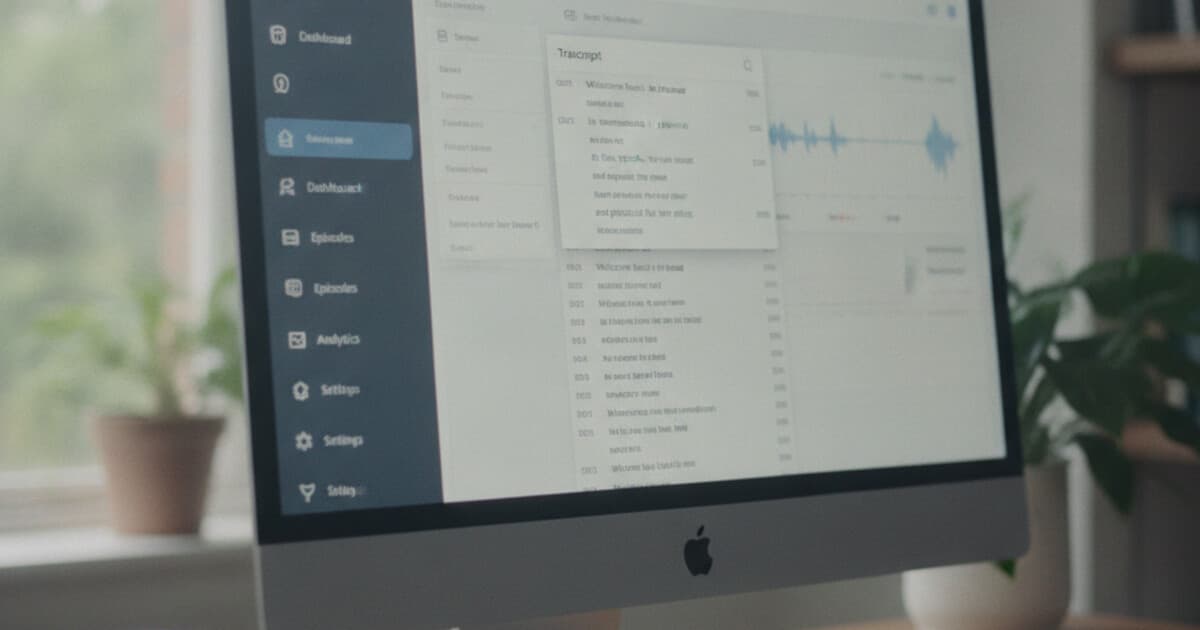
Transistor is a podcast hosting platform built for indie creators and companies that manage multiple shows. It handles RSS distribution, episode analytics, and multi-show management cleanly. Transcripts have been part of the platform since 2023, when Transistor added AI transcription to paid plans. The native feature works well for basic listener display, but it has gaps around export formats and AI features that push podcasters toward a second tool.
There are 3 practical ways to get a Transistor transcript. The right one depends on whether you're a host, a listener, or someone who needs the text in a specific format like SRT for video captions.
To get a Transistor transcript, hosts on paid plans can pull it directly from the episode dashboard. Listeners can check the episode page for a published transcript or download the MP3 and run it through a transcription tool. For SRT export, AI summaries, or translation, upload the episode audio to PixScript.
Does Transistor Have Built-In Transcription?
Yes, on paid plans. Transistor added AI transcription in 2023 for all Starter ($19/month) subscribers and above. When you publish a new episode, Transistor processes the audio in the background and generates a transcript automatically. The text appears under a Transcript tab in your episode dashboard, where you can review and edit it before making it public. Once published, the transcript shows on your episode's public page, giving listeners something to read along with and giving Google more text to index from your show. The feature is powered by Deepgram, an AI transcription engine with solid accuracy on clear audio. Performance dips on episodes with heavy accents, multiple overlapping speakers, or technical jargon. Transistor's transcript editor lets you fix those errors before publishing. What the built-in tool doesn't cover: SRT or VTT export, AI summaries, translation into other languages, or rewriting the transcript as a blog post. Free plan users don't get access to transcription at all and need an external tool from the start.
Transcripts on Transistor appear in 2 places after publication: inside your private episode dashboard and on the public episode page for listeners and search engines.
Steps to access your Transistor transcript (for hosts):
- Log in to your Transistor dashboard
- Select your show, then click the episode
- Click the "Transcript" tab in the episode editor
- Review and correct the generated text
- Click "Publish Transcript" to make it visible on the episode page
If the Transcript tab is missing or blank, your current plan doesn't include the feature. Upgrade or use Method 2.
Method 2: Upload the Episode Audio to PixScript
This method works for anyone: hosts on the free plan, listeners who can't find a published transcript, and creators who need SRT export, AI summaries, or translation that Transistor's built-in tool doesn't offer.
Every Transistor episode is hosted as an MP3 file. You can download it directly from your dashboard or from the public episode page. Once you have the file, upload it to a transcription tool and get the text back in minutes.
PixScript accepts MP3 and MP4 uploads and returns a transcript with timestamps. The free tier covers 10 transcripts per month with TXT export. Pro ($9/month or $69/year) and Business ($19/month or $149/year) plans remove the monthly limit and add SRT/VTT export, AI summary, AI rewrite, and translation into 10 to 50+ languages.
Steps:
- Download the episode MP3 from your Transistor dashboard (open the episode, click the download button), or right-click the audio player on the public episode page and choose "Save audio as"
- Go to pixscript.com
- Click "Upload File" and select the MP3
- Wait for the transcript to generate
- Download as TXT, PDF, SRT, or VTT
The SRT export is the main reason podcasters use this method over Transistor's native option. If you publish a video version of your episode on YouTube, drop the SRT file into YouTube's subtitle uploader and captions are done. No manual syncing, no typing.
PixScript's AI rewrite feature converts a raw transcript into a formatted blog post draft in one extra step. Podcasters repurposing episode content across channels tend to save an hour of editing per episode with it. The audio to text converter guide goes deeper on the file upload workflow if you want to see how it fits into a broader content pipeline.
The same process works for episodes on any hosting platform. If you've already run through it for another podcast host, you know the drill: download the audio, upload to PixScript, get the formats you need. The Spreaker transcript guide covers the identical workflow for a different platform.
Method 3: Find a Transcript the Host Published
Many Transistor podcasters publish their transcripts on the episode page. If you're a listener, check these spots before going through the upload process yourself:
- The public episode page (usually at the podcast's own domain or on transistor.fm)
- The show notes section below the audio player
- The podcast website under the episode archive
Transistor displays published transcripts directly on the episode page when the host has enabled them. You'll see the text below the audio player. If it's there, you can read along or copy the text.
If no transcript has been published, right-click the audio player on the episode page and choose "Save audio as" to grab the MP3. Then run it through PixScript using Method 2.
Which Method Works Best for You?
The right approach depends on what you need.
Transistor hosts on Starter or above: Your transcript is already in the dashboard. Pull it from the Transcript tab, clean up any errors, and publish it.
Transistor hosts on the free plan: Download your episode MP3 from your own dashboard and upload it to PixScript. You'll get a comparable transcript plus SRT export and AI features Transistor doesn't offer.
Listeners: Check the episode page for a published transcript first. If there isn't one, download the MP3 (right-click the audio player) and upload it to PixScript's free tier. Ten transcripts per month covers most casual use.
Creators repurposing content: Use PixScript even if you already have Transistor's built-in transcript. The AI rewrite, SRT export, and translation expand what you can do with the text across blog posts, YouTube captions, and multilingual versions of the episode.
Getting Timestamps and SRT Files from Transistor Episodes
Transistor's built-in transcription includes timestamp data in the editor view, but the platform doesn't export it in a format that works with video editors or subtitle uploaders. If you need clean SRT timing for a YouTube version of your episode or a video clip, the file upload workflow gives you more control.
PixScript includes timestamps by default on Pro and Business plans. The SRT export wraps each line in proper subtitle timing format, which uploads cleanly to YouTube, Vimeo, and most video editors. For podcasters who post recorded video versions of their episodes, this cuts captioning time substantially compared to adding them by hand.
Transistor was designed for audio distribution. Adding video captions or translated subtitle tracks isn't something the platform covers. Uploading the episode MP3 to PixScript handles both without requiring you to move to a different host.
Frequently Asked Questions
Does Transistor have automatic transcription?
Yes, on all paid plans. Transistor's Starter plan and above include AI transcription powered by Deepgram. New episodes are transcribed automatically after upload. The transcript appears in your dashboard and can be published on your episode page. Free plan users need a third-party tool.
How do I get a Transistor transcript for free?
Download the episode MP3 from your Transistor dashboard or the episode's public page. Upload it to PixScript, which gives you 10 free transcripts per month. You'll get a timestamped text transcript at no cost. Pro and Business plans add SRT/VTT export, AI summaries, and translation.
How do I download a Transistor episode as MP3?
In your Transistor dashboard, go to the episode and click the download button. You can also right-click the audio player on the public episode page and choose "Save audio as" to download the MP3 directly.
Can I get an SRT file from a Transistor transcript?
Transistor doesn't export transcripts as SRT or VTT files. To get an SRT, download the episode MP3 and upload it to PixScript. It exports SRT, VTT, PDF, and TXT with timestamps included. Useful if you're publishing a video version of the episode on YouTube.
Can I translate a Transistor transcript?
Yes, through PixScript. Download the episode MP3, upload it to PixScript, and use the Translation feature. Pro supports 10 languages and Business supports 50+. Transistor's built-in transcription is English-only with no translation option.
If you host on Transistor and need a transcript with SRT export, AI summary, or translation, download the episode MP3 and upload it to PixScript. The free tier covers 10 transcripts per month. Try it at pixscript.com.