 PixScript
Transcribe YouTube Shorts to Text: 3 Free Methods (2026 Guide)
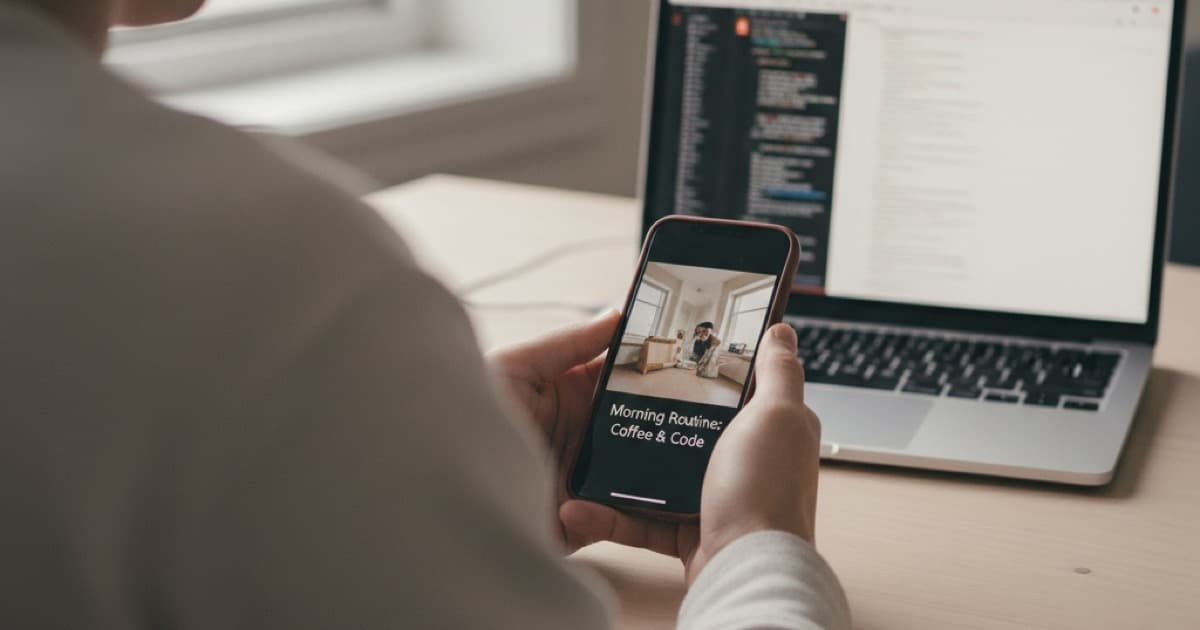
YouTube Shorts pack a lot of information into 60 seconds or less. Maybe it's a recipe, a workout routine, a coding tip, or a product review. You watch it, think "I need to save that," and then realize there's no easy way to grab the text. Unlike regular YouTube videos, Shorts don't always show a transcript button in the app.
To transcribe a YouTube Short to text, copy the Short's URL and paste it into a transcription tool like PixScript. The tool pulls the audio, converts it to text with timestamps, and lets you export as TXT, SRT, or PDF. The whole process takes under 30 seconds — no manual typing needed.
This guide covers three methods to get text from any YouTube Short, when each method works best, and how to use transcripts for repurposing content.
Why Transcribe YouTube Shorts?
Shorts are short. But the reasons people want their text versions are surprisingly varied.
Content creators transcribe Shorts to repurpose them into blog posts, newsletters, or Twitter threads. Students grab transcripts from educational Shorts to study later. Marketers pull competitor Short scripts to analyze what messaging works. Podcasters use Short transcripts as show notes or social media captions.
There's also an accessibility angle. Not everyone can listen to audio — whether due to hearing difficulties, a noisy environment, or simply preferring to read. A transcript makes your Short available to a wider audience.
YouTube Shorts transcription has become a core part of content workflows in 2026 because short-form video now dominates every social platform. Creators who repurpose a single 60-second Short into a blog paragraph, a tweet, and an email snippet get three pieces of content from one recording session. Students studying from educational Shorts can search transcripts for specific terms instead of rewatching entire playlists. Marketers analyzing competitor Shorts pull transcripts to compare messaging patterns across dozens of videos in minutes rather than hours. The accuracy gap between YouTube's built-in auto-captions and dedicated transcription tools is significant on short-form content — YouTube's speech recognition gets less audio context on a 30-second clip, producing more errors than on a 10-minute video. Third-party AI transcription models trained specifically for accuracy consistently outperform platform-native captions on Shorts, especially when speakers talk fast, use technical jargon, or have non-American accents.
Once you have text, you can search it, translate it, quote it, or feed it into another tool. A 45-second Short about meal prep becomes a written recipe. A coding tutorial becomes documentation. A motivational clip becomes a caption for your Instagram post.
Method 1: Use a Transcription Tool (Fastest)
The quickest way to transcribe any YouTube Short is with a dedicated transcription tool. Here's how it works with PixScript:
- Open the YouTube Short you want to transcribe
- Tap the Share button and copy the URL (it looks like
youtube.com/shorts/xxxxx) - Go to PixScript and paste the URL
- Click Transcribe — the text appears in seconds with timestamps
That's the entire process. No account setup is required for basic transcription on the free tier.
What you get back is a timestamped transcript that shows exactly when each sentence was spoken. You can read it on screen, copy it to your clipboard, or export it in different formats.
Export options matter depending on your use case. If you need subtitles for another platform, grab the SRT or VTT file. If you just want the raw text, TXT works. For sharing with a team or keeping records, PDF gives you a clean formatted document.
One advantage of using a dedicated tool over YouTube's built-in captions: you get the transcript in a portable format. YouTube locks its captions inside the player. A tool like PixScript gives you an actual file you can move, edit, or reformat however you need.
Method 2: Check YouTube's Built-In Transcript
Some YouTube Shorts do have transcripts available through YouTube itself, though the feature is inconsistent.
Here's how to check:
- Open the Short on desktop (not mobile — the transcript option isn't always visible on phones)
- Click the three-dot menu below the video
- Look for "Show transcript"
- If it appears, click it to see the auto-generated text
The catch: this option doesn't show up for every Short. YouTube generates transcripts using automatic speech recognition, and the feature is still rolling out across different regions and video types. Many Shorts — especially newer ones or those in languages other than English — won't have this option at all.
Even when the transcript is available, you can't export it directly. YouTube shows it in a sidebar panel with timestamps, but there's no download button. You'd need to manually select all the text, copy it, and paste it somewhere. For one Short, that's fine. For ten, it gets tedious.
The accuracy varies too. YouTube's auto-captions handle clear English speech reasonably well, but struggle with accents, background music, fast talking, or technical jargon. If the creator didn't upload manual captions, you're relying entirely on YouTube's speech recognition.
Method 3: Manual Transcription
If you only need to transcribe one Short and it's under 30 seconds, you can do it by hand. Play the Short, pause after each sentence, and type what you hear.
This works. It's free. It's accurate because you're the one listening. But it's slow.
A 60-second Short with normal speech pace contains roughly 150-180 words. Typing that out while pausing and replaying takes most people 5-10 minutes. If the speaker talks fast or has an accent you're not familiar with, double that time.
Manual transcription makes sense for exactly one scenario: you need a single transcript, the Short is very short, and you don't have access to any tools. In every other case, an automated method saves significant time.
How to Get the URL from a YouTube Short
Before you can paste a URL into any transcription tool, you need the actual link. YouTube Shorts URLs look different from regular video URLs.
On mobile:
- Open the Short in the YouTube app
- Tap the Share button (arrow icon)
- Tap "Copy link"
- The URL format is
https://youtube.com/shorts/VIDEO_ID
On desktop:
- Navigate to the Short on youtube.com
- Copy the URL from your browser's address bar
- It should look like
https://www.youtube.com/shorts/VIDEO_ID
Both URL formats work with transcription tools. Some tools also accept the regular youtube.com/watch?v=VIDEO_ID format, which you can get by right-clicking the Short and selecting "Copy video URL." PixScript handles both formats — paste either one and it recognizes the video automatically.
What to Do with Your Transcript
Getting the text is step one. Here's what creators and professionals actually do with YouTube Short transcripts:
Repurpose into written content. A Short transcript becomes the first draft of a blog post, a LinkedIn update, or a newsletter section. You already said the words — now you have them written down. PixScript's AI rewrite feature can turn a raw transcript into a polished blog post or social media caption without you having to restructure everything manually.
Create subtitles for other platforms. Export the transcript as an SRT or VTT file and upload it to TikTok, Instagram, or your website's video player. Burned-in captions boost engagement — studies show captioned videos get 40% more views on social platforms. If you're working with regular YouTube videos too, the same approach works — check our guide on how to get a YouTube video transcript for longer content.
Build a searchable content library. If you publish Shorts regularly, having text versions means you can search across all your content. Looking for that clip where you mentioned a specific product? Search the transcripts instead of rewatching dozens of videos.
Study and research. Students and researchers use transcripts to pull quotes, fact-check claims, or compile information from multiple video sources into a single document.
Translate into other languages. Once you have the English transcript, tools can translate it into dozens of languages. PixScript supports translation into 50+ languages on the Business plan and 10 languages on Pro — useful if you want to reach a global audience with your Short's content.
How PixScript Helps with YouTube Shorts Transcription
PixScript handles the entire transcription workflow for YouTube Shorts. Paste the Short's URL, and the tool extracts the audio, runs it through AI transcription, and delivers timestamped text in seconds.
What sets it apart for Shorts specifically:
- Works with both URL formats — paste
youtube.com/shorts/...oryoutube.com/watch?v=...and it recognizes the video - Timestamps included — see exactly when each line was spoken, useful for creating subtitles or referencing specific moments
- Multiple export formats — download as SRT for subtitles, VTT for web players, PDF for sharing, or TXT for raw text
- AI summary — get a quick overview of what the Short covers without reading the full transcript
- Bulk processing — if you need transcripts from multiple Shorts, paste up to 20 URLs at once on Pro (50 on Business) instead of doing them one at a time
The free tier gives you 30 minutes per month with TXT export — enough to test the quality before committing. Pro gives you 300 minutes per month, all export formats, and AI features for $9/month.
Frequently Asked Questions
Can you get a transcript from any YouTube Short?
Yes, as long as the Short has audio. Transcription tools pull the audio track and convert speech to text regardless of whether the creator added captions. Shorts with only music and no speech won't produce useful transcripts. Shorts with mixed speech and music will transcribe the speech portions.
Are YouTube Short transcripts accurate?
Accuracy depends on audio quality, speaker clarity, and the transcription method used. Dedicated AI transcription tools typically achieve 90-95% accuracy on clear English speech. Background music, heavy accents, or overlapping speakers reduce accuracy. YouTube's built-in auto-captions tend to be less accurate on Shorts than on longer videos because the AI has less audio context to work with.
How do I transcribe a YouTube Short on my phone?
Copy the Short's URL using the Share button in the YouTube app, then open a transcription tool like PixScript in your phone's browser and paste the URL. The process works the same on mobile and desktop — no app download needed since PixScript runs entirely in the browser.
Can I turn a YouTube Short transcript into subtitles?
Yes. Export the transcript as an SRT or VTT file and upload it to whatever platform you're posting on. SRT works with YouTube, TikTok, and most video editors. VTT is best for web-based video players. Check our guide on SRT vs VTT formats for a detailed comparison.
Is it legal to transcribe someone else's YouTube Short?
Transcribing a Short for personal use — studying, accessibility, note-taking — is generally fine. Publishing someone else's transcript as your own content or using it commercially without permission raises copyright concerns. The transcript is a derivative of the original audio, which belongs to the creator. When in doubt, use transcripts of your own content or get permission first.
If you regularly work with YouTube Shorts and need text versions, give PixScript a try. Paste a URL, get a timestamped transcript in seconds — free for up to 10 videos per month.