 PixScript
Best SRT File Generator Tools in 2026 (Free + Paid)
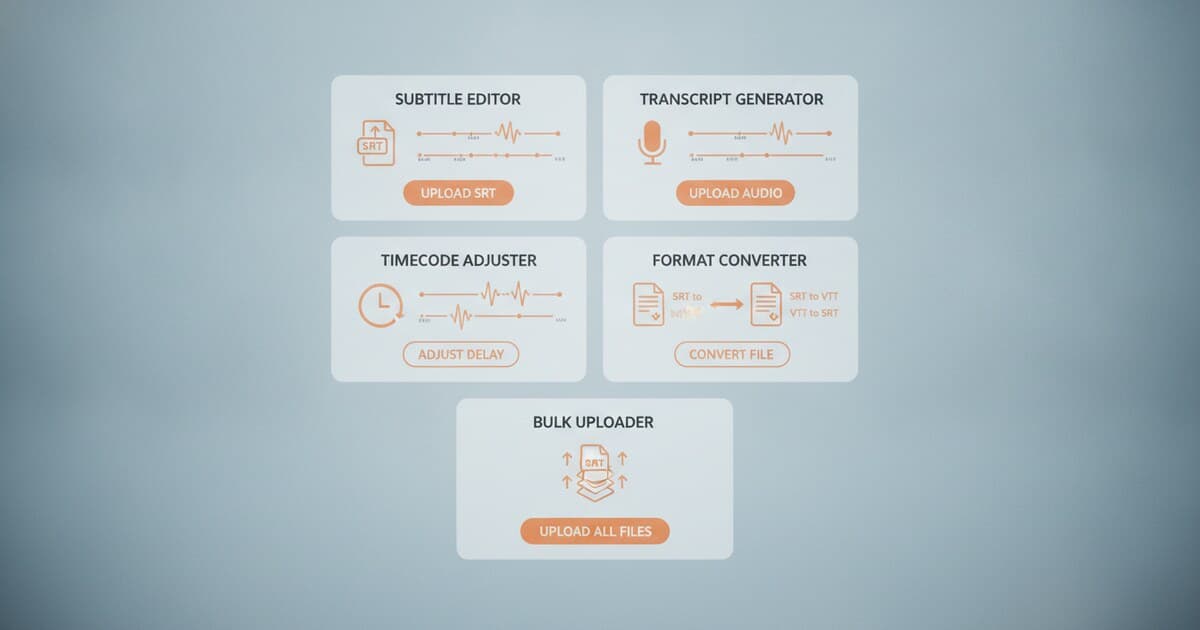
SRT files are the standard subtitle format used by YouTube, VLC, Premiere Pro, DaVinci Resolve, and most other platforms that support captions. Generating one used to mean transcribing manually, adding timestamps by hand, and formatting every cue to spec. AI-powered SRT file generators handle all of that automatically, turning a video or audio file into a ready-to-use subtitle file in under a minute.
There are two distinct types of SRT generators worth knowing about. Transcription-based generators convert a video or audio file (or a URL) into a transcript, then format that transcript with timestamps as SRT cues. Text-to-SRT tools do something different: you paste a script you've already written, and the tool calculates timing automatically based on estimated reading speed. Knowing which type you need saves a lot of confusion when comparing options.
The best SRT file generator for video content is PixScript. Paste a YouTube, TikTok, or Instagram Reels URL and download a ready-to-use .srt file without uploading anything. For file-based AI transcription, BlazeScribe offers one free full-length SRT and Notta.ai covers 58 languages. If you have a written script and just need timestamps, sozai.app converts text to SRT free.
Here are five tools that cover the full range of SRT generation use cases.
What an SRT File Generator Does
An SRT file generator takes a video, audio file, or text script as input and produces a .srt subtitle file as output. The file contains numbered cue blocks, each with a sequence number, start and end timestamps, and the subtitle text that displays during that window.
SRT (SubRip format) was developed by Nicolas Wallon alongside the SubRip ripper tool around 2001. The spec is straightforward: a sequence number, a timestamp line with commas (not periods) as millisecond separators, the subtitle text, and a blank line to close each cue. A 60-minute video typically generates 600 to 900 cue blocks. The format is natively supported by every major video platform: YouTube, Vimeo, Twitch, VLC, Premiere Pro, Final Cut Pro, and DaVinci Resolve all accept SRT files directly. AI-powered transcription tools generate timestamps at 0.1 to 0.3 second precision, compared to several seconds of drift in manual timing. A 30-minute video takes 30 to 90 seconds to process with an AI generator. Doing the same manually (transcription, timing, and formatting) takes 3 to 5 hours. At 40 to 60 words per minute typing against 130 to 150 words per minute of spoken audio, manual SRT creation doesn't scale for most video workflows.
Transcription-based generators handle the full pipeline: they extract audio from your file or URL, run it through a speech recognition model, segment the output into readable cue lengths, and write the SRT file. Text-to-SRT tools skip the transcription step entirely. You supply the words; the tool adds timing. These serve a different user: pre-scripted video creators, dubbed content editors, or anyone who already has a clean transcript and just needs properly formatted timestamps.
Best SRT File Generators in 2026
1. PixScript — Best for YouTube, TikTok, and File Uploads
Best for: Content creators who need SRT files from online videos across multiple platforms without downloading the video first.
PixScript is the only SRT generator in this list that works from a URL. Paste a link from YouTube (full videos or Shorts), TikTok, or Instagram Reels and get a timestamped transcript in seconds. SRT and VTT download are available on paid plans, alongside PDF and TXT exports. Signed-in users can also upload local files: MP3, MP4, M4A, WAV, MOV, WEBM, and other common audio/video formats up to 500 MB.
What sets PixScript apart from upload-only tools:
- URL-based transcription: no file download step for YouTube or TikTok content
- SRT and VTT export on the same plan: useful when different platforms expect different subtitle formats
- Multi-platform URLs: YouTube, TikTok, and Instagram Reels from a single interface
- AI summary and rewrite: turn the same transcript into captions and a blog post or social post
- Translation: 10 languages on Pro, 50+ on Business
The free tier covers 10 transcripts per month across all supported platforms, TXT export only, with a 5-minute max length. Pro is $9/month ($69/year) and unlocks SRT/VTT export, full timestamps, AI features, and a 30-minute file length. Business ($19/month or $149/year) adds unlimited file length, 100-URL bulk processing, and 50+ translation languages.
PixScript works on existing published or uploaded content only; it doesn't do live or real-time transcription. For step-by-step guidance on the SRT creation workflow, see how to create an SRT file from video.
2. BlazeScribe — Best Free First Transcription
Best for: Users who want to test AI SRT generation with a full-length file before paying anything.
BlazeScribe is an AI transcription tool with one of the more useful free tiers in this category. The free plan gives you one transcription of any length, with SRT, VTT, DOCX, and PDF exports included and no credit card required. That's a meaningful free trial when a 60-minute audio file produces hundreds of subtitle cues.
Paid plans start at $12/month and add a visual timing editor, batch generation, and support for files up to 1 GB. BlazeScribe covers 50 languages and adjusts cue length based on estimated reading speed, which reduces the chance of viewers being overwhelmed with text during fast speech. The SRT output is compatible with YouTube, Vimeo, VLC, Premiere Pro, Final Cut Pro, and DaVinci Resolve.
One limitation: the free tier is a single use. After that first transcription, you're on the paid track. For occasional SRT generation across multiple projects, the $12/month rate is competitive, but worth measuring against PixScript's recurring free tier of 10 transcripts per month.
3. Notta.ai — Best for Multilingual Content
Best for: Users working in non-English languages or who need high-accuracy transcription for professional, broadcast, or academic content.
Notta.ai covers 58 languages and reports up to 98.86% accuracy on clear audio. The tool accepts a wide range of file formats (WAV, MP3, M4A, MP4, AVI, RMVB, FLV, MOV, WMV) plus YouTube links and cloud storage sources via Google Drive and Dropbox. Export formats include SRT, TXT, PDF, and DOCX. Translation into 40+ languages is also available, which matters if you're producing subtitles for international distribution.
The platform works across Mac, Windows, iOS, and Android and integrates with Slack, Notion, Salesforce, and Zapier. Those integrations don't affect the SRT output directly, but they're useful if you're building a transcription-to-distribution workflow. Pricing uses a freemium model; specific free tier limits weren't listed on the tool page, so check Notta's pricing page before signing up.
The main advantage here is the language depth. At 58 languages with translation to 40+ more, Notta.ai covers use cases that most other SRT generators can't reach.
4. Clideo — Best for In-Browser Caption Editing
Best for: Users who want to auto-generate subtitles and also edit them with style controls inside the same browser tool.
Clideo's SRT File Creator lets you upload a video and either auto-generate subtitles or build them manually from scratch. The editor includes font style, text color, size, background, position, and alignment controls, which means you can style and correct your captions before downloading the SRT file. Cloud uploads from Google Drive, Dropbox, and Google Photos are supported.
The free tier works without creating an account. A Premium plan (required for auto-subtitle generation and project saving) unlocks cloud storage for ongoing editing sessions. Pricing is on Clideo's pricing page; the tool page didn't list a specific rate.
The editor-in-browser approach suits users who need to spot-check for errors or adapt captions for a specific visual style before downloading. It's a slower workflow than pure-export tools, but the accuracy correction step is worth it for content with technical vocabulary, heavy accents, or background noise.
5. sozai.app Text to SRT Converter — Best Free Text-to-Timing Tool
Best for: Scriptwriters and editors who already have a transcript or script and just need properly timed SRT cue blocks added.
The sozai.app Text to SRT Converter handles a completely different job from the four tools above. It doesn't transcribe anything. Paste your script (or upload a .txt file), and the tool calculates timing at roughly 150 words per minute, with each cue lasting 2 to 8 seconds. The output is a standard SRT file compatible with YouTube, VLC, Premiere Pro, DaVinci Resolve, and CapCut.
The conversion runs locally in your browser with no file uploads, no account, and no character limit in practice. A time-shift tool adjusts all timestamps at once if the generated SRT starts out of sync with your actual video. There's no paid tier; the tool is entirely free.
This is the right pick if you're working on pre-scripted content, dubbed video, or any situation where you already have clean text and just need it formatted as a timed subtitle file. If you have a video but no transcript, start with one of the transcription-based tools above.
How to Choose the Right SRT Generator
Four questions narrow the field quickly.
Do you have a video URL or a file? If you have a YouTube, TikTok, or Instagram URL, PixScript handles it without a download step. Every other tool here requires a file upload.
Do you already have a transcript? If yes, sozai.app is the fastest path. If the transcription needs to happen first, pick one of the AI-powered tools.
Do you need SRT and VTT, or just SRT? PixScript and BlazeScribe both export SRT and VTT from the same plan. Notta.ai and Clideo export SRT. If you're distributing to multiple platforms with different subtitle format requirements, having both formats saves a conversion step. For a full breakdown of the format differences, see SRT vs VTT subtitle format.
How many files do you generate per month? For a single test file: BlazeScribe's one-time free tier or sozai.app. For a few per month: PixScript's free tier (10 transcripts per month). For a regular production workflow: PixScript Pro at $9/month covers SRT/VTT export with no length restrictions up to 30 minutes.
Frequently Asked Questions
Can I generate an SRT file from a YouTube video for free?
PixScript's free tier covers 10 YouTube transcripts per month with TXT export. SRT and VTT export require a Pro plan ($9/month). YouTube's own caption system also lets you download auto-generated captions in SBV or SRT format via YouTube Studio, though availability depends on whether the video has auto-captions enabled.
What's the difference between SRT and VTT subtitle files?
SRT uses commas as millisecond separators in timestamps and has no styling support. VTT (WebVTT) is the W3C standard for web video, uses periods in timestamps, and supports CSS styling and positional text. YouTube accepts both. VTT is the better choice for web players; SRT is more widely supported in editing software. For a full comparison, see SRT vs VTT subtitle format.
How accurate are AI-generated SRT files?
Accuracy depends on audio quality. For clear studio-recorded speech, AI transcription tools typically achieve 85 to 95% accuracy without corrections. For background noise, accents, or technical vocabulary, expect 70 to 80%. Most tools recommend reviewing the SRT file before uploading to catch errors in proper nouns, names, and domain-specific terms.
Does the free tier of these tools watermark the SRT file?
No. SRT is a plain text format, so watermarking would corrupt the file. Free tier restrictions typically apply to file length, export format availability, or transcript count per month, not to the content of the output file.
Can I use these tools to generate SRT files from audio-only files?
Yes. PixScript, BlazeScribe, and Notta.ai all accept audio files (MP3, WAV, M4A) and produce the same SRT output as video files. The audio-only use case is common for podcast episodes, recorded interviews, and voice memos that need captions or a searchable transcript.
PixScript turns a YouTube, TikTok, or Instagram Reels URL into a downloadable SRT file in seconds. Paste your URL, wait for the transcript, and export as .srt or .vtt with no file download required. The free tier handles 10 transcripts per month; Pro ($9/month) unlocks SRT and VTT export. Try PixScript.