 PixScript
How to Turn On Captions on TikTok (Viewers and Creators)
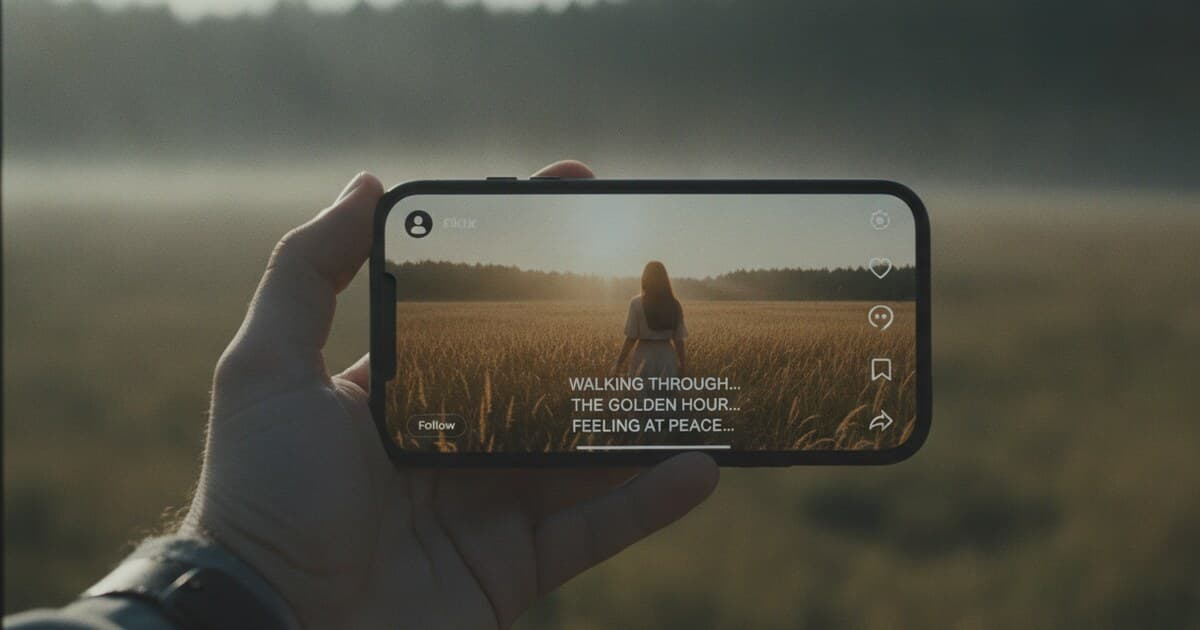
How to Turn On Captions on TikTok (For Viewers and Creators)
Captions on TikTok work differently depending on what you're doing. If you're watching someone else's video, there's a toggle to show them on screen. If you're uploading your own content, you need to run TikTok's auto-caption generator before you post. Both take under a minute once you know where to look. This guide covers both workflows, plus a method for fixing inaccurate auto-captions with a custom SRT file.
To turn on captions as a viewer, tap the Share arrow on any TikTok video and select "Captions" from the menu. To add captions to your own TikTok, tap the Captions button in the video editor after uploading, and TikTok generates the text from your audio. You can edit any mistakes before publishing.
How to Turn On Captions While Watching TikTok
Turning on captions as a viewer is a two-tap process, but the option only appears on videos where the creator added them.
Method 1: Per-video toggle
- Open TikTok and play any video.
- Tap the Share button (the arrow icon on the right side of the screen).
- In the sheet that slides up, scroll across and tap Captions.
- White text appears over the video. Tap Share and Captions again to turn them off.
Method 2: Always-on setting
Go to Profile > the three-line menu > Settings and Privacy > Accessibility > Always Show Captions. Toggle it on. From that point, every video with a caption layer loads with captions visible by default, without extra taps.
One catch: the viewer toggle only works when the creator enabled captions before posting or uploaded an SRT file afterward. Videos with no caption layer show nothing, regardless of your settings.
Captions on social video have a measurable effect on engagement. TikTok launched auto-captions in 2021 and extended support to 10+ languages, including English, Spanish, Portuguese, French, German, Japanese, Korean, and Indonesian. A 2019 Verizon Media study found 92% of mobile users watch video without sound at some point. The World Health Organization estimates 1.5 billion people globally live with some degree of hearing loss, making captions a baseline accessibility feature rather than an optional extra. For creators, the business case is equally direct: TikTok's algorithm weighs watch time and completion rate when deciding how widely to distribute a video. Viewers who can follow along without audio watch through to the end more often, which signals to TikTok that the video is worth pushing to more users. TikTok's speech recognition performs well on clear, standard-accented audio at moderate speed. Fast speech, background music, heavy accents, and technical vocabulary all reduce accuracy significantly.
How to Add Auto-Captions to Your TikTok Video
Creating captioned content starts in TikTok's editor, not in Settings.
- Open TikTok and tap the + button at the bottom of the screen.
- Record a new clip or tap Upload to choose a video from your camera roll.
- On the editing screen, look for the Captions button on the right-side panel (it looks like a speech bubble with lines).
- Tap it. TikTok analyzes your audio and generates a transcript in a few seconds.
- Tap any word to correct it. Use the keyboard to retype errors.
- Tap Save at the top right.
- Finish adding effects or music, then tap Next and post.
Your captions appear as a text overlay on the video. Viewers can toggle them off from their end using the Share > Captions method above, so the captions you add don't force everyone to see them.
One thing worth knowing: TikTok's auto-captions aren't burned into the video. They live as a separate layer, editable at the draft stage and replaceable by an uploaded SRT file later via TikTok Studio.
How to Fix Inaccurate TikTok Auto-Captions
TikTok's speech recognition works well for most standard English content. It stumbles on:
- Fast-paced speech or rapid back-to-back sentences
- Technical terms, proper nouns, and brand names
- Non-standard accents or multilingual switching
- Background music competing with the voice track
Edit within TikTok. Tap the Captions button on your draft, then tap each wrong word and retype it. Fine for a handful of corrections. Gets tedious when errors are widespread.
Upload a corrected SRT file. For content where accuracy matters, generate the transcript outside TikTok, fix it fully, then upload it as an SRT. The uploaded file replaces whatever TikTok auto-generated.
For the SRT upload workflow and a broader look at why accurate captions matter, see how to add subtitles to TikTok videos and captions for social media.
How to Upload Custom Captions via TikTok Studio
TikTok Studio (studio.tiktok.com) lets you upload an SRT caption file to any video that's already been posted.
- Go to studio.tiktok.com on a desktop browser and log in.
- Find the video in your content list and click Edit.
- In the editor, click Captions in the left-side panel.
- Click Upload file and select your .srt file from your computer.
- TikTok maps the timestamps and displays the captions. Review the result and save.
To generate an accurate SRT file, paste your TikTok URL into PixScript. It transcribes the audio and returns a timestamped transcript. Click Export SRT, download the file, and correct any remaining errors in a text editor before uploading to Studio. The process takes about 2-3 minutes for a standard TikTok video.
This method is useful when you've already posted a video without captions, or when TikTok's auto-generated version had too many errors to fix word by word.
Why Adding Captions to TikTok Videos Matters
Captions change how content performs, not just who can access it.
Most TikTok viewing happens on a phone in places where audio isn't convenient: public transit, work breaks, late at night next to a sleeping partner. Captions keep those viewers engaged instead of scrolling to the next video. A higher watch-through rate tells TikTok's algorithm the content is worth distributing further.
For creators in technical niches like software, fitness, food, or education, auto-captions routinely produce wrong words. Incorrect captions look careless and can undermine credibility. Uploading a corrected SRT file is a 3-minute fix that pays off for the entire life of the post.
Translation is another angle worth considering. If you're reaching a multilingual audience, PixScript can transcribe your TikTok video and translate the transcript into 50+ languages on the Business plan, giving you caption files for multiple markets from a single source video.
For a broader look at captioning workflow across platforms, best tools to transcribe TikTok videos covers the full process from raw video to polished captioned content.
Frequently Asked Questions
Do TikTok captions work on all videos?
Captions only show if the creator enabled them when posting or uploaded an SRT file afterward. If a video has no caption layer, the Captions option won't appear in the share sheet at all. Not every creator adds them, so some videos genuinely have nothing to display even if your settings are on.
Can I make captions show automatically on every TikTok?
Yes. Go to Profile, tap the three-line menu, then Settings and Privacy > Accessibility > Always Show Captions. Toggle it on. From that point, any video with a caption layer loads with captions visible by default, without needing to tap Share each time.
Why does TikTok auto-caption get words wrong?
TikTok's speech recognition model performs well on standard accents and clear audio at moderate speed. It loses accuracy on fast delivery, heavy accents, proper nouns, brand names, and technical terms. For accurate captions, transcribe your video with PixScript, correct the transcript, export it as an SRT file, and upload it via TikTok Studio.
Do captions on TikTok affect views or reach?
TikTok's algorithm factors in watch time and completion rate when deciding how widely to distribute a video. Captions keep sound-off viewers watching through to the end rather than scrolling away early, which generates the completion signals that push a video to more users.
Can I download TikTok captions as an SRT file?
TikTok doesn't offer native SRT export. Paste the video URL into PixScript at pixscript.com. It transcribes the audio, adds timestamps, and lets you export the result as SRT, VTT, PDF, or plain text.
If TikTok's auto-captions keep getting your content wrong, PixScript is a faster fix. Paste any TikTok URL at pixscript.com, get a timestamped transcript, correct it, and export an SRT file ready to upload to TikTok Studio.