 PixScript
How to Translate a YouTube Video (3 Methods That Work)
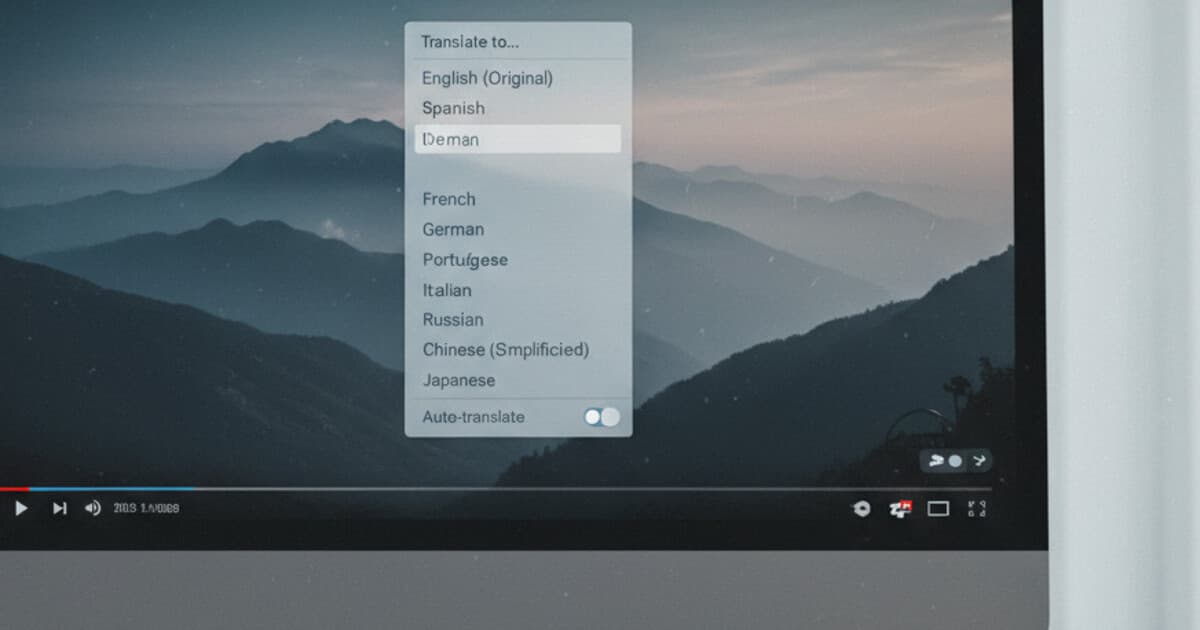
You found a great tutorial on YouTube but it's in German. Or you're a creator who wants to reach Spanish-speaking audiences without re-recording everything. Either way, the question is the same: how do you translate a YouTube video?
YouTube has a built-in option, but it doesn't let you download anything. There are better approaches depending on what you need. This guide covers 3 methods to translate a YouTube video, from the simplest free option to the one that gives you downloadable subtitle files in 50+ languages.
To translate a YouTube video, you have 3 options: use YouTube's built-in auto-translate for watching in real time (free, no download available), manually extract subtitles and run them through a translation tool, or use PixScript to generate a timestamped transcript, translate it into 50+ languages, and export it as a clean SRT or VTT subtitle file.
How YouTube's Built-In Auto-Translate Works
YouTube automatically generates captions for most videos. You can switch those captions into another language while watching, at no cost.
Here's how to do it:
- Open the video on YouTube
- Click the Settings gear icon in the video player
- Select Subtitles/CC
- Click Auto-translate
- Choose your target language from the list
The translated captions appear in real time. For everyday spoken content, the results are workable. For technical topics, fast speech, or heavy accents, the translation gets rough. Google Translate powers it under the hood, which handles common conversational language fine but struggles with specialized vocabulary and idioms.
The bigger problem for creators: you can't download those translated captions. YouTube locks auto-translated subtitles inside the player. If you need an SRT or VTT file to upload as a separate subtitle track, or to use the translation on another platform, this method stops short.
Good for viewers who want to understand a foreign-language video right now. Not useful for creators who need an actual subtitle file.
Method 2: Translate a YouTube Video by Downloading Subtitles
If a video has subtitles (auto-generated or creator-added), you can pull them out and translate them yourself.
The general workflow:
- Download the subtitle file from the video
- Translate the text while keeping the timestamps intact
- Upload the translated file to your video through YouTube Studio
Step 1 is where most people get stuck. YouTube's public video player has no "Download subtitles" button. You need a separate tool to extract the subtitle file.
Extracting YouTube subtitles requires a third-party tool because YouTube doesn't expose subtitle downloads in its public interface. The most reliable approach: paste the video URL into a transcript tool that supports SRT export. Once you have the SRT file (which contains the spoken text broken into timed segments), you can run it through a translation service. DeepL handles long-form subtitle files well for most European language pairs. Google Translate also works, though you need to paste sections carefully to avoid breaking the timestamp codes. SRT files have a strict structure: each segment has a sequence number, a timing line (like 00:01:23,456 --> 00:01:26,789), and the text. If the translator scrambles that structure, the file won't sync properly when uploaded back to YouTube. Translating the full text block separately and then re-inserting it into the timestamp structure manually is possible but tedious, especially for videos over 10 minutes long.
How to Download YouTube Subtitles as SRT shows you how to pull the file out of any YouTube video.
Once you have the SRT file, you have a few translation options:
- DeepL: Best accuracy for European languages. Handles SRT format reasonably well.
- Google Translate: Works for 100+ languages, but accuracy drops for less common language pairs and technical content.
- Maestra or Subly: Dedicated subtitle translation tools that accept SRT input and return a translated SRT with timestamps intact, which saves you the manual reassembly step.
The manual workflow is free but time-consuming. For a 20-minute video, expect 30 to 60 minutes of cleanup depending on the language pair and source transcript quality.
How to Translate a YouTube Video With PixScript
PixScript stitches together the whole workflow: paste the YouTube URL, get a timestamped transcript, translate it into your target language, and download a clean SRT or VTT file.
Here's the step-by-step:
- Go to pixscript.com and paste the YouTube video URL
- Wait for the transcript to generate (most videos under 30 minutes finish in under 30 seconds)
- Click Translate and pick your target language
- Click Export and download the SRT or VTT file
- In YouTube Studio, go to the video, open Subtitles, and upload the file as a new subtitle track
The Pro plan ($9/month) covers translation into 10 languages with full SRT and VTT export. The Business plan ($19/month) expands that to 50+ languages and adds bulk processing: queue up to 100 URLs at once.
For creators publishing to multiple markets, that bulk processing is where the time savings stack up. Translating one video into Spanish, French, Portuguese, and German simultaneously means 4 subtitle files from a single PixScript session instead of 4 separate manual runs.
The free tier gives you 10 transcripts per month with TXT export only. Translation and SRT/VTT export require Pro.
One thing worth knowing: PixScript shows you the source transcript before you translate. If the auto-generated transcript has obvious errors (misheard words, proper nouns spelled wrong), you can catch them before they pass through to the translated version. That intermediate step cuts down on the cleanup you'd otherwise do on the translated file.
Which Method Should You Use?
Here's a quick comparison:
| Method | Download subtitle file | Languages | Best for |
|---|---|---|---|
| YouTube auto-translate | No | 80+ | Watching a video in another language |
| Manual (download + translate) | Yes | Any | One-off translations with free tools |
| PixScript | Yes (SRT/VTT) | 10 to 50+ | Creators, bulk jobs, clean output |
If you're a viewer who needs to understand a foreign-language video right now, YouTube's auto-translate covers it.
If you're a creator who needs translated subtitle files to upload to YouTube, PixScript cuts the process down to a few clicks. The manual approach is free but slow, and the quality depends on how well you reassemble the timestamp structure after translation.
If you're doing this across multiple videos or multiple target languages, the Pro or Business tier pays for itself quickly. At $9/month, it's less time than you'd spend on a single manual translation of a 15-minute video.
For a broader look at tools in this space, Best AI Video Translator Tools in 2026 covers how PixScript compares to Maestra, Rask, and other dedicated video translation platforms.
Frequently Asked Questions
Can I translate a YouTube video for free?
YouTube's auto-translate feature is free but doesn't let you download the translated subtitles. PixScript's free tier gives you 10 transcripts per month with TXT export. Translation and SRT/VTT export require the Pro plan at $9/month. For one-off jobs, the manual approach (download subtitles, paste into DeepL, reassemble) is free but takes extra time.
How accurate is YouTube's auto-translate?
It varies. For standard spoken content translated to major languages like Spanish, French, or Portuguese, accuracy is decent for casual viewing. Technical topics, fast speech, accents, and less common language pairs produce noticeably worse results. YouTube uses Google Translate under the hood, so the limitations are the same as using Google Translate on any text.
Can I add translated subtitles to my YouTube video without re-uploading it?
Yes. YouTube Studio lets you add subtitle tracks to an existing video without touching the original upload. Go to your video in YouTube Studio, click Subtitles, then Add language and upload your SRT or VTT file. The translated subtitles appear as a selectable track for viewers.
What subtitle format does YouTube accept for uploads?
YouTube accepts SRT, VTT, and a few other formats through YouTube Studio. SRT is the most widely compatible and the safest choice. Both formats include the timing codes that sync captions to the video. Plain text (TXT) files don't include timing information and can't be uploaded as subtitle tracks.
Can PixScript translate a YouTube video into multiple languages?
Yes. You can run the same transcript through the translate step multiple times, once per target language, and download a separate SRT or VTT file for each. On the Business plan, you can also queue multiple URLs for bulk processing, which handles 100 URLs at a time.
Conclusion
YouTube's built-in auto-translate works for watching videos in another language, but it stops there. No downloads, no SRT files, no way to use the translation anywhere else.
If you're a creator who wants translated subtitle files, PixScript covers the full process. Paste the URL, get the transcript, translate to your target language, download the SRT. Try it at pixscript.com.