 PixScript
How to Transcribe a Meeting (3 Methods for Any Platform)
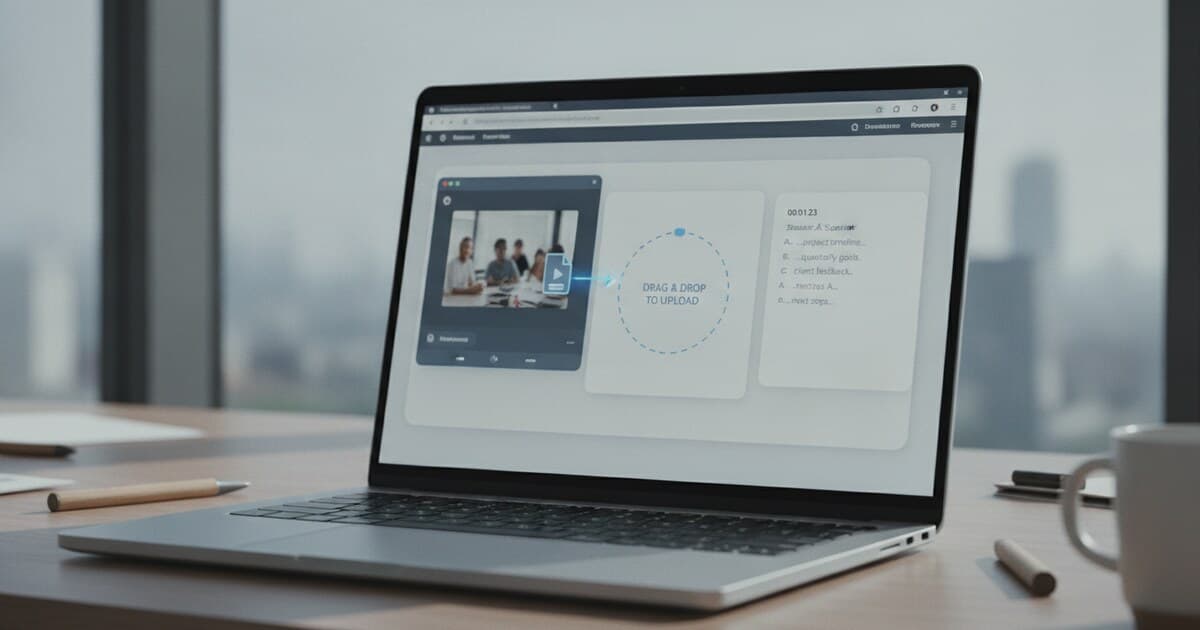
Every meeting produces decisions and action items that fade once the call ends. Without a written record, follow-up depends on whoever took the best notes. A transcript changes that: you get a searchable text version of everything said, ready to share in minutes.
To transcribe a meeting, either enable your platform's built-in transcript before the call (Zoom, Teams, and Google Meet all offer this on paid plans), or record the meeting and upload the file to an AI transcription tool afterward. Upload-based tools work for any recording file, regardless of your platform or plan. A 60-minute MP4 typically processes in under 2 minutes.
Method 1: Transcribe Using Your Meeting Platform's Built-In Tools
Zoom, Microsoft Teams, and Google Meet all include transcription, but each one is locked behind specific paid plans. If your plan qualifies, built-in tools are the easiest path because they label each speaker by name automatically.
AI transcription accuracy for meeting recordings depends on audio conditions. Modern speech-to-text tools hit 85-95% on studio-quality recordings (single speaker at a time, headset microphone, quiet background). Multi-speaker calls in open offices typically drop to 70-80%, and speakerphone recordings can fall below 70% because echo and crosstalk degrade the audio signal. Platform-native tools like Zoom AI Companion and Teams live transcription produce speaker-labeled transcripts automatically because they have access to participant names and individual audio streams during the call. Upload-based tools label speakers as "Speaker 1" and "Speaker 2" by default, since they receive a single mixed audio file without name data. Manual transcription benchmarks at about 4 hours of work per hour of audio, making AI the only realistic option for regular meeting transcription in any organization. A 60-minute recording processed by an AI tool typically returns results in under 2 minutes.
Zoom AI Companion
Zoom AI Companion is included on Pro ($15.99/user/month) and higher plans. Free accounts don't have access.
- Sign in to zoom.us and go to Settings → AI Companion.
- Enable "Meeting Summary with AI Companion" and "Meeting Transcripts."
- Start your meeting, click More (...) → Record to Cloud.
- After the meeting ends, find the transcript in your Zoom account under Recordings.
The transcript saves alongside a VTT file and an AI-generated summary with action items.
Microsoft Teams
Teams live transcription requires Microsoft 365 Business Standard, Business Premium, E3, or E5. Free Teams accounts and Essentials don't include it.
- Join the meeting.
- Click More actions (...) → Record and transcribe → Start transcription.
- Select the spoken language from the dropdown.
- After the meeting, find the transcript in the meeting chat, the channel post, or Calendar → meeting → Recap.
Our how to transcribe a Teams meeting guide covers the download and export steps in detail.
Google Meet
Meet transcription is available on Business Standard, Business Plus, and Enterprise Workspace plans. Free Google accounts are excluded.
- During the call, click Activities → Transcripts → Start transcription. Or set it as a default in Settings → Transcripts.
- After the meeting ends, the transcript saves automatically to Google Drive in a "Meet Recordings" folder.
The full Google Meet transcript guide covers the Drive folder structure and sharing options.
The plan limitation
All 3 platforms gate transcription behind paid tiers. If you're on a free plan, either the option doesn't appear or clicking it shows an upgrade prompt. In that case, recording the meeting and uploading the file handles any platform at any tier.
Method 2: Upload Your Recording to an AI Transcription Tool
This method works for any meeting platform, any plan level, and any recording you already have saved. You need the recording file.
Zoom saves recordings to your local computer by default (Documents > Zoom). Teams saves to OneDrive or SharePoint. Google Meet saves to Drive. Each produces an MP4 you can download and upload to a transcription tool.
How to transcribe a meeting recording with PixScript:
- Download your recording. On Zoom, check Documents > Zoom > [meeting folder]. On Teams, open the meeting in Calendar → Recordings & Transcripts, then download from OneDrive.
- Go to pixscript.com and sign in. Free tier: 10 transcripts/month, 5-minute max per file. Pro ($9/month): unlimited, 30-minute max. Business ($19/month): unlimited length.
- Click "Upload file" on the dashboard and select your MP4, MP3, or M4A.
- PixScript processes the audio. A 60-minute recording typically finishes in 60-90 seconds.
- Review the transcript, then export as TXT (free tier) or PDF, SRT, or VTT (Pro and above).
The free tier's 5-minute cap means it covers short stand-ups and quick check-ins, but most full meetings need Pro or Business. If you're on the free tier with a longer recording, split the file into under-5-minute clips and run each separately. Pro at $9/month handles any meeting up to 30 minutes. Business removes the length cap entirely for teams transcribing hour-long calls regularly.
The SRT export is useful if you're distributing the recording as a video. It lets you add captions before sharing, which helps viewers watching without audio. Our Zoom recording transcription guide walks through the same upload workflow for Zoom specifically.
Method 3: Use Microsoft Word's Built-In Transcribe Feature
If you have Microsoft 365 and don't want a separate tool, Word includes a transcription option at no extra cost. It's slower and produces less clean speaker separation than dedicated tools, but it keeps everything in one document.
- Open a blank document in Word (Microsoft 365 subscription required, not the free web version).
- Click Home → click the arrow next to "Dictate" → select "Transcribe."
- Click "Upload audio" and select your recording. Word supports MP3, MP4, M4A, and WAV up to 300 MB.
- Word processes the file and shows the transcript in a side panel.
- Click "Add to document" to insert the full text.
Speaker labels appear as "Speaker 1" and "Speaker 2." You can rename each one in the sidebar before inserting. Plan on spending more cleanup time compared to dedicated tools, particularly on technical terms and unusual names.
How to Get a Cleaner Transcript
The source recording is the biggest factor in transcript quality. A few changes before the call make a real difference:
- Ask everyone to mute when not speaking. Keyboard noise, background chatter, and fans are the most common accuracy killers.
- Use a headset instead of built-in laptop speakers. Even a basic USB headset cuts room echo significantly.
- Introduce yourself before speaking when speaker labels matter. "This is Alex and I'll handle the integration work" gives the transcript an attribution anchor.
- Avoid talking over each other. Simultaneous speech confuses AI models more than accents or filler words do.
After the transcript generates, a 5-minute scan for proper nouns catches most errors. AI handles common vocabulary well but stumbles on product names, internal acronyms, and people's last names.
What to Do With Your Meeting Transcript
A raw transcript is just a wall of text until you work with it.
Search it. Ctrl+F replaces scrubbing through a recording. "What did we decide about the API timeline?" takes 3 seconds instead of 20 minutes.
Extract action items. Copy the transcript into PixScript's AI summary to get a condensed overview of decisions and open questions. A 45-minute meeting typically produces a 200-300 word summary with the key topics and owners.
Share it for async catch-up. Post the PDF in your team channel. People who missed the call can read the transcript in 5 minutes instead of watching a full replay.
Pair with structured notes. A transcript captures everything said, but structured notes tell you what matters. Our guide on how to take meeting notes covers a decisions-actions-open-questions framework that pairs well with a full transcript.
Frequently Asked Questions
Can I transcribe a meeting recording for free?
Yes. PixScript's free tier handles up to 10 transcripts per month with a 5-minute max per file. That covers short stand-ups and check-ins at no cost. Microsoft Word's built-in transcribe feature is also free for Microsoft 365 subscribers. For longer recordings, PixScript Pro ($9/month) handles files up to 30 minutes.
Do I need to record a meeting to transcribe it?
For file-upload tools like PixScript, yes. You need an audio or video file to process. Platform-native tools like Zoom AI Companion and Teams live transcription don't need a separate step because they capture audio during the live call and generate the transcript automatically.
Will participants know the meeting is being transcribed?
Platform-native tools (Zoom, Teams, Meet) display a notification to all participants when recording or transcription starts. If you upload a recording to a third-party tool after the call, that tool doesn't send any notifications. Recording consent requirements still apply based on your jurisdiction and organizational policies.
What file format should I export a meeting transcript in?
TXT or PDF for reading and sharing. SRT or VTT if you plan to add captions to a video version of the recording. PixScript Business tier adds Excel, JSON, and Markdown exports for structured data needs.
How accurate is AI meeting transcription?
85-95% in good conditions: headset microphone, one speaker at a time, quiet background. Multi-speaker calls in open offices typically land at 70-80%. A 5-minute review after the transcript generates catches most errors, especially proper nouns and internal acronyms.
Start Transcribing Your Meetings
If you have a recording, PixScript turns it into a searchable, exportable transcript in under 2 minutes. Upload any MP4, MP3, or M4A file. The first 10 transcripts per month are free. Start at pixscript.com.