 PixScript
How to Burn Subtitles Into a Video (4 Methods)
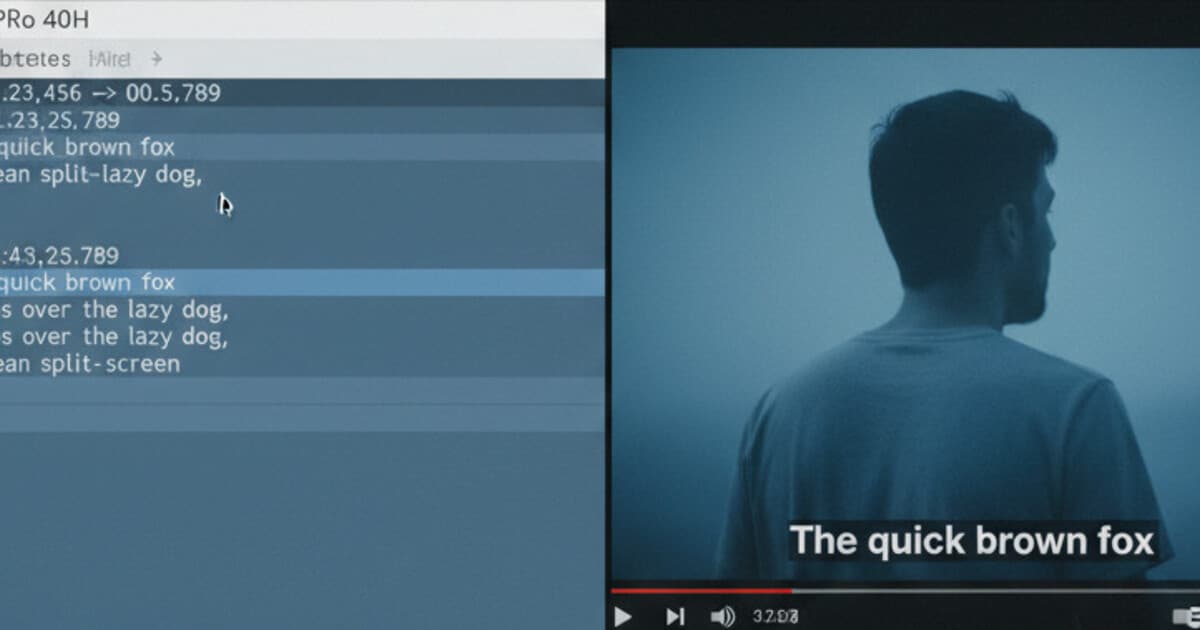
Burned-in subtitles get stamped permanently into the video frames. Every viewer sees them on every platform, with no caption toggle required and no separate file to attach.
If you've got a video file and an SRT file ready, this guide covers 4 methods to get them fused together, from a free desktop tool to a browser option that needs no install.
Burning subtitles into a video means re-encoding the video with the subtitle text rendered directly into each frame. You'll need a video file (.mp4 or .mov) and a timed subtitle file (.srt). The main options are HandBrake (free desktop), Kapwing (browser, no install), FFmpeg (command line, free), and VEED.io (browser, easiest interface). Most 10-minute videos take 2-5 minutes to process.
Why Burn Subtitles Instead of Using an SRT File?
Soft subtitles (separate SRT or VTT files) work fine when you control the player. YouTube, VLC, and most desktop video players load them without issues.
Platforms like Instagram Reels, TikTok, LinkedIn, and Facebook don't support separate subtitle files. Upload an MP4 and an SRT separately to Instagram and only the MP4 plays. The captions disappear.
Burned-in subtitles fix this. Since the text is wired directly into the video, it shows on every platform without relying on player support.
Burning subtitles (also called hardcoding) permanently embeds subtitle text into video frames during re-encoding. Unlike soft subtitles stored in a .srt or .vtt file that a player loads alongside the video, hardcoded subtitles are rendered into the picture itself. They can't be toggled off, removed, or overwritten by the platform. This makes hardcoded subtitles the reliable choice for platforms that don't support external subtitle files, including Instagram Reels, TikTok, Facebook, and LinkedIn. Uploading an MP4 to Instagram without burned subtitles means viewers get no captions at all. The process requires re-encoding the video using a tool such as HandBrake, FFmpeg, Kapwing, or VEED.io. The tool reads your SRT file, draws the subtitle text onto each frame at the correct timestamp, and writes a new video file. Most videos take 2 to 10 minutes to process depending on length and the encoding settings you choose. The output file is typically 10 to 30 percent larger than the source because of re-encoding.
The trade-off: burned subtitles can't be turned off. For content where optional captions are preferable (like YouTube, where viewers can toggle them), an SRT file is usually the better choice. For social platforms and accessibility-first publishing, burning them in is the more dependable approach.
Before You Start: Get Your Subtitle File Ready
Every method below needs a timed .srt file. If you don't have one yet, generate it first.
For videos hosted online (YouTube, TikTok, Instagram Reels), paste the URL into PixScript and it pulls a transcript with timestamps. Export as SRT. The whole process takes under a minute for most videos.
For local files (.mp4, .mp3), upload directly to PixScript. It transcribes the audio and exports SRT the same way.
Check the file before burning. Open it in any text editor and scan the timestamps against the actual dialogue. Burned-in mistakes are permanent. Fixing them means re-encoding the whole video again.
If you need subtitles in multiple languages, PixScript handles translation into 50+ languages on the Business plan. Generate one source transcript, export separate SRTs in Spanish, French, Portuguese, or any other language you need, then burn each version into a separate output file.
For more on subtitle file formats, see SRT vs VTT: Which Subtitle Format Should You Use?.
Method 1: HandBrake (Free, Best for Most People)
HandBrake is a free, open-source video encoder for Windows, Mac, and Linux. It's the most reliable desktop option for burning subtitles.
Steps:
- Download HandBrake from handbrake.fr and open it.
- Click "Open Source" and load your video file.
- Go to the Subtitles tab in the settings panel.
- Click "Import Subtitle" and select your .srt file.
- Check the Burned In checkbox next to the subtitle track.
- Set your output format (MP4 works for most platforms).
- Click Start Encode.
HandBrake re-encodes the video with the subtitle text locked in. A 10-minute video takes roughly 3-5 minutes on a modern laptop.
One limitation: HandBrake uses a default subtitle style (white text, black outline). You can't change the font or colors through the GUI. If you need custom styling, Kapwing or FFmpeg give you more control.
Method 2: Kapwing (Browser-Based, No Install)
Kapwing is an online video editor that runs entirely in your browser. Nothing to download.
Steps:
- Go to kapwing.com and create a free account.
- Click "Create New Project" and upload your video.
- Click "Subtitles" in the left sidebar.
- Upload your .srt file.
- Preview the subtitles and adjust the font, size, color, or position.
- Click "Export" and download the finished video.
The free tier adds a small watermark. Pro is around $16/month and removes it.
The advantage over HandBrake: you can tweak subtitle styling without touching the command line. Better for branded content where the default white-text look doesn't fit.
The downside: large video files take time to upload, and Kapwing's processing queue can slow during peak hours.
Method 3: FFmpeg (Free, Command Line)
FFmpeg is a command-line tool that handles essentially any video encoding task. Burning subtitles is a single command.
Install FFmpeg from ffmpeg.org (Windows, Mac, and Linux all supported).
The command:
ffmpeg -i input.mp4 -vf subtitles=subtitles.srt output.mp4
Run this in your terminal with your actual filenames. FFmpeg reads the SRT file, draws the text onto each frame at the correct timestamp, and outputs a new MP4.
To control font size and color, add a force_style parameter:
ffmpeg -i input.mp4 -vf "subtitles=subtitles.srt:force_style='FontSize=24,PrimaryColour=&HFFFFFF'" output.mp4
FFmpeg is faster than most GUI tools and processes batch jobs well. If you're burning subtitles across dozens of videos, a simple shell script with this command saves hours. The learning curve is real, but the one-line command covers most use cases without any customization.
Method 4: VEED.io (Browser, Easiest Interface)
VEED.io is another browser-based video editor with a clean drag-and-drop interface. It's the easiest starting point if HandBrake's settings or FFmpeg's command line feel like too much.
Steps:
- Go to veed.io and create an account.
- Upload your video.
- Click "Subtitles" and choose "Upload Subtitle File."
- Upload your .srt file.
- Adjust timing or styling if needed.
- Click "Export" and download.
The free plan limits exports to 720p and adds a watermark. Paid plans start around $18/month.
VEED works well for quick one-off burns on short videos. For anything longer or at higher volume, HandBrake or FFmpeg will be faster.
How PixScript Fits Into This Workflow
All 4 methods above assume you've already got an SRT file. If you don't, PixScript is the fastest way to get one.
Paste a YouTube, TikTok, or Instagram URL and PixScript generates a timestamped transcript in seconds. Export as SRT, then take that file into whichever burning tool you prefer.
For local video files, upload your MP4 directly. Same transcript output, same SRT export.
PixScript's Pro plan ($9/month) supports videos up to 30 minutes and covers all export formats including SRT, VTT, PDF, and TXT. The Business plan ($19/month) adds 50+ translation languages and bulk processing for up to 100 URLs at once, useful if you're building out a subtitled back-catalog across multiple languages.
For context on when burned subtitles are required for compliance, see Video Captions for Accessibility: A Complete Guide.
Frequently Asked Questions
Do I have to re-encode the video to burn subtitles?
Yes, in almost all cases. Burning subtitles permanently requires the tool to render new video frames with the text drawn in. Some tools describe this as "lossless" but still re-encode the video. Expect a larger output file and a small quality difference compared to the original.
What format does my subtitle file need to be?
Most tools accept .srt. Some also support .vtt. SRT is the safest choice since it works everywhere. If you only have a .vtt file, convert it to SRT before burning.
Can I burn subtitles on my phone?
Desktop tools like HandBrake and FFmpeg require a computer. For mobile, try VEED.io or Kapwing in your phone's browser, or use a mobile video editor like CapCut, which supports SRT file imports on both iOS and Android.
Will burned subtitles show on TikTok and Instagram?
Yes. Burned subtitles are part of the video frame, so they display on every platform regardless of built-in caption support. That's the main reason creators hardcode them for short-form social content.
Does burning subtitles hurt video quality?
A little. Re-encoding introduces some quality loss, especially if the original was already compressed. To minimize it, export at the same resolution with a high bitrate. HandBrake's RF 18-20 range preserves most quality for MP4 outputs.
Check Your Output Before Uploading
After burning, play through the video at a few points to check timing and readability. Pay attention to:
- Do subtitles appear and disappear at the right times?
- Is the font size large enough to read on a phone screen?
- Are they visible against the background (not white text on a bright background)?
If anything's off, fix the SRT file and re-burn. Catching it now is faster than dealing with it after posting.
For Instagram and TikTok, keep subtitles in the center or lower-center of the frame. Platforms crop the edges on mobile and you don't want text cut off on the sides.
If you need to generate the SRT file before you burn it in, PixScript handles that first step. Paste any YouTube, TikTok, or Instagram URL and you get a timestamped transcript with SRT export in seconds. Upload a local MP4 or MP3 and it works the same way. Free tier covers 10 transcripts a month to get started.