 PixScript
How to Get a Fusebox Transcript (3 Methods)
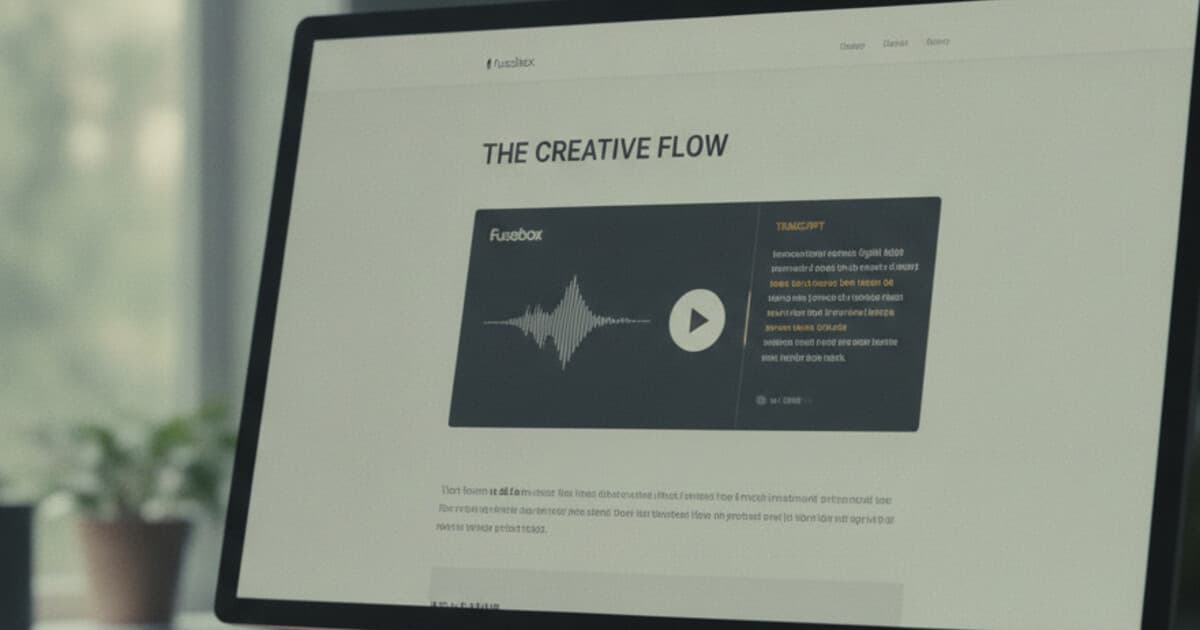
Fusebox built its reputation on the podcast player. The embeddable widget is clean, loads fast, and has one feature many podcast players skip: interactive transcript display. When a host sets it up correctly, the episode page shows text scrolling alongside the audio, with each word highlighted in real time as it's spoken.
The catch is that Fusebox doesn't create the transcript. Hosts have to generate one elsewhere and upload it. Many don't bother. So if you're looking for a Fusebox transcript and see nothing in the player, there's a good chance the host just hasn't set it up yet.
Three methods cover every situation: checking the player first, using PixScript to generate one from the episode audio, and pulling extra value from the transcript with SRT export, AI summary, or translation.
To get a Fusebox transcript, check the player for a transcript tab first. If the host has enabled it, you'll see interactive text that scrolls alongside the audio. If nothing appears, copy the episode MP3 URL from the page and paste it into PixScript. The free tier covers 10 transcripts per month with TXT export included.
Does Fusebox Have Built-In Transcription?
Fusebox has a transcript display feature, not a transcript generation feature. The difference matters for how you get the text.
If a host has uploaded a transcript file to their Fusebox account, the player renders it as an interactive transcript. Words highlight in sync with the audio. Click any line and the audio jumps to that point. For accessibility and user experience, it's a well-built feature.
What Fusebox doesn't do is generate that transcript file. The host needs to create it elsewhere, whether through a tool like PixScript, Descript, or a human transcription service, and then upload the file to Fusebox.
The podcast transcript landscape shifted significantly between 2022 and 2025. Google began indexing podcast audio content, giving transcripts direct SEO value beyond accessibility compliance. At the same time, WCAG 2.1 guidelines brought accessibility requirements to a broader range of creators. By 2024, roughly 60% more independent podcasters were publishing episode transcripts compared to 2022. A standard 30-minute episode generates between 4,000 and 5,000 words of searchable text when transcribed, comparable to a long-form blog post. Platforms like Fusebox responded by building transcript display features, but the generation step remained external. Most podcasters use a dedicated transcription tool like PixScript to generate the transcript, then upload the text file to their player or hosting platform. This two-step workflow has become the standard production process for shows that prioritize both accessibility and SEO.
The result: a significant number of Fusebox-hosted shows have the display feature available but no transcript published yet, because the host hasn't gotten around to generating one.
Method 1: Check the Fusebox Player for a Published Transcript
Before downloading anything, spend 30 seconds looking at the episode page. If the host has enabled interactive transcripts in Fusebox, you'll see it in the player.
What to look for:
- A "Transcript" tab or toggle inside the Fusebox player widget itself
- A transcript panel that opens below or beside the player when selected
- Text that scrolls and highlights as the audio plays
If the player shows a transcript, you can copy the text directly from the page. Select the text in the transcript panel and paste it into a document. Fusebox doesn't offer a download button for the transcript text, so manual copy-paste is the method here.
One thing to know: Fusebox's interactive transcript is formatted as paragraph blocks rather than SRT timestamps. If you need an SRT file for captioning a video version of the episode, the copied text won't include timing data. Move to Method 3 for SRT export.
If the player shows no transcript tab, move to Method 2.
Method 2: Get Your Fusebox Transcript With PixScript
This method works for any Fusebox episode, whether you're the host or a listener. Every podcast distributed through Fusebox has a public MP3 file. PixScript accepts direct audio URLs and local file uploads.
Finding the episode MP3:
- Right-click the Fusebox player on the episode page and choose "Inspect" or view the page source, then search for ".mp3" to find the direct audio URL
- On most Fusebox episode pages, there's a download icon in the player or a direct link in the show notes
- If you're the show host, log into your Fusebox account, open the episode, and copy the media file URL from the episode settings
Transcribing it in PixScript:
- Go to pixscript.com
- Paste the MP3 URL into the URL field, or click "Upload File" and select the downloaded audio
- Wait for the transcript to generate (under 2 minutes for a standard 30-minute episode)
- Download as TXT, PDF, SRT, or VTT depending on your plan
The free tier covers 10 transcripts per month with TXT export. Pro ($9/month or $69/year) adds SRT and VTT export, timestamps, AI summary, AI rewrite, and translation into 10 languages. Business ($19/month or $149/year) removes the 30-minute file length limit and supports bulk processing of up to 100 URLs at once.
Timestamps are included on Pro and Business plans. If you record a video version of the podcast and post it to YouTube, the PixScript SRT file uploads directly to YouTube's subtitle manager without any manual timing adjustments.
The guide to transcribing a podcast episode for free covers the upload workflow in detail, including tips for longer recordings and how to handle audio with multiple speakers.
Method 3: Use PixScript for SRT, AI Summary, or Translation
A plain TXT file covers the basic accessibility use case. For podcasters doing more with their content, PixScript's additional features pull more value from each transcript.
SRT and VTT export: Fusebox's interactive display doesn't include downloadable SRT or VTT files. PixScript exports both on Pro plans, with timestamps tied to the audio. SRT files work directly with YouTube, Vimeo, Wistia, and most video editing tools. If you post video versions of the show, the SRT from PixScript turns the file into a fully captioned video in one upload.
AI summary: After transcription, PixScript generates a condensed summary automatically. A 60-minute conversation becomes a 5-sentence overview covering main topics and takeaways. Useful for show notes, email newsletters, or social posts where you want a quick version of what the episode covered.
AI rewrite: Converts raw transcript text into a structured blog post draft. Filler words and false starts get stripped away, and the result is a working draft that cuts editing time for hosts who publish companion posts alongside each episode.
Translation: Pro covers 10 languages. Business covers 50+. Useful for shows expanding into Spanish, Portuguese, French, or German-speaking audiences. The translated transcript can become a standalone show notes page or social content targeting those language communities.
Podcast hosts who use Fusebox for display and PixScript for generation can connect the two easily: generate the transcript in PixScript, download the VTT file, and upload it to Fusebox. The interactive player does the rest.
The best podcast transcription software guide compares tools across all these features if you're evaluating other options.
Which Method Works Best for You?
Podcast listeners looking for episode text: Start with Method 1. Check the Fusebox player for a transcript tab. If the host has enabled it, copy the text directly. If nothing's there, use Method 2 to generate it from the audio.
Podcast hosts transcribing their own episodes: Use Methods 2 and 3 together. Generate the transcript in PixScript, download TXT for your website, SRT for YouTube, and VTT to upload to Fusebox's interactive display feature. One PixScript run sets up the episode for all three uses.
Researchers or journalists transcribing an interview: Method 2 on the free tier. Copy the MP3 URL from the Fusebox player, paste it into PixScript, and download the TXT file. Ten transcripts per month covers most one-off research projects at no cost.
Podcasters expanding to international audiences: Run Method 2 to transcribe, then apply Method 3 translation. An English episode can become formatted transcripts in Spanish, French, and Portuguese in the same session, with no additional recording required.
Frequently Asked Questions
Does Fusebox have built-in transcription?
Fusebox has transcript display, not transcript generation. If a host has uploaded a transcript file to Fusebox, you'll see an interactive transcript in the player where words highlight as the audio plays. Fusebox doesn't create transcripts on its own. To generate one from a Fusebox episode, download the MP3 and upload it to PixScript.
How do I get a Fusebox transcript for free?
Copy the episode MP3 URL from the Fusebox player or episode page, then paste it into PixScript. The free tier covers 10 transcripts per month with TXT export at no cost. Pro at $9/month adds SRT, VTT, timestamps, and AI summaries.
Can I export a Fusebox transcript as an SRT file?
Fusebox supports SRT and VTT files in its interactive display, but it doesn't generate them. To get an SRT from a Fusebox episode, upload the MP3 to PixScript. Pro and Business plans export both SRT and VTT with accurate timestamps. The file works directly in YouTube's subtitle manager without manual timing edits.
How do I find the MP3 URL for a Fusebox episode?
Right-click the audio player on the episode page and choose "Inspect" or view the page source, then search for ".mp3" to find the direct URL. On most Fusebox episode pages there's also a download icon in the player. The URL ends in .mp3 and works directly as a PixScript upload source.
What's the difference between Fusebox's transcript display and transcription?
Fusebox's display feature shows uploaded transcript text alongside audio in an interactive player: words highlight as the episode plays, and clicking any word jumps to that moment in the audio. Fusebox doesn't generate the transcript text. The host must create a transcript file through a separate tool like PixScript and upload it to Fusebox for display.
If you host on Fusebox and want interactive transcripts in your player without the manual workflow, generate in PixScript and upload the VTT to Fusebox. Free for 10 transcripts per month. Try it at pixscript.com.