 PixScript
How to Convert SBV to SRT (3 Free Methods)
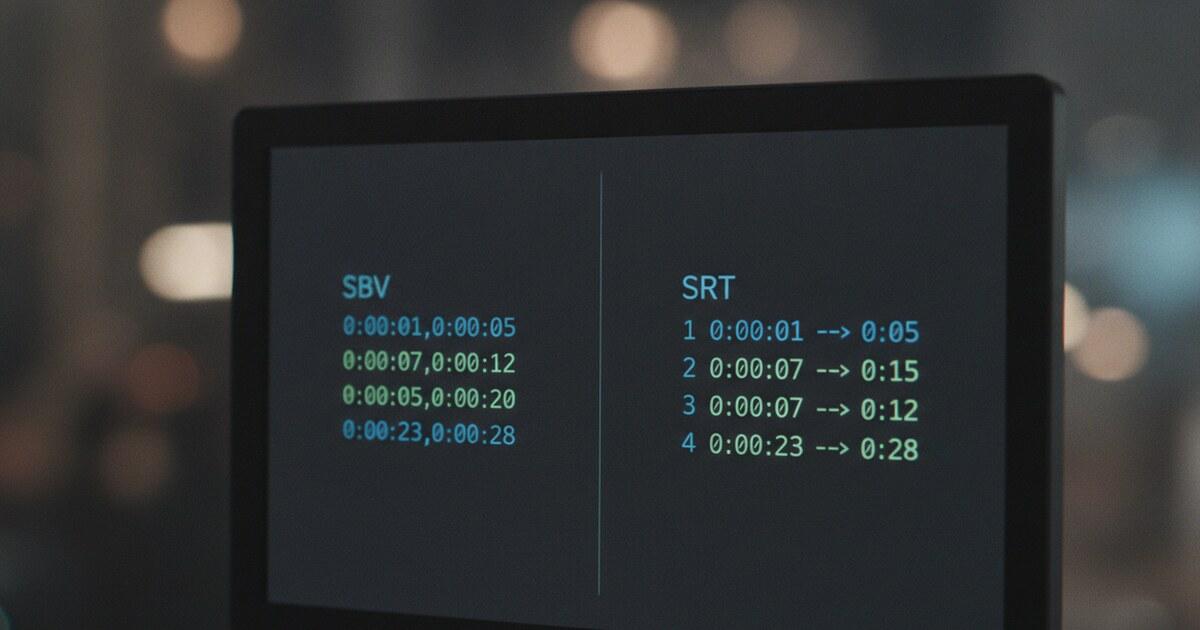
Downloaded captions from YouTube and got a .sbv file? SBV is YouTube's native subtitle export format. It's close to SRT, but the timestamp syntax differs in three specific ways, and most video editors won't accept SBV directly. Converting SBV to SRT takes about 2 minutes once you know what needs to change.
This guide covers three methods: a manual text editor approach, a free online converter, and a way to get SRT directly from PixScript without dealing with SBV at all.
To convert SBV to SRT, open the file in a text editor and make three changes: add a sequential number before each subtitle block, replace the comma between start and end timestamps with -->, and swap the period in millisecond values for a comma. Free online converters like SubtitleKit automate all three steps in under 10 seconds.
What Is SBV and Why Does It Need Converting?
SBV (SubViewer) is the subtitle format YouTube uses when you export captions from YouTube Studio. The format dates back to SubViewer 2.0, a subtitle editor from the late 1990s. Each subtitle block contains a timestamp line and the spoken text, with no sequence numbers. The timestamp syntax looks like this: 0:00:04.000,0:00:06.500 (a start time and end time separated by a comma, with milliseconds marked by periods).
SRT (SubRip Text) dates to around 2001, created by Nicolas Wallon for the SubRip ripper program. It's the most universal subtitle format available, supported by VLC, Premiere Pro, DaVinci Resolve, Final Cut Pro, Netflix, Vimeo, and virtually every other platform.
The timestamp syntax differs: 00:00:04,000 --> 00:00:06,500. Hours are always zero-padded to two digits, milliseconds use commas, and a --> arrow separates start from end time. SRT also requires a sequential number before each subtitle block.
These three structural differences are exactly what you're fixing when you convert from SBV to SRT. If you want a full breakdown of the SRT format before diving in, the guide to SRT files covers the structure and syntax in detail.
Here's a side-by-side of the two formats so you can see the differences at a glance:
| SBV | SRT | |
|---|---|---|
| Sequence numbers | None | Required (1, 2, 3...) |
| Hours format | Single digit (0:) | Two digits (00:) |
| Milliseconds separator | Period (.) | Comma (,) |
| Start/end separator | Comma (,) | Arrow (-->) |
Method 1: Convert SBV to SRT Manually With a Text Editor
For small files, a text editor is the fastest path.
You'll need any plain text editor: Notepad on Windows, TextEdit on Mac (switch to plain text mode via Format > Make Plain Text), or VS Code if you want regex find-and-replace.
Here's what an SBV file looks like:
0:00:04.000,0:00:06.500
Hello, welcome to this tutorial.

0:00:07.000,0:00:09.500
Today we're covering subtitle formats.
And here's the same content in SRT:
1
00:00:04,000 --> 00:00:06,500
Hello, welcome to this tutorial.

2
00:00:07,000 --> 00:00:09,500
Today we're covering subtitle formats.
Three changes to make:
-
Add sequence numbers. Before each timestamp line, add a number starting at 1. Each subtitle block gets the next number in sequence.
-
Fix millisecond separators. Replace every period (
.) in the timestamps with a comma (,). SBV writes04.000; SRT needs04,000. -
Fix the timestamp separator. The comma between start and end time becomes
-->(with a space on each side). Also pad single-digit hours:0:00:04becomes00:00:04.
For transcripts of 20 subtitle blocks or fewer, do this by hand. For anything longer, VS Code's regex find-and-replace handles most of the timestamp work in one pass.
VS Code regex approach:
Open the .sbv file in VS Code. Use Find & Replace (Ctrl+H on Windows, Cmd+H on Mac) with the regex mode turned on (click the .* button):
- Find:
(\d):(\d{2}:\d{2})\.(\d{3}),(\d):(\d{2}:\d{2})\.(\d{3}) - Replace:
0$1:$2,$3 --> 0$4:$5,$6
This converts every timestamp line in one pass. The sequence numbers still need to be added manually (or via a macro), but the timestamp conversion is instant on files of any length. If your .sbv file contains [br] tags in the subtitle text, replace those with actual line breaks before you start the timestamp conversion.
Method 2: Convert SBV to SRT With a Free Online Converter
For most people, an online converter is the quickest option with no setup required.
SubtitleKit converts SBV to SRT in-browser with no file upload. The conversion happens client-side, meaning your subtitles never leave your computer. It supports batch conversion too, which is useful if you have multiple SBV files from a series.
Steps:
- Go to SubtitleKit and find the convert-to-SRT page.
- Drag your .sbv file into the upload area.
- The tool detects the format and converts automatically.
- Download the .srt file.
The whole process takes under 10 seconds for typical subtitle files. SubtitleKit preserves timing exactly and handles multi-line entries cleanly.
GoTranscript's subtitle converter is another solid option with a broader range of input formats and batch processing support. Free to use, no account required.
After converting with either tool, open the resulting .srt file in a text editor and spot-check the first few lines. The timestamps should follow HH:MM:SS,mmm --> HH:MM:SS,mmm with two-digit hours and commas for milliseconds. If those look right, the file is ready to import.
One edge case: if the online converter produces a file with .txt as the downloaded extension, rename it to .srt. The file contents are correct either way — the extension just tells video software how to read it.
Method 3: Get SRT Directly From PixScript (Skip SBV Entirely)
If you're working with YouTube videos, there's a path that cuts out SBV completely.
PixScript lets you paste any YouTube URL and get a timestamped transcript. You can then export it directly as SRT, without touching YouTube Studio's export menu or converting any files.
How it works:
- Copy the YouTube video URL.
- Paste it into PixScript at pixscript.com.
- The transcript generates in about 30 seconds.
- Click Export and select SRT.
You skip the YouTube Studio export step, skip the .sbv file, and get a clean .srt in one move. This is especially useful when YouTube's auto-captions aren't accurate. PixScript's transcription tends to handle accented speakers and technical vocabulary better than YouTube's built-in captions, so the SRT you get is often cleaner than what you'd get by downloading and converting the YouTube SBV.
PixScript also exports VTT, PDF, and plain text from the same session. So if you need multiple formats from one video, you can grab them all without running separate conversions. The guide on creating SRT files from video goes deeper on this workflow if you need more context.
The free tier covers 10 transcripts per month with TXT export only. SRT export requires a Pro account ($9/month or $69/year).
Which Method Should You Use?
A quick breakdown:
- Manual text editor: You have a small file (fewer than 100 subtitle blocks), you're comfortable with text editors, and you want zero tool dependencies. Good for one-off fixes.
- Online converter (SubtitleKit): You have an SBV file and need SRT in under 30 seconds. The fastest path for most people.
- PixScript: You're starting from a YouTube URL, the existing captions are inaccurate, or you want to skip the YouTube Studio export step entirely. Best for regular YouTube workflows.
For one-off conversions of existing SBV files, the online converter wins on speed. For anyone pulling subtitles from YouTube regularly, PixScript saves the extra step every time.
Frequently Asked Questions
Can I just rename the .sbv file to .srt?
No. Renaming changes the file extension but doesn't fix the internal format. The timestamps inside still use SBV syntax: commas between start and end time, periods for milliseconds, no sequence numbers. Most players and editors will reject the file or display garbled timecodes.
Why does YouTube export captions as SBV instead of SRT?
YouTube Studio lets you download captions in both formats. In the Subtitles section of your video, click the three-dot menu next to any caption track and choose Download. You'll see format options including SBV and SRT. If you've only been seeing SBV, check that you're using the right download option in that menu.
Will the converted SRT file work in Premiere Pro and DaVinci Resolve?
Yes. Both apps import SRT natively. In Premiere Pro, add a captions track and use Import > Captions. In DaVinci Resolve, right-click the Edit page timeline and choose Import Subtitle. Timing carries over exactly from the original SBV, so sync won't drift.
What's the actual difference between SBV and SRT timestamps?
SBV uses 0:00:04.000,0:00:06.500 (single-digit hours, periods for milliseconds, comma separates start from end time). SRT uses 00:00:04,000 --> 00:00:06,500 (two-digit hours, commas for milliseconds, --> arrow between start and end time). SRT also adds a sequential number before each subtitle block; SBV has none.
Does PixScript support languages other than English?
Yes. PixScript transcribes in the original language of the video. Translation is available on Pro (10 languages) and Business (50+ languages) plans. SRT export with translated text works the same way as with English. If you're deciding between SRT and VTT for your platform, the SRT vs VTT comparison explains which format each platform prefers.
Converting SBV to SRT comes down to three structural changes: adding sequence numbers, fixing the timestamp separator, and swapping period-milliseconds for comma-milliseconds. An online converter handles all three automatically in under 10 seconds. If you work with YouTube videos regularly and want to skip SBV altogether, PixScript exports SRT directly from any YouTube URL. Try it at pixscript.com.