 PixScript
Closed Captions vs Subtitles: What's the Difference?
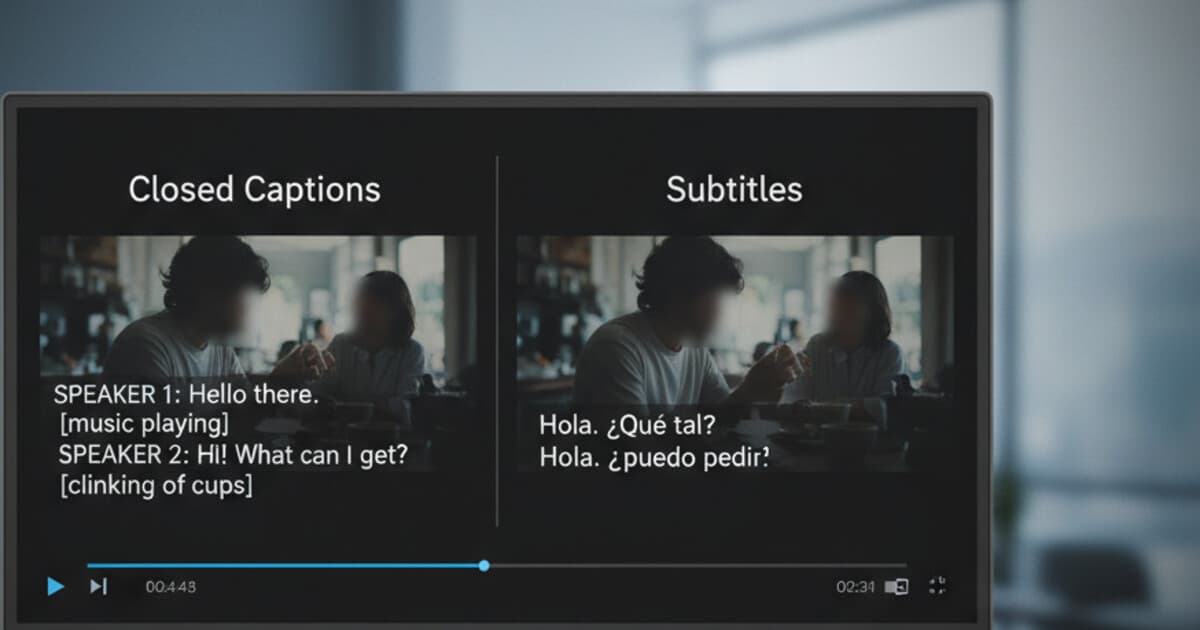
Most people use "captions" and "subtitles" interchangeably. Platforms do it too. YouTube labels everything "Subtitles/CC." Netflix menus mix the two without explanation. But they're not the same, and choosing the wrong one can leave the wrong audience without access to your content or create compliance problems you didn't see coming.
Here's exactly what sets them apart, when each applies, and how to create both.
Closed captions are designed for viewers who are deaf or hard of hearing. They include all audible content: dialogue, sound effects, and speaker identification. Subtitles are for hearing viewers who don't understand the spoken language. They show dialogue only, translated or in the original language. Both appear as on-screen text, but they serve different audiences and contain different information.
What Are Closed Captions?
The word "closed" means viewers can toggle them on or off. Open captions are burned directly into the video frame and always visible. Closed captions are a separate layer the viewer controls.
A complete set of closed captions includes everything a viewer needs to follow the audio:
- All spoken dialogue, verbatim
- Non-speech sounds: [music playing], [door slams], [phone ringing], [applause]
- Speaker labels when multiple voices are present
That last point matters a lot in interview-style or panel content. A deaf viewer can't tell from a transcript alone who's speaking. Proper captions make the conversation follow-able.
Closed captions improve reach well beyond accessibility audiences. Verizon Media research found that 69% of people watch video with the sound off in public spaces. Preply's data shows that 80% of caption users have no hearing impairment, meaning captions primarily serve hearing viewers who are choosing to watch without audio. The legal layer adds requirements on top of that. In the United States, the Americans with Disabilities Act and Section 508 of the Rehabilitation Act require accessible video for federal agencies, educational institutions, and organizations receiving federal funding. The FCC mandates captions on broadcast TV and covered streaming programming. The European Accessibility Act, which came into full effect in June 2025, extends digital accessibility requirements across EU member states. For video publishers, captions are both a compliance requirement and a reach tool. Any video published on YouTube, LinkedIn, or a company website with a mixed audience benefits from a complete caption file.
Captions ship as SRT or VTT files. These are plain text files with timestamps that video players load and display as toggleable overlays. YouTube, Vimeo, LinkedIn, and most platforms accept SRT natively.
If you want a full breakdown of those file types, SRT vs VTT: Which Subtitle Format Should You Use? covers every practical difference.
What Are Subtitles?
Subtitles started as a translation tool for foreign-language film. Modern subtitles show spoken dialogue at the bottom of the screen, but they assume the viewer can hear the background audio. They just can't understand the language.
Subtitles show dialogue only. They don't include sound effects or audio cues. A character knocking on a door in a French film might get a subtitle for the line they say, but the knock itself isn't labeled.
There are 2 main types:
Interlingual subtitles: A different language from the audio. Classic translation subtitles for international audiences. When you pick "Spanish subtitles" on an English film, that's interlingual.
Intralingual subtitles: Same language as the audio. Used to help non-native speakers follow dialogue more easily, or for verbatim legal records.
Streaming platforms rely heavily on both. Netflix, Disney+, and Amazon Prime offer subtitle tracks in dozens of languages. Each language track is a separate SRT or VTT file uploaded alongside the video.
One more term worth knowing: SDH subtitles (Subtitles for the Deaf and Hard of Hearing). These sit between traditional subtitles and full captions. They're formatted like subtitles but include sound effect notation. Some streaming platforms require SDH instead of closed captions for technical reasons specific to their players. If a distributor asks for SDH, they want translation-style formatting with accessibility additions.
Closed Captions vs Subtitles: Key Differences
Here's the comparison at a glance:
| Closed Captions | Subtitles | |
|---|---|---|
| Primary audience | Deaf and hard of hearing | Hearing viewers, different language |
| Sound effects included | Yes | No (unless SDH) |
| Speaker identification | Yes | Usually no |
| Language | Same as audio | Usually different |
| Legal requirement | Often yes (US, UK, EU) | No |
| Common formats | SRT, VTT | SRT, VTT, SSA |
Both types use the same file formats. An SRT file can be a caption track or a subtitle track. The difference is in what the text contains, not the file extension.
One persistent source of confusion: YouTube calls everything "subtitles" in its interface. When you upload an SRT to YouTube Studio, it shows as "Subtitles/CC." Whether it functions as captions or subtitles depends entirely on what you put in the file.
When to Use Closed Captions
Use closed captions when your audience includes deaf or hard-of-hearing viewers, when you're publishing on platforms that require accessibility compliance, or when significant non-dialogue audio (music cues, sound effects) carries meaning.
Practically speaking, closed captions are the right choice for:
- YouTube videos (YouTube indexes caption text for SEO and recommends them for all content)
- LinkedIn videos (autoplay is muted by default)
- Branded video on company websites
- Educational content at institutions receiving federal funding
- Any content required to meet ADA or Section 508 standards
Captions also help with SEO. Search engines can't watch video, but they can read an SRT file that YouTube has indexed. Captioned videos tend to rank better in YouTube search because the full transcript gives the algorithm more text signals to work with.
For a step-by-step walkthrough of uploading captions to a specific platform, How to Add Captions to a YouTube Video covers the process from SRT file to live captions.
When to Use Subtitles
Use subtitles when you're reaching audiences who speak a different language or when a streaming distributor specifically requests subtitle tracks.
Common use cases:
International distribution: You have an English-language video and want Spanish, French, and German subtitle tracks for regional audiences. Each language gets its own SRT file.
Film and streaming submissions: Major platforms and distributors have specific formatting specs. They often ask for subtitle tracks by language separately, sometimes alongside a closed caption file for the source language.
Localization at scale: If your brand produces content across markets, a subtitle workflow keeps dialogue accessible without requiring separate video productions per language.
For content aimed purely at a domestic market with no translation needs, closed captions cover both hearing-impaired and general audiences. If you're also targeting international viewers, you'll want closed captions in the source language plus subtitle tracks in each target language.
How PixScript Handles Both
Creating captions and subtitles from scratch is slow. PixScript strips the transcript from a video in seconds, with timestamps already formatted for SRT or VTT export.
Paste a YouTube URL, a TikTok link, an Instagram Reels URL, or a YouTube Shorts link. Or upload an MP3 or MP4 file directly. The transcript comes back with timestamps, ready to download as an SRT or VTT file.
That SRT file works as a closed caption track on YouTube or as a subtitle track on any platform. The content inside determines which it is: if you've kept speaker labels and sound effect notation, it's captions. If it's dialogue-only, it's subtitles.
For subtitle translation, PixScript's translation feature converts the transcript into another language. On Pro ($9/month), you get 10 languages. On Business ($19/month), it's 50+ languages. You can run a source-language SRT for captions and translated SRTs for subtitle tracks all from a single transcript without switching tools.
The free tier gives you 10 transcripts per month with TXT export. SRT and VTT export require a Pro plan.
If you're creating SRT files for the first time, How to Create an SRT File From a Video walks through exactly what goes into the file and how to format it correctly.
Frequently Asked Questions
Are closed captions and subtitles the same thing? They look the same on screen but serve different audiences. Closed captions are for deaf and hard-of-hearing viewers and include sound effects, speaker labels, and all audible content. Subtitles are for hearing viewers who don't understand the spoken language and show dialogue only. Many platforms use the terms interchangeably, which is where the confusion comes from.
Do I need closed captions or subtitles on YouTube? YouTube recommends captions for all videos. If your channel is monetized or your content falls under educational or institutional publishing, captions may be required. Even when they're optional, captions help with YouTube SEO because the platform indexes caption text. They also keep viewers watching when they can't use audio, which improves watch time.
What file format should I use for closed captions? SRT works on YouTube, Vimeo, Facebook, LinkedIn, and most video editing tools. VTT is better for HTML5 web players. Start with SRT. Most platforms accept it without conversion, and it's easy to open in any text editor if you need to make adjustments.
What's the difference between open and closed captions? Closed captions are a toggleable layer viewers can turn on or off. Open captions are burned permanently into the video frame. Open captions are useful on social platforms where SRT upload isn't supported and videos autoplay without sound. For platforms that support SRT files, closed captions give viewers the choice.
Can PixScript create both captions and translated subtitles? Yes. Transcribe your video with PixScript to get timestamped text. Export as SRT for a closed caption track. Then use the translation feature to generate subtitle tracks in other languages, each exported as a separate SRT. Pro gives you 10 languages, Business gives you 50+.
Conclusion
Closed captions and subtitles serve different purposes even when they look the same on screen. Captions cover deaf and hard-of-hearing viewers with full audio descriptions including sound effects and speaker labels. Subtitles cover hearing viewers who need the dialogue in a different language.
For most video creators, start with closed captions. If your audience spans multiple languages, add translated subtitle tracks on top.
PixScript handles both: paste a URL or upload a file, download the SRT, translate into any language you need. Start with 10 free transcripts per month at pixscript.com.