 PixScript
How to Get a Castos Transcript (3 Methods)
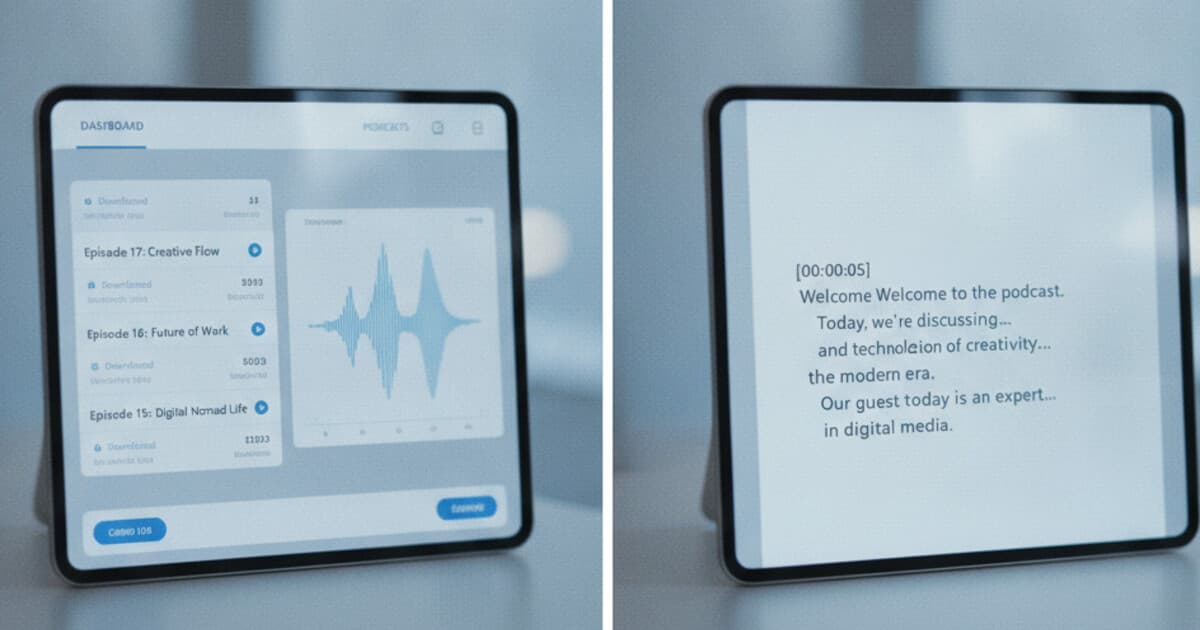
Castos is a podcast hosting platform built around a flat monthly fee and tight WordPress integration through the Seriously Simple Podcasting plugin. Thousands of independent podcasters use it to host, distribute, and grow their shows without worrying about per-episode costs.
What it doesn't do well out of the box is give you transcript text you can actually work with. Castos has a transcription add-on, but it has gaps: no SRT export, no AI summary, and no translation. If you need a proper Castos transcript, there are 3 reliable ways to get it.
To get a Castos transcript, check the episode page first. If the host has Castos's transcription add-on enabled, the text may already be there. If nothing's published, upload the episode MP3 to PixScript. The free tier covers 10 transcripts per month with TXT export. Pro ($9/month) adds SRT files, timestamps, AI summaries, and translation.
Does Castos Have Built-In Transcription?
Yes. Castos introduced its transcription add-on in 2023, priced per minute of audio. The tool uses AI to generate a readable text file that embeds in episode show notes and publishes to your podcast website.
It connects directly to your Castos dashboard, so there's no separate account to set up. The gaps show up when you need more than plain text. There's no SRT or VTT export for YouTube captions, no AI summary for show notes, and no translation for non-English audiences.
Podcast transcription serves several different needs: basic text for episode pages, SRT files for captioning video versions, AI summaries for show notes and newsletters, and translation for multi-language audiences. Castos handles the first use case through its add-on. The broader market context matters here: the number of independent podcasters publishing episode transcripts grew roughly 60% between 2022 and 2024, driven by Google's decision to index podcast audio content and by WCAG 2.1 accessibility guidelines gaining traction with creators. Most podcasters now publish transcripts for SEO as much as accessibility. A standard 30-minute episode produces 4,000 to 5,000 words of searchable text, which rivals a long-form blog post for organic reach. Tools that go beyond basic text, adding SRT export, AI rewrite, and translation, let podcasters pull more value from each recording without additional editing time.
Method 1: Check the Episode Page for a Published Transcript
Before downloading anything, check the episode page on the podcast's website. If the host uses the Castos transcription add-on and has it enabled for the episode, the transcript text will appear there.
Where to look:
- Scroll below the audio player on the episode page for a "Transcript" or "Read the Episode" section
- Check the show notes section in your podcast player app: some hosts paste a transcript link there
- Look at the episode RSS entry: Castos publishes transcripts to the feed using the
<podcast:transcript>namespace element, which some apps surface directly
If the host has published the transcript through Castos, you can copy the text directly from the episode page. Many Castos podcasters who have the add-on enabled apply it episode by episode rather than to the whole catalog, so older episodes may not have it even if recent ones do.
If the episode page has no transcript, move to Method 2.
Method 2: Get Your Castos Transcript With PixScript
This method works for any Castos episode, whether you're the show host or a listener. Every Castos episode has a public MP3 file. PixScript accepts direct audio URLs and local file uploads.
Finding the episode MP3:
- If you're the host, log into your Castos dashboard, open the episode settings, and copy the direct media file URL listed there
- If you're a listener, right-click the audio player on the episode page and choose "Copy audio address" or "Save audio as" to get the file
- Alternatively, view the page source and search for ".mp3" to find the direct link
Transcribing it in PixScript:
- Go to pixscript.com
- Paste the MP3 URL into the URL field, or click "Upload File" and select the downloaded episode
- Wait for the transcript to generate (under 2 minutes for a 30-minute episode)
- Download as TXT, PDF, SRT, or VTT depending on your plan
The free tier covers 10 transcripts per month with TXT export. Pro ($9/month or $69/year) adds SRT and VTT export, timestamps, AI summary, AI rewrite, and translation into 10 languages. Business ($19/month or $149/year) lifts the file length cap entirely and supports bulk processing of up to 100 URLs at once.
Timestamps are included on Pro and Business plans. For a host who posts video versions of episodes on YouTube, the PixScript SRT file uploads directly to YouTube's subtitle manager without any manual timing adjustments. That's the gap the Castos add-on can't fill.
The guide to transcribing a podcast episode for free goes deeper on the upload workflow, including tips for longer recordings and multi-speaker interviews.
Method 3: Use PixScript for SRT, AI Summary, or Translation
Plain TXT covers the accessibility use case. For podcasters doing more with their content, PixScript's additional features pull extra value from each transcript run.
SRT and VTT export: Castos doesn't generate subtitle files from its transcription add-on. PixScript exports both SRT and VTT on Pro plans, with accurate timestamps tied to the audio. SRT files work with YouTube, Vimeo, Wistia, and most video editors. If you publish video versions of your podcast, the SRT from PixScript turns it into a fully captioned video in one upload.
AI summary: PixScript generates a condensed summary automatically after transcription. A 60-minute conversation becomes a 5-sentence summary covering the main topics and takeaways. For show notes, email newsletters, or social posts, the summary is ready to paste without reading thousands of words of raw transcript.
AI rewrite: Converts raw transcript text into a structured blog post draft. Filler words, false starts, and conversational loops get stripped out. The result isn't a finished article, but it's a solid draft that cuts editing time considerably for hosts who publish companion posts alongside each episode.
Translation: Pro covers 10 languages. Business covers 50+. Useful for shows with Spanish, Portuguese, French, or German-speaking audiences. The translated transcript can become a standalone show notes page or social content targeting those language communities.
The process is the same regardless of which hosting platform distributed the episode. If you've already done this for a show on Podchaser, the steps here are identical. The best podcast transcription software guide compares tools across all these features if you're evaluating options beyond PixScript.
Which Method Works Best for You?
Castos hosts with the transcription add-on: Start with the Castos dashboard. If you've paid for the add-on and the transcript is already generated, copy it from there. Use PixScript when you need SRT export for YouTube captions, an AI summary for show notes, or translation for international listeners.
Podcast listeners needing text for research: Use Method 2. Right-click the audio player on the show's website to get the MP3 file, then upload it to PixScript's free tier. Ten transcripts per month covers most one-off research or note-taking needs without paying anything.
Podcasters repurposing content across platforms: Run Methods 2 and 3 together in one session. Transcribe the episode, grab the SRT for YouTube, use the AI rewrite to draft a companion blog post, and copy the AI summary for your newsletter. One PixScript run covers all of it.
Shows expanding to international audiences: Transcribe via Method 2, then apply translation through Method 3. An English-language episode can become a formatted transcript in Spanish, French, and Portuguese in the same session, with no additional recording required.
Frequently Asked Questions
Does Castos have built-in transcription?
Yes, but with limits. Castos offers a transcription add-on that generates plain text for episode pages. It doesn't export SRT or VTT files, and there's no AI summary or translation built in. For subtitle export, AI rewrite, or multi-language support, upload your Castos episode MP3 to PixScript.
How do I get a Castos transcript for free?
Download the episode MP3 from your Castos dashboard or right-click the audio player on the episode page to grab the file URL, then upload it to PixScript. The free tier covers 10 transcripts per month with TXT export at no cost. Pro at $9/month adds SRT, VTT, timestamps, and AI summaries.
Can I export a Castos transcript as an SRT file?
Castos doesn't export SRT or VTT subtitle files from its transcription add-on. To get an SRT, upload your Castos episode MP3 to PixScript. Pro and Business plans export both SRT and VTT with accurate timestamps. The SRT file uploads directly to YouTube's subtitle tool without any manual timing edits.
How do I find the MP3 URL for a Castos episode?
If you're the host, find the direct MP3 link in your Castos episode settings under the media file section. For listeners, right-click the audio player on the episode website and choose "Copy audio address" or "Save audio as." The URL ends in .mp3 and works as a direct upload link in PixScript.
How accurate is AI transcription for podcast audio?
For clear, studio-quality podcast audio, AI transcription tools like PixScript typically reach 95% or higher accuracy. Accuracy drops with strong accents, heavy crosstalk, or poor recording quality. For interviews with multiple speakers, speaker diarization isn't a current PixScript feature, so names will need to be added manually after transcription.
If you host on Castos and want SRT files, AI summaries, or translation alongside your transcripts, upload your episode MP3 to PixScript. Free for 10 transcripts per month. Try it at pixscript.com.