 PixScript
How to Get a Buzzsprout Transcript (3 Methods)
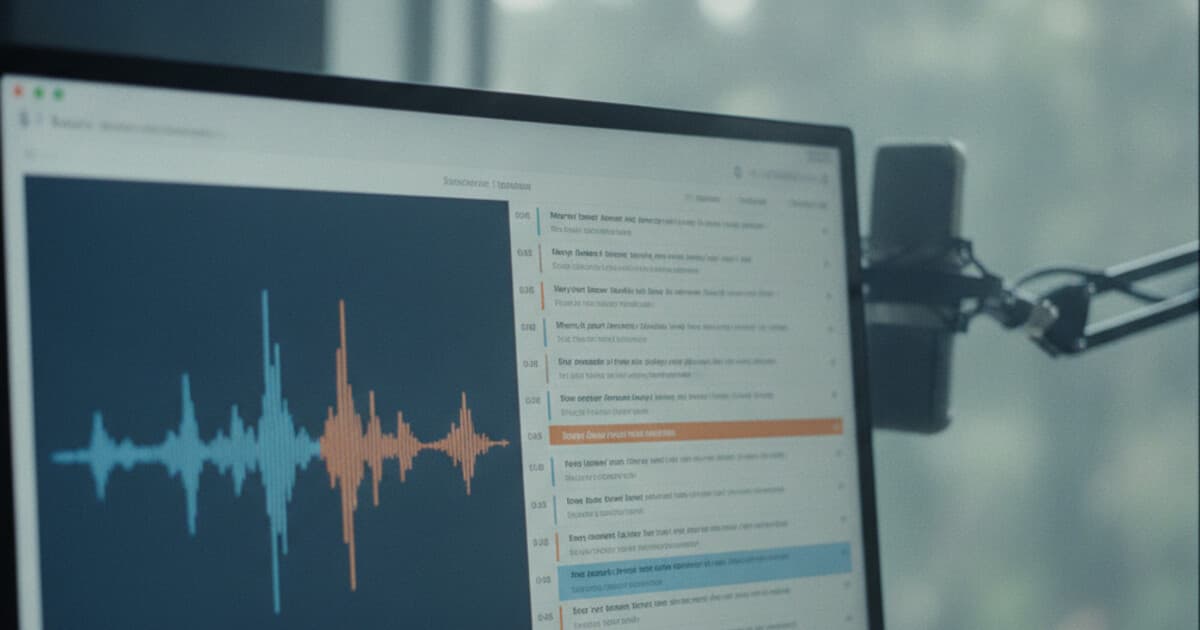
Buzzsprout makes podcast hosting straightforward, but getting a clean transcript out of it is a separate task entirely. You might want one for show notes, for accessibility, to help Google index your episode content, or to repurpose the audio into a blog post. All valid reasons — and all require different approaches depending on what you're trying to do with the text.
This guide covers 3 ways to get a Buzzsprout transcript. Two use tools outside Buzzsprout, one uses Buzzsprout's own feature. Each has trade-offs in cost, flexibility, and how much control you get over the output.
To get a Buzzsprout transcript, download your episode's MP3 from the Buzzsprout dashboard and upload it to a transcription tool like PixScript. You'll have a timestamped transcript in under 3 minutes. Buzzsprout also offers native AI transcription as a paid add-on at approximately $0.25 per minute, though it doesn't support SRT or VTT file downloads.
Does Buzzsprout Have Built-In Transcription?
Yes — Buzzsprout has native AI transcription, but it's a paid feature priced per minute of audio. A 30-minute episode costs around $7.50. A full 60-minute episode runs about $15. There's no subscription option; you pay per transcription.
The transcript appears on your episode's public page, below the audio player. Search engines can index that text, which is useful for podcast SEO. Spotify and Apple Podcasts also pull transcript data to display synced text while listeners follow along.
Buzzsprout's AI transcription service charges approximately $0.25 per minute of audio and generates text that displays on the episode's public page. This makes the content crawlable by search engines: Google treats the transcript as indexable text tied to the episode's topic, which can improve rankings for long-tail search terms related to what was discussed. Spotify and Apple Podcasts also use transcript data to display synced reading while listeners follow along. However, Buzzsprout's transcription has real limitations for podcasters who want to repurpose content. There's no downloadable SRT or VTT subtitle file, no timestamps in an exportable format, and no AI summary or rewrite tool. Podcasters who need transcripts for YouTube caption files, show notes drafts, or blog post conversions typically download the MP3 and use a dedicated transcription tool instead, since those tools offer multi-format export and AI features that Buzzsprout doesn't provide.
The output is also platform-locked. You can copy and paste the text manually, but there's no export button, no SRT file, and no timestamps in a format most tools recognize. If your workflow involves turning episodes into written content, you'll hit those walls quickly.
Method 1: Download and Transcribe With PixScript
This method works for any Buzzsprout episode and gives you the most control over what you get out.
Step 1: Download your episode MP3
Log into your Buzzsprout account and go to Episodes. Open the episode you want to transcribe. The cleanest way to get the MP3 is to right-click the audio player on the episode's public page and select "Save audio as." You can also find the direct audio URL in your podcast's RSS feed: open the feed in a browser, find the <enclosure url> tag for your episode, and copy that link.
Step 2: Upload to PixScript
Go to pixscript.com and sign in or create a free account. Choose the file upload option, drag in your MP3, and click Transcribe. PixScript processes audio at roughly 10x real-time speed, so a 30-minute episode takes about 3 minutes. A 60-minute episode finishes in 5 to 6 minutes.
Step 3: Export in whatever format you need
Once it's done, you'll see the full transcript with timestamps at each line. From there, you can:
- Download as TXT for show notes editing
- Export as SRT or VTT for captioning a YouTube upload of the episode
- Download as PDF for sharing or archiving
- Use AI Summary to get a condensed episode overview in seconds
- Run AI Rewrite to turn the transcript into a structured blog post draft
The free tier covers 10 transcripts per month with a 5-minute file limit per upload. Pro at $9/month removes the length cap and unlocks SRT, VTT, PDF exports, timestamps, AI Summary, and AI Rewrite. Business at $19/month adds bulk processing, longer files, and 50+ translation languages.
If you regularly turn podcast audio into written content, the guide on how to convert a podcast to a blog post covers the full workflow in detail.
Method 2: Buzzsprout's Native AI Transcription
If you want the transcript to live on your episode page and help with podcast SEO without any external tools, Buzzsprout's built-in option is the simpler path.
How to use it:
- Open your Buzzsprout dashboard and select an episode.
- Go to the episode's editing panel and look for the Transcription section.
- Choose AI Transcription and confirm. Buzzsprout shows you the cost before charging.
- The transcript generates in a few minutes and publishes automatically to your episode page.
Once it's live, the text is publicly visible and indexed by search engines. Listeners on Spotify and Apple Podcasts may see the transcript synced to the audio as they listen.
The trade-off is that the transcript stays inside Buzzsprout. You can select and copy the text, but that's the extent of it. No export options, no timestamps in any useful format, and no AI tools for summarizing or restructuring the content. For SEO purposes on your episode page, it does the job. For content repurposing, it falls short.
Method 3: Use Your RSS Feed to Get the Audio URL
Every Buzzsprout podcast has a public RSS feed, and that feed contains direct MP3 links for every episode. You can use those links to transcribe without downloading the file first.
How to find the MP3 URL:
- Open your Buzzsprout dashboard and go to Podcast Settings. Find your RSS feed URL.
- Paste the feed URL into a browser. The XML will load with entries for each episode.
- Find the episode you want. Look for the
<enclosure url="...">tag — theurlattribute is the direct MP3 link. - Copy that URL.
Some transcription tools accept audio file URLs directly. Paste the link instead of uploading, and the tool fetches and transcribes it. This avoids the download step entirely, which is useful if you're processing multiple episodes or automating transcription.
The limitation: not all transcription tools accept raw audio URLs. If the one you're using doesn't, fall back to Method 1. The download-and-upload route takes about 2 extra minutes and is more reliable across different tools.
For a full breakdown of tools that handle MP3 files well, the free MP3 to text converter guide covers the main options with real comparisons.
Which Method Should You Use?
Here's the short version.
PixScript (Method 1) is the right choice if you need SRT/VTT subtitle files, AI summary, AI rewrite, or flexible export options. It's the best path for content repurposing and YouTube publishing.
Buzzsprout's native transcription (Method 2) makes sense if you want the transcript to live on your episode page for SEO and accessibility, and you don't need to export or repurpose the text elsewhere.
The RSS feed URL approach (Method 3) works if you want to skip manual downloads and your transcription tool accepts audio URLs directly. Most useful for automation or batch workflows.
Most podcasters doing any kind of content repurposing end up using both: Buzzsprout's native transcription for the episode page, and PixScript for show notes, blog posts, and subtitle files.
What to Do With a Buzzsprout Transcript
A transcript opens up more content from each episode than most podcasters use.
Show notes: A timestamped transcript makes show notes fast. Pull the key topics, quotes, and chapter marks directly from the text. No need to scrub back through the audio to find timestamps.
Blog post: PixScript's AI Rewrite converts a transcript into a structured article. A 45-minute episode produces a 1,000-1,500 word draft in under 60 seconds. It needs editing, but the raw material is there.
YouTube captions: If you upload your podcast to YouTube as video or audio with a static image, an SRT file adds captions that help both accessibility and search. PixScript exports SRT and VTT from any transcript.
Full-text SEO: Publishing the transcript (lightly cleaned up) on your website gives Google 4,000-6,000 words of indexable content per episode. That builds authority around every topic you've covered.
For a broader look at podcast transcription tools and how they compare, see our guide on how to transcribe a podcast episode for free.
Frequently Asked Questions
Does Buzzsprout have built-in transcription?
Yes. Buzzsprout offers AI transcription as a paid add-on priced per minute of audio (approximately $0.25/minute). The transcript displays on your episode page and gets indexed by search engines, but you can't download it as an SRT or VTT file.
How do I transcribe a Buzzsprout episode for free?
Download the MP3 from your Buzzsprout dashboard, then upload it to PixScript. The free tier covers 10 transcripts per month with a 5-minute file limit. For full-length episodes, you'll need a Pro account at $9/month.
Does PixScript support Buzzsprout URLs?
No. PixScript supports YouTube, TikTok, and Instagram Reels URLs directly. For Buzzsprout, download your episode's MP3 file and upload it. The process takes under 2 minutes for most episodes.
Can I get an SRT file from a Buzzsprout transcript?
Buzzsprout's native transcription doesn't export SRT files. If you need SRT or VTT subtitle files — for example, to add captions to a YouTube upload — download your MP3 and run it through PixScript, which exports to SRT, VTT, PDF, and TXT.
How long does it take to transcribe a Buzzsprout episode?
With PixScript, a 30-minute episode finishes in 2 to 3 minutes. Processing speed is roughly 10x real-time, so a 60-minute episode takes about 5 to 6 minutes.
PixScript handles MP3 uploads from any podcast host. Download your Buzzsprout episode, upload it, and you'll have a timestamped transcript with SRT, VTT, and PDF export in under 5 minutes. The free tier covers 10 episodes per month. Try it at pixscript.com.